

Overview
The Feature Management interface within HqO Experience Manager provides a centralized location for configuring all modules and app features. This update replaces the legacy Utility Buttons screen with a more intuitive, powerful tool for managing visibility, access, and presentation of features in the tenant app.
This guide explains how to navigate the Feature Management experience, configure modules, and control which tenants, users, or roles can access them. It also outlines how to customize feature names, icons, and display order in the tenant-facing app.
Why This Change Was Made
Previously, managing utility buttons and modules required navigating multiple screens and configuring complex permissions. This created friction for both landlords and implementation teams.
The new Feature Management screen consolidates all configuration into one place. It uses a simplified rule-based model for access, improves visual customization, and enables easier onboarding and maintenance of app experiences.
Key Capabilities
-
Unified Configuration Screen: Manage all app modules and features from one interface.
-
Simplified Access Model: Replace permissions-based access with clear targeting rules by tenant, user, or role.
-
Custom Display Settings: Configure names, icons, display order, and descriptions.
-
Visibility Control: Enable or disable features and define where they appear in the app.
Features Dashboard
Landing Page Overview
This is the default view when you navigate to the Features section of Experience Manager.
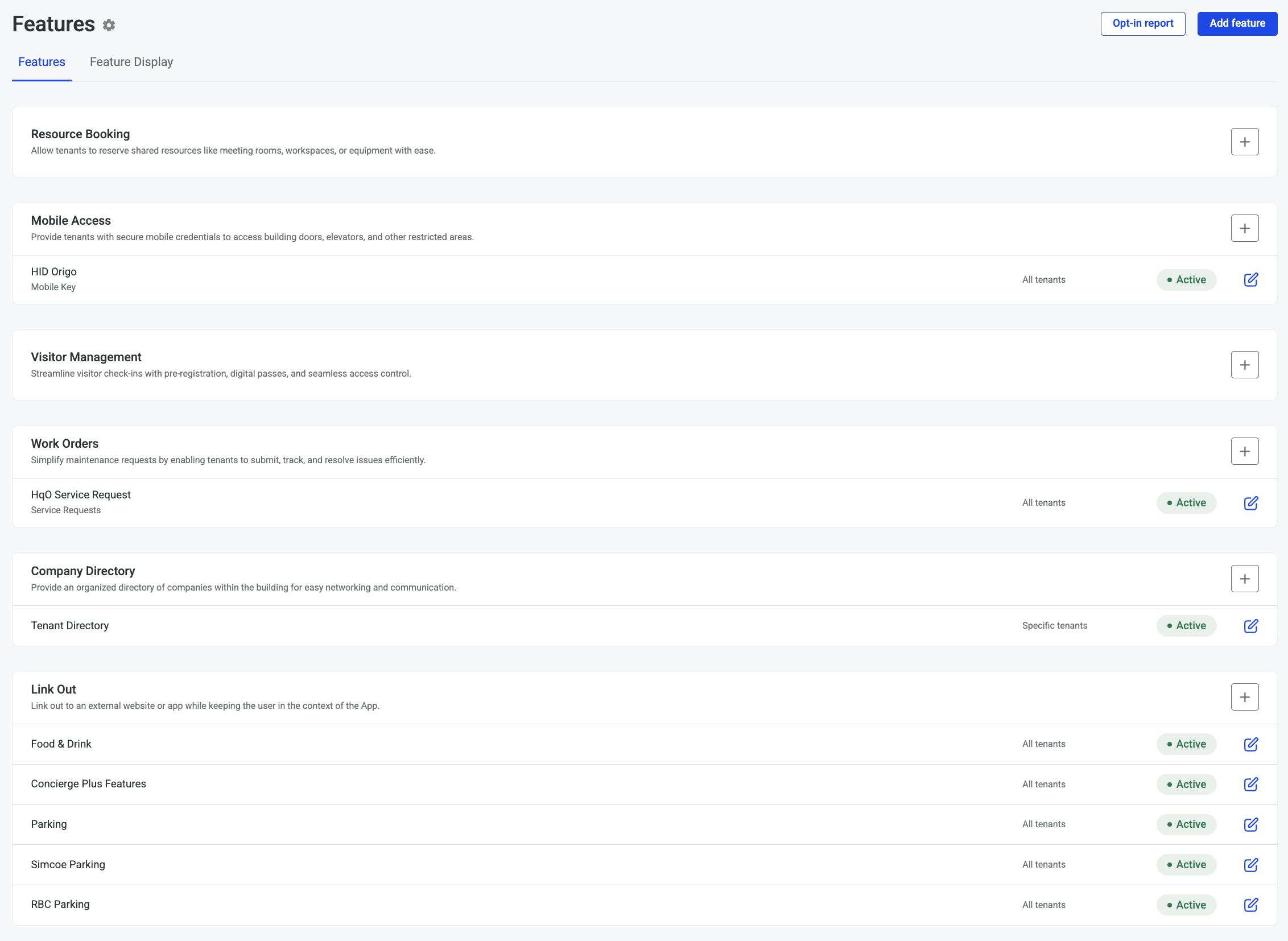
You will see:
-
A list of active and inactive features.
-
Status indicators showing whether a feature is currently live.
-
Feature groupings (e.g., Mobile Access, Visitor Management, Link Out).
-
Edit icons for accessing configuration and display settings.
This dashboard replaces the previous Utility Buttons screen and offers a centralized way to manage your building or portfolio’s digital modules.
Feature Details Page
How to Configure a Feature
Clicking into a feature, such as Mobile Access, brings you to the detailed configuration screen.
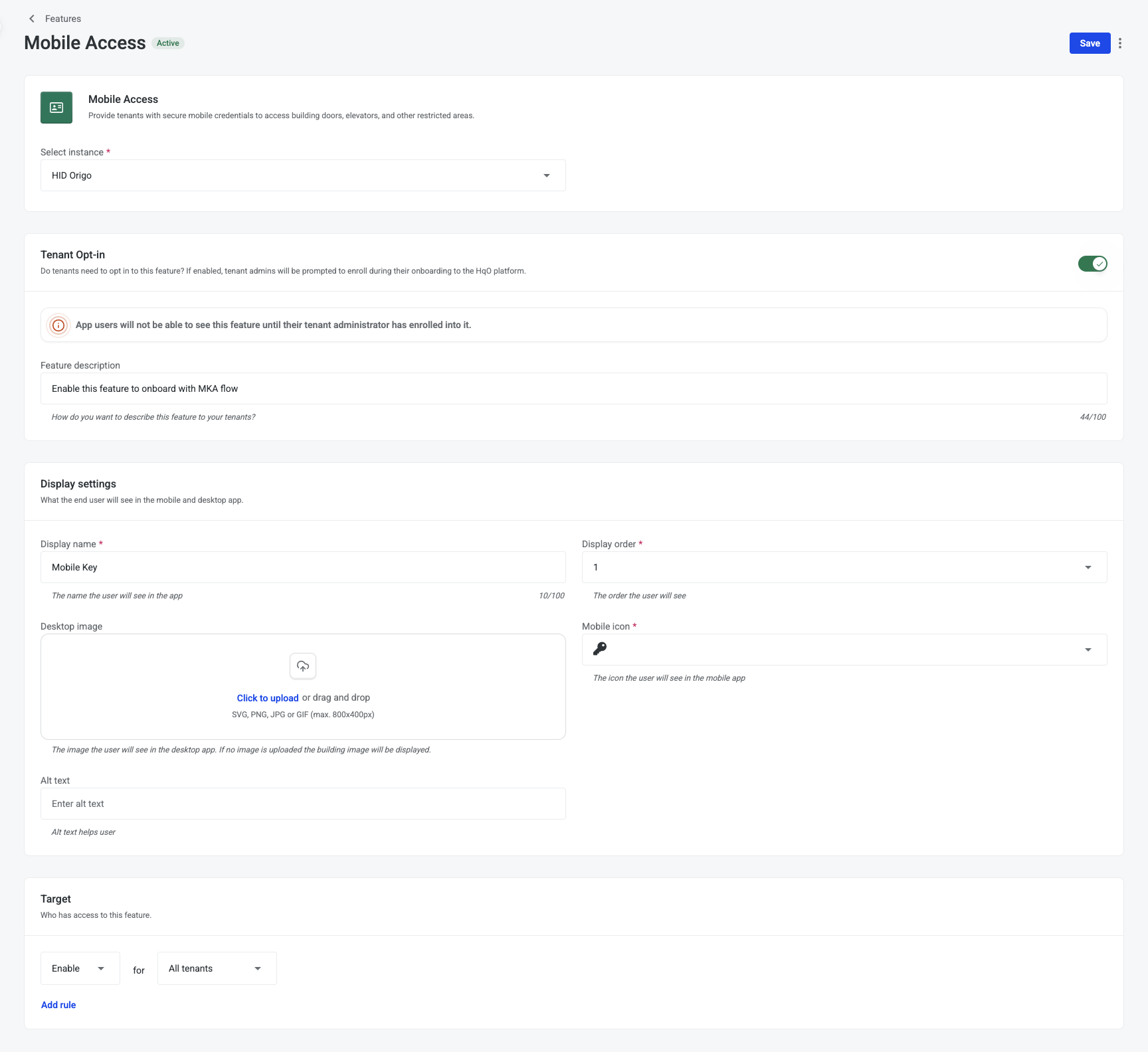
Here, you can:
-
Choose an instance or integration (e.g., HID Origo).
-
Enable or disable tenant opt-in for onboarding flows.
-
Edit display name, order, icon, and upload images for the desktop experience.
-
Write a short description to help users understand what the feature does.
-
Set the target audience (all tenants, specific tenants, users, or roles).
This layout allows you to manage both the functionality and the visual presentation of the feature in one place.
Targeting Rules
Audience Access Controls
The "Target" section lets you define who has access to each module.
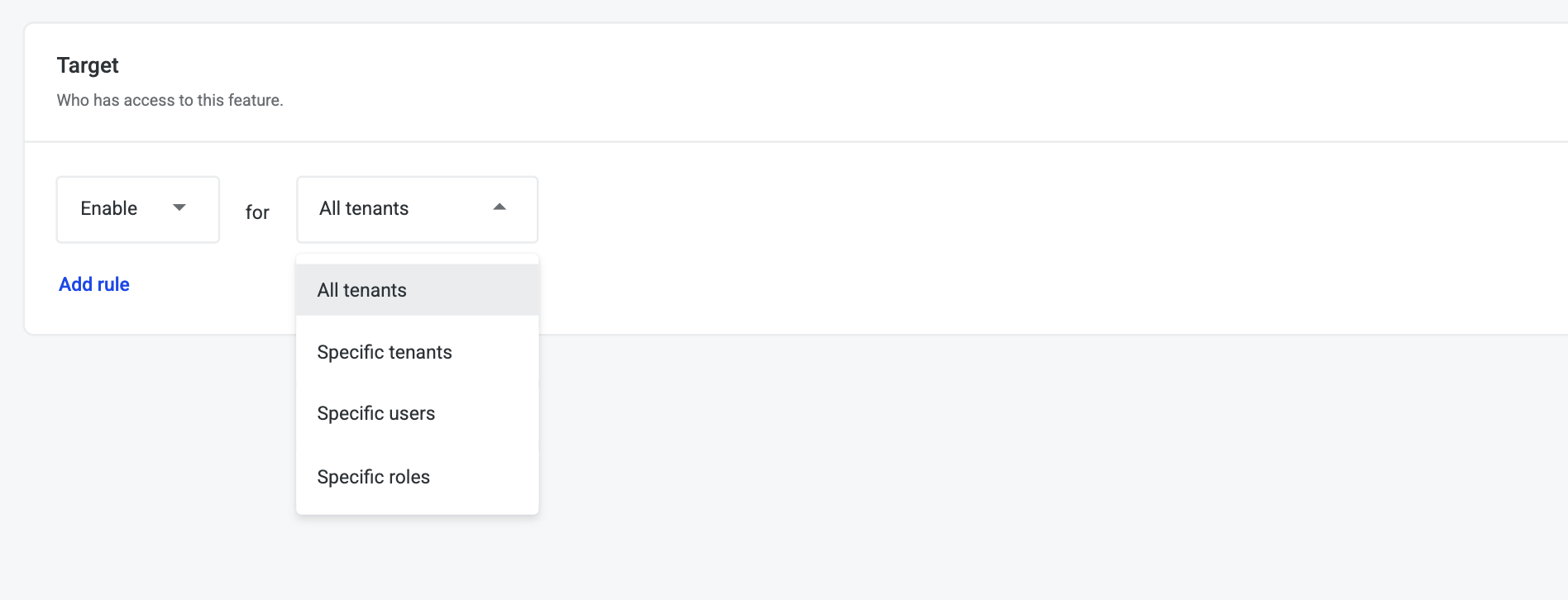
Options include:
-
All tenants
-
Specific tenants (e.g., Cisco only)
-
Specific users
-
Specific roles
You can add multiple rules and control module availability with clarity and precision. This replaces the older permission structures and provides a scalable approach for tenant onboarding and role-based visibility.
Display Configuration
Preview and Customize Feature Order
The Display tab allows you to control how features are arranged in the tenant-facing app.
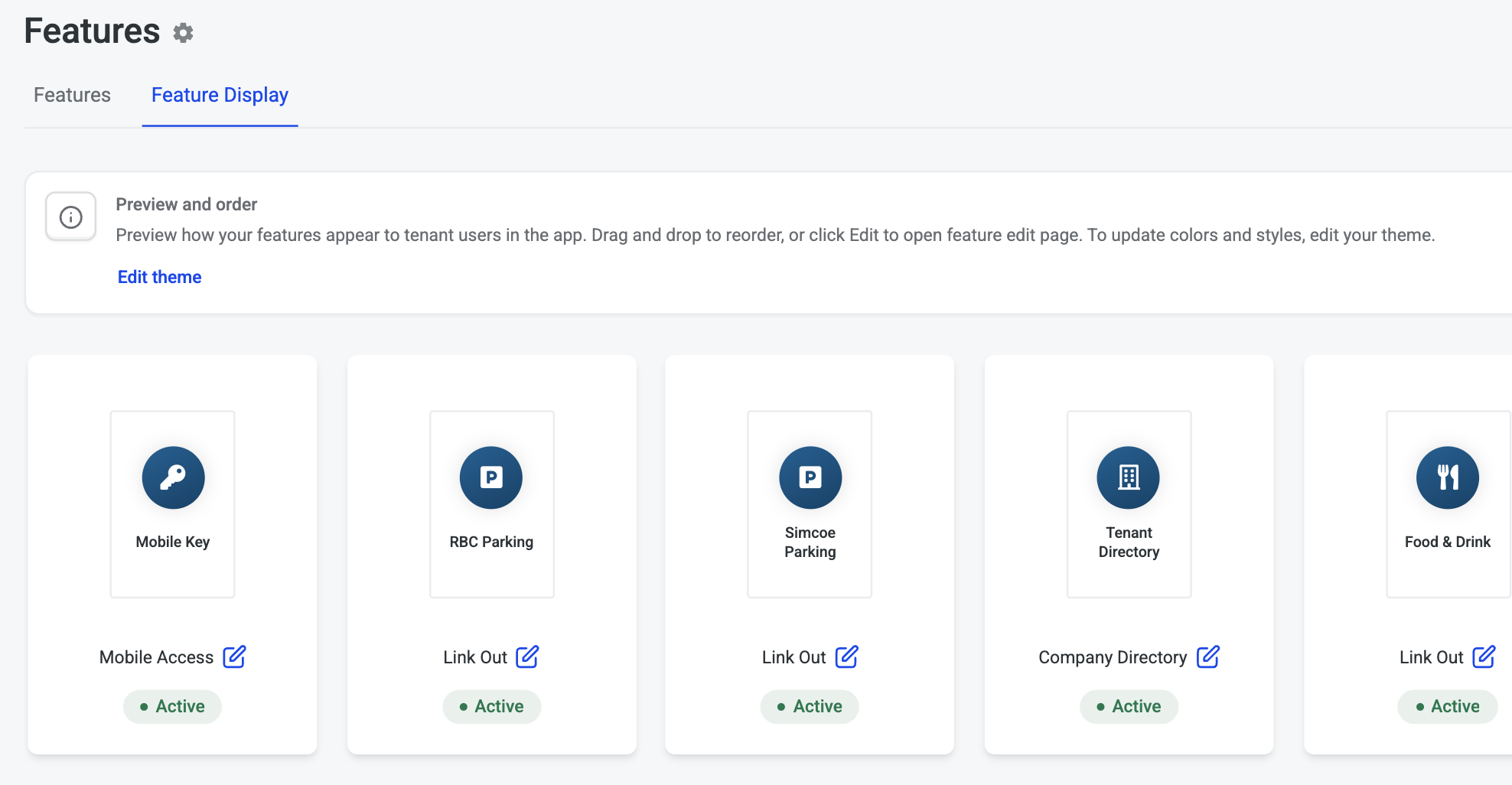
From here, you can:
-
Drag and drop modules to reorder how they appear.
-
Preview icons and names as they will be shown to tenants.
-
Click into each feature to adjust visuals or update descriptions.
This makes it easy to keep your app organized and intuitive, ensuring tenants see the most important features in the right context.
Summary
Feature Management provides a streamlined, flexible way to manage your building's digital experience. Whether you're configuring mobile access, visitor management, directories, or external links, the new interface gives you full control over how features are activated, assigned, and displayed.
By consolidating legacy systems into this modern management tool, HqO enables landlords and operators to build tailored tenant experiences with greater efficiency and less complexity.
If you have questions or need assistance with setup, reach out to your Customer Success Manager or HqO Support.