

Overview
The Loading Dock module helps property teams streamline and secure delivery operations by moving away from manual logs and paper processes. With digital scheduling, driver and vehicle check-in, license plate scanning, and COI verification, the system centralizes all loading dock activity in one place.
For staff, this means faster, more accurate processing of deliveries and greater visibility into dock usage. For vendors and drivers, it ensures a smoother, more professional arrival experience. By reducing congestion, improving compliance, and providing real-time reporting, the Loading Dock module supports efficient building operations while protecting security and compliance standards.
Key Benefits:
-
Streamlined operations - digital pre-scheduling and fast iPad check-ins reduce dock congestion.
-
Enhanced tenant experience - deliveries arrive on time and disruptions are minimized.
-
Greater visibility & insights - real-time dashboards and reports on vendor activity
-
Increased efficiency for staff - property teams focus on higher-value work instead of manual paperwork.
-
Improved compliance & reduced risk - Visibility into COI status within the workflow ensure vendors meet building requirements.
-
Stronger building security - license plate scanning and centralized tracking helping prevent unauthorized access.
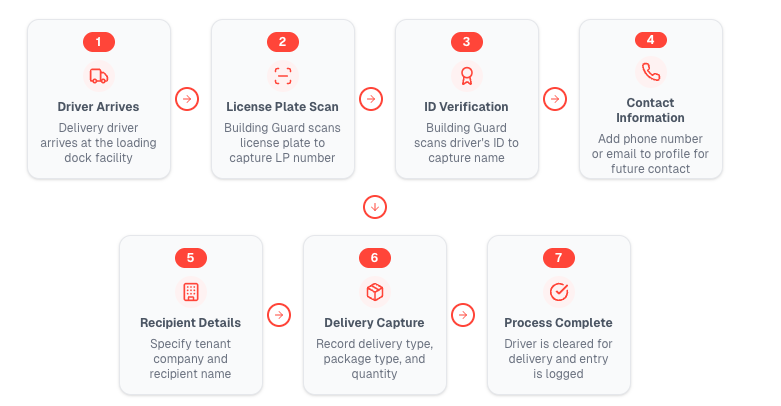
How to Get Started
-
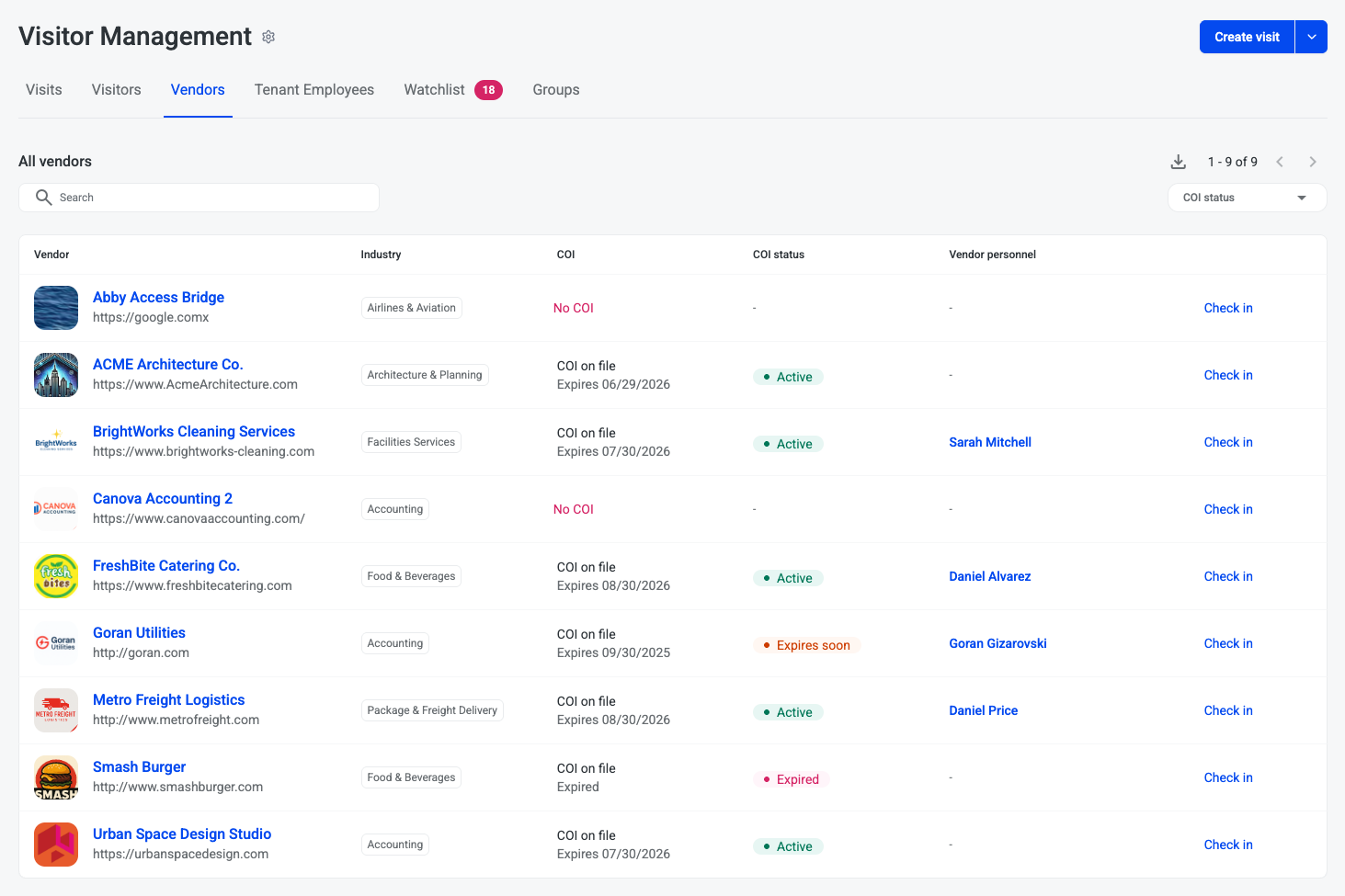
To begin a vendor check-in and delivery, navigate to Visitor Management
-
Navigate to the Vendors tab and search for the Vendor company that the driver works for
-
Review the COI status for that vendor and confirm there is an
active COI on file

-
Click Check in to check in the driver against the pre-approved vendor

-
Capture driver information
-
Click Scan LP button
-
Scan the license plate to capture the License plate number
-
-
-
Click Scan ID button
-
Scan the driver’s ID to capture the First name and Last name of the driver
-
-
Click pencil icon on Photo to capture the driver’s photo
-
Select the carrier company responsible for the delivery using the Vendor company dropdown
-
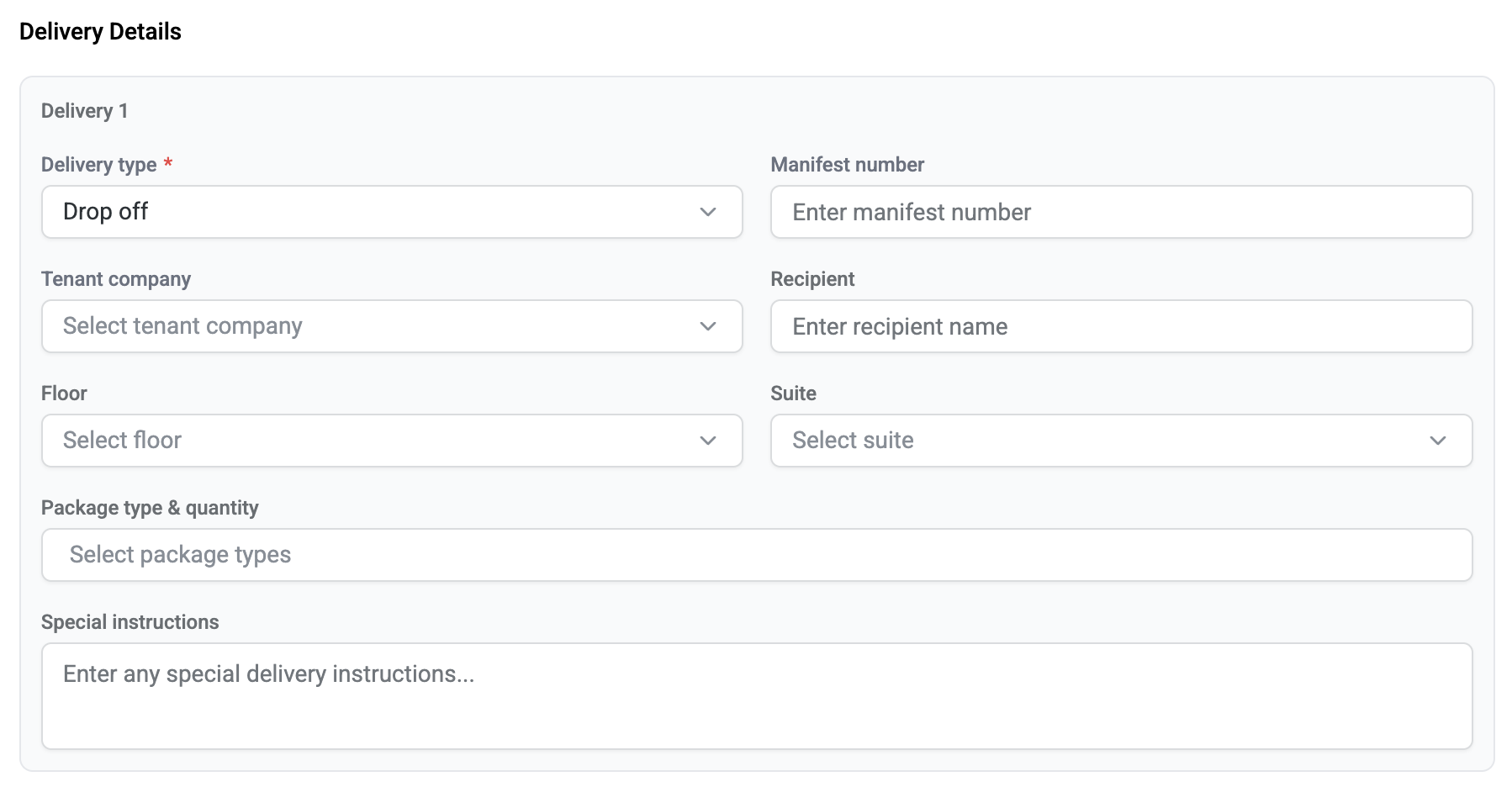
Capture delivery information
-
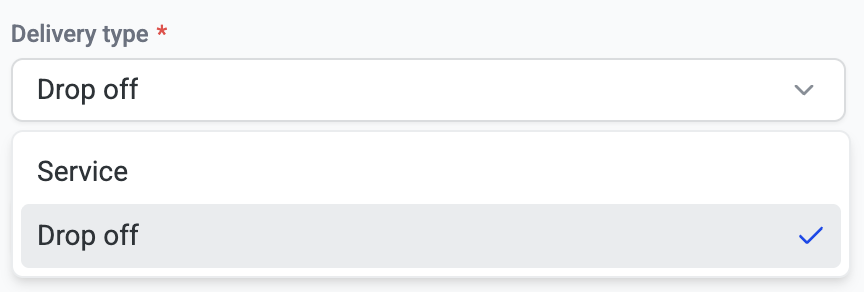
Select Delivery type from the dropdown
-
Drop off (default)
-
Service
-
-
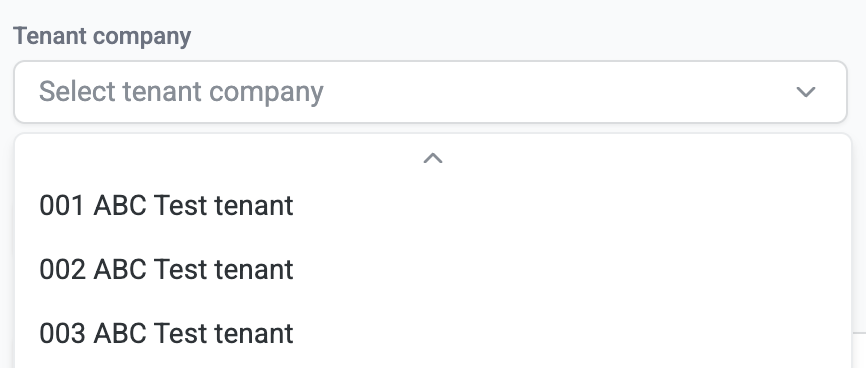
Capture recipient’s company by selecting the Tenant company
-
Enter the recipient’s name

-
Select Floor and Suite

-
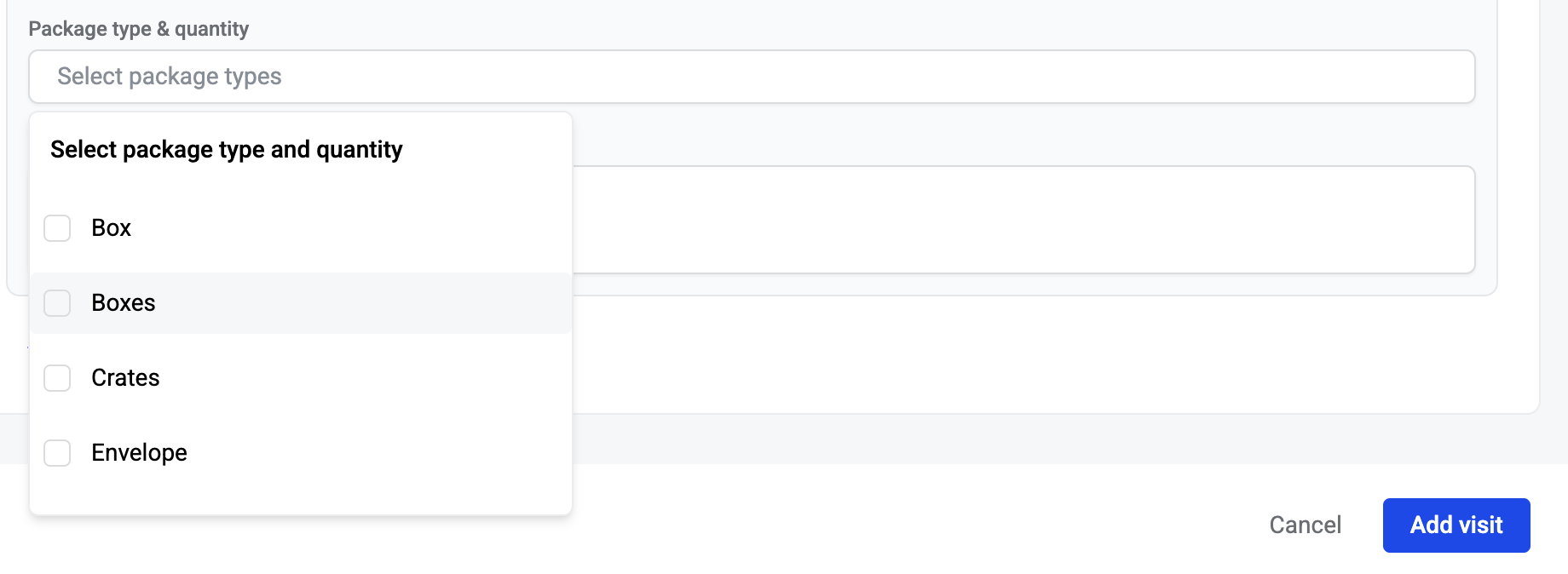
Use the Package type dropdown to select the type of package that is being delivered
-
Package types include:
-
Bag
-
Box
-
Food escort
-
Newspaper
-
Specialty item
-
Envelope
-
Floral
-
Pallets
-
Pieces
-
Crates
-
Boxes
-
-
Enter the quantity for the selected package type
-
If there are multiple packages then, click + Delivery to add additional package types
-
Use the Package type dropdown to select the next type of package that is being delivered
-
Enter any Special instructions

-
Save visit
-
Check in and print badge