

Overview
Streamlines the check-in process, enabling building guards and desk personnel to quickly identify pre-approved vendors, verify their ID and COI, and issue a badge without re-entering details or sending notifications.
This approach reduces congestion at entry points, saves time for both staff and vendors, and ensures that only approved, insured vendors are granted access. The result is a faster, more professional arrival experience for vendors and greater visibility and control for property teams.
Key Benefits
-
Expedited arrivals – Pre-approved vendors are processed quickly, minimizing delays at the desk or dock.
-
Consistent, professional experience – Creates a reliable and polished check-in process for recurring vendors.
-
Operational efficiency – Reduces administrative work for staff while keeping visitor logs accurate.
-
Verified compliance – Ensures vendors meet COI requirements before being granted access.
-
Transparent activity records – Provides property teams with clear visibility into vendor visits
How to Get Started
-
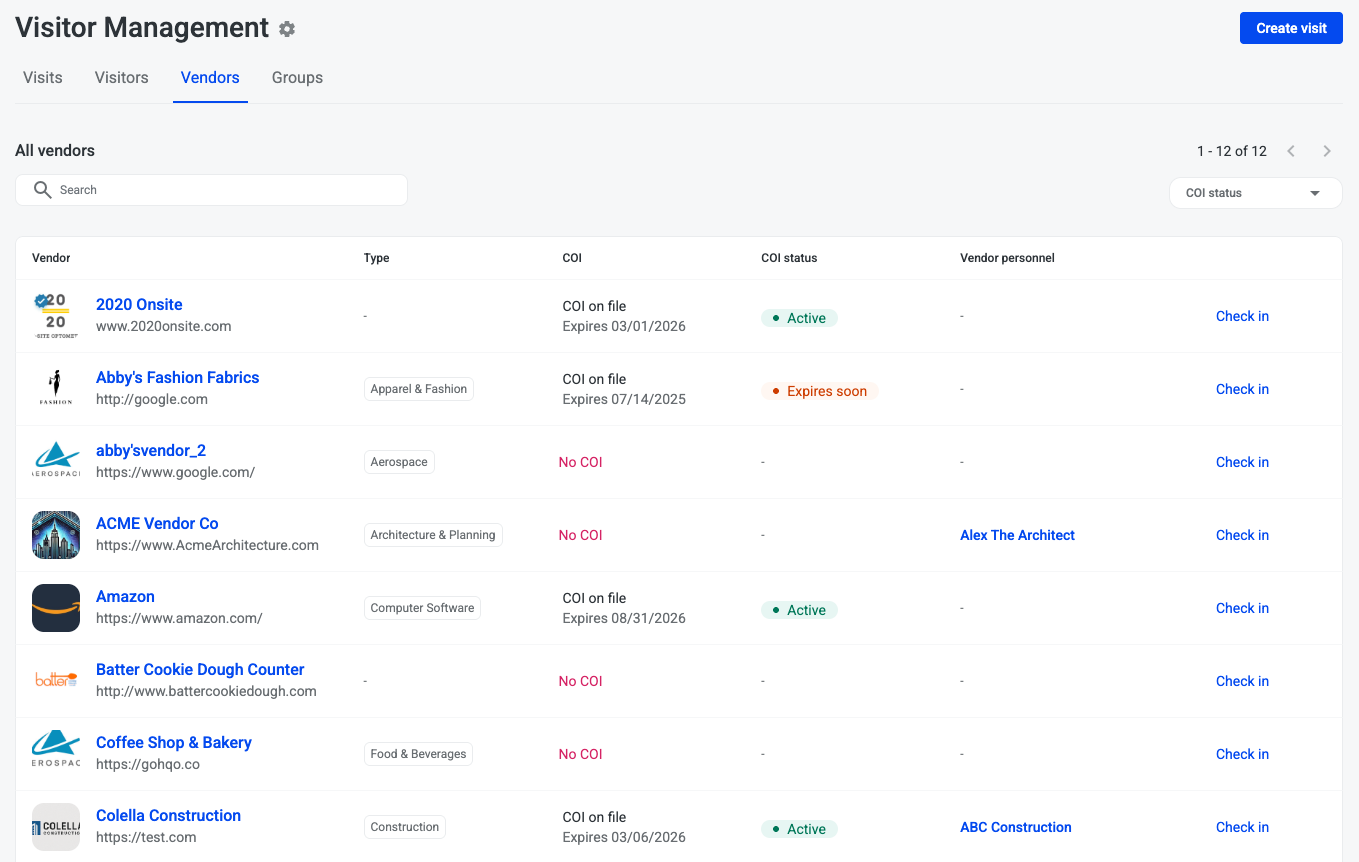
Navigate to Visitor Management, then Vendors tab
-
Vendor list includes all vendors associated with the building you are currently managing
-
Search for a vendor to check in
Pre-approved Vendor - Active COI
-
If vendor has an active COI, click Check in

-
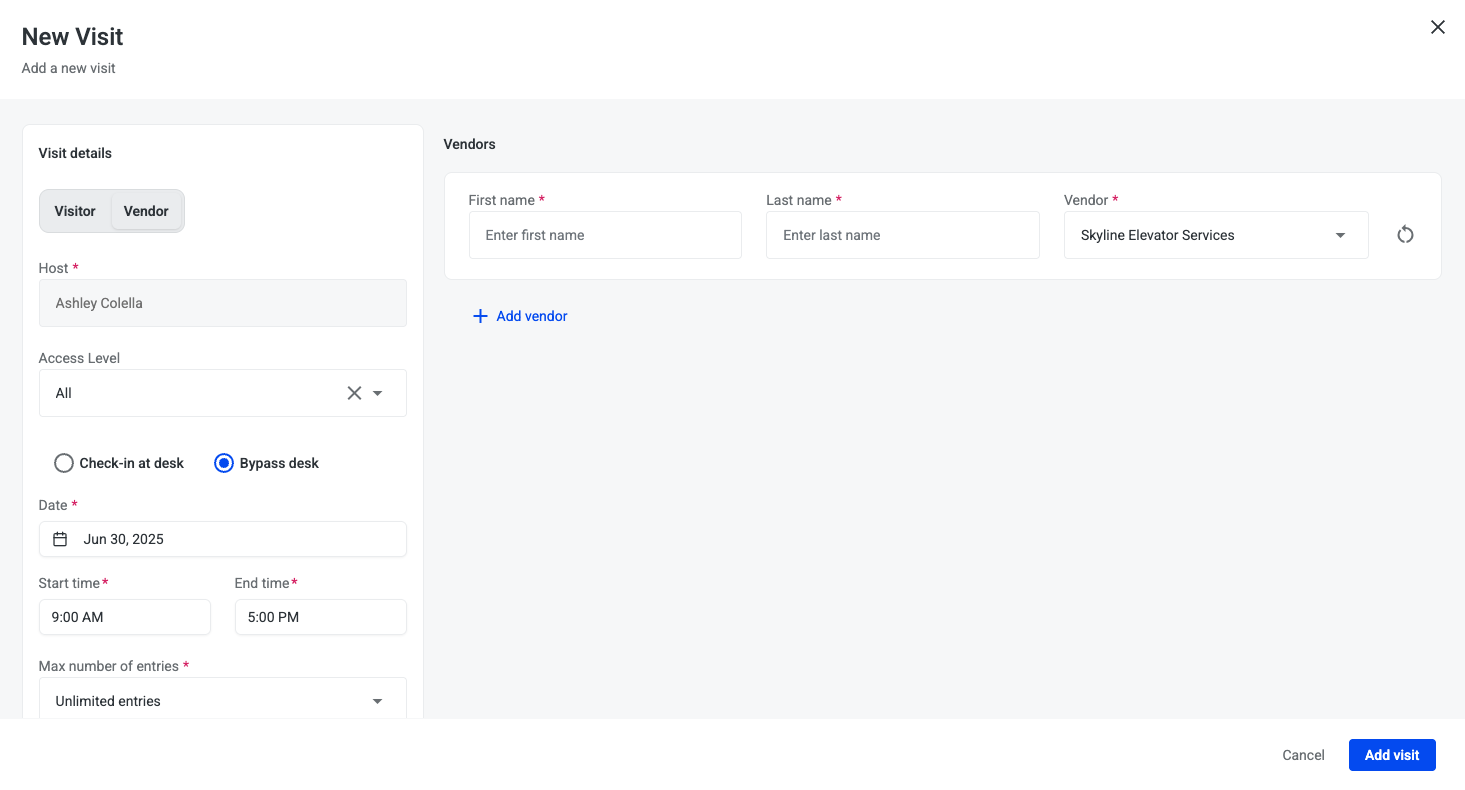
Pre-approved vendor visit form will open with Vendor pre-filled and Bypass desk selected
-
Enter vendor personnel's First Name and Last Name
-
Modify visit details as needed including:
-
Access Level
-
Date
-
Start time
-
End time
-
Max # of entries
-

-
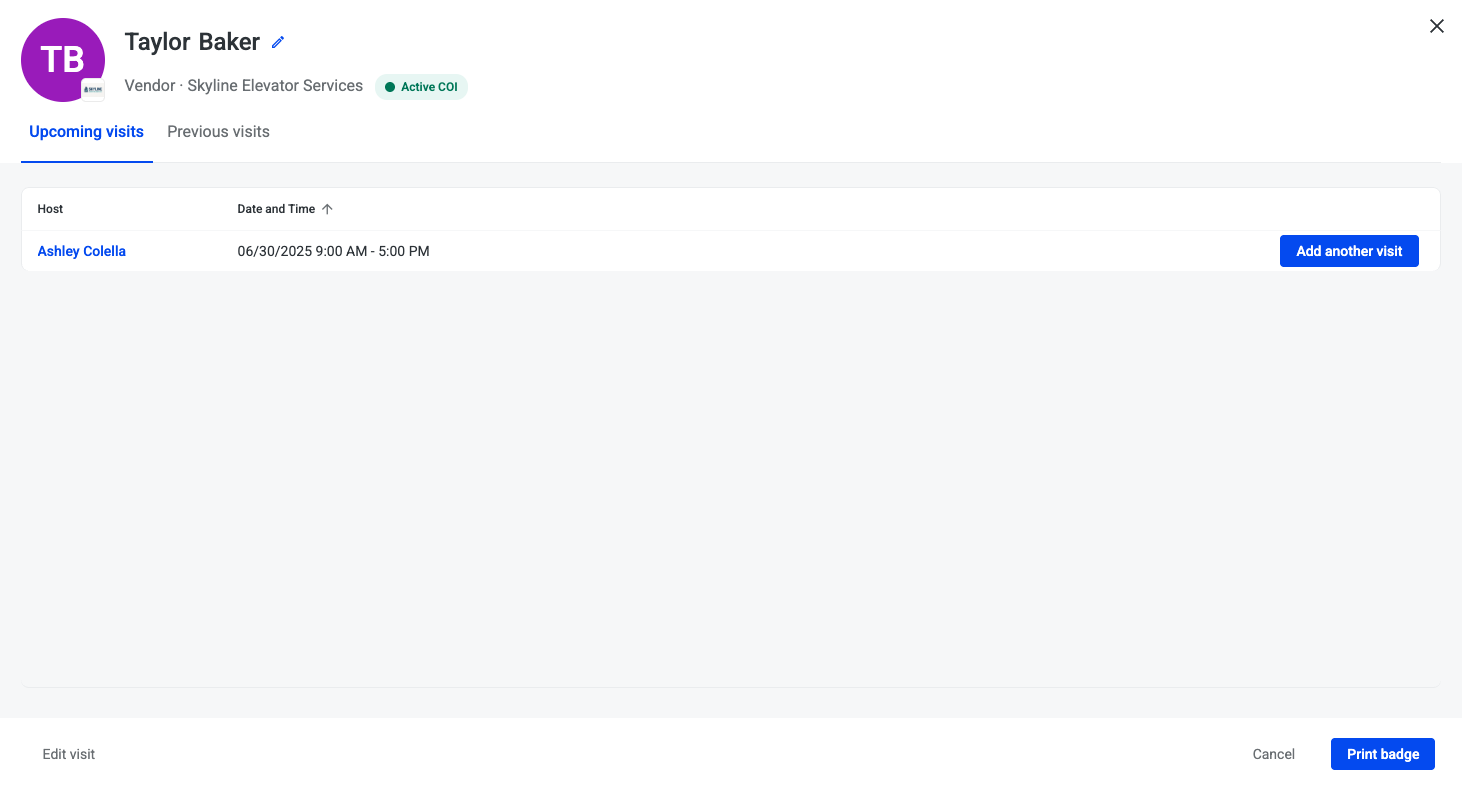
Pre-approved vendor visits will include Vendor logo, hover over logo to view company name
-
Click Pre-approved vendor’s name to view vendor personnel’s profile
Pre-approved Vendor - Expired COI
-
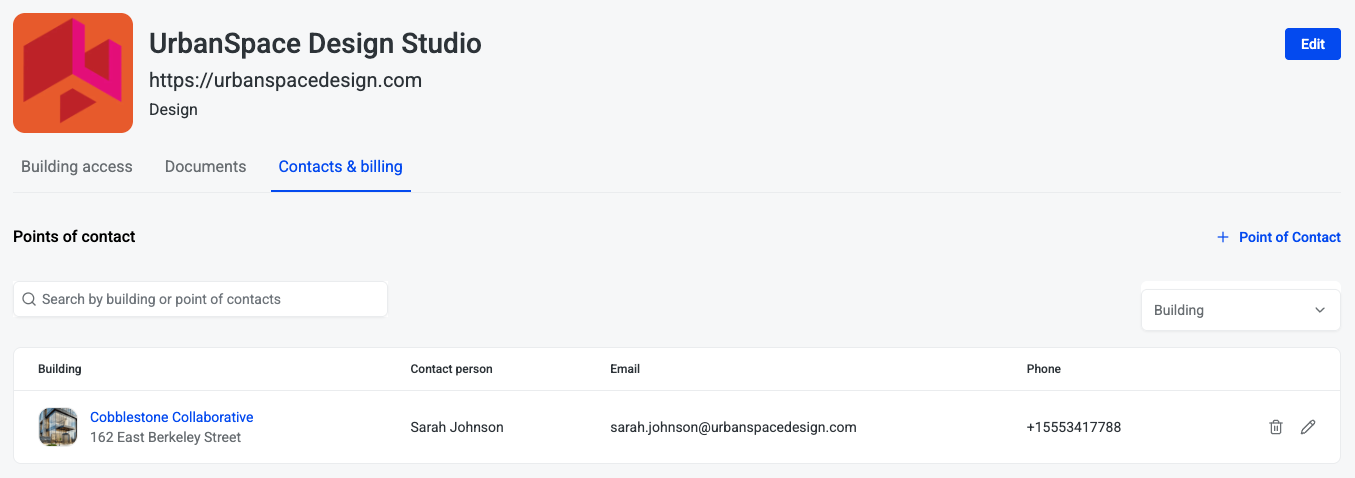
If vendor has an expired COI, click on Vendor’s name

-
Navigate to Contacts & billing tab
-
Reach out to point of contact to obtain updated COI