

Admin Roles Overview
HqO uses two distinct permission systems:
-
Tenant Roles — Determines what a user can do as a tenant occupant within a building.
-
Building Admin Roles — Determines what a user can manage as an administrator on behalf of a company or property.
Users may have one or both types of roles assigned depending on their responsibilities.
Tenant Roles
Tenant Roles control access to workplace experiences and day-to-day functionality available to occupants.
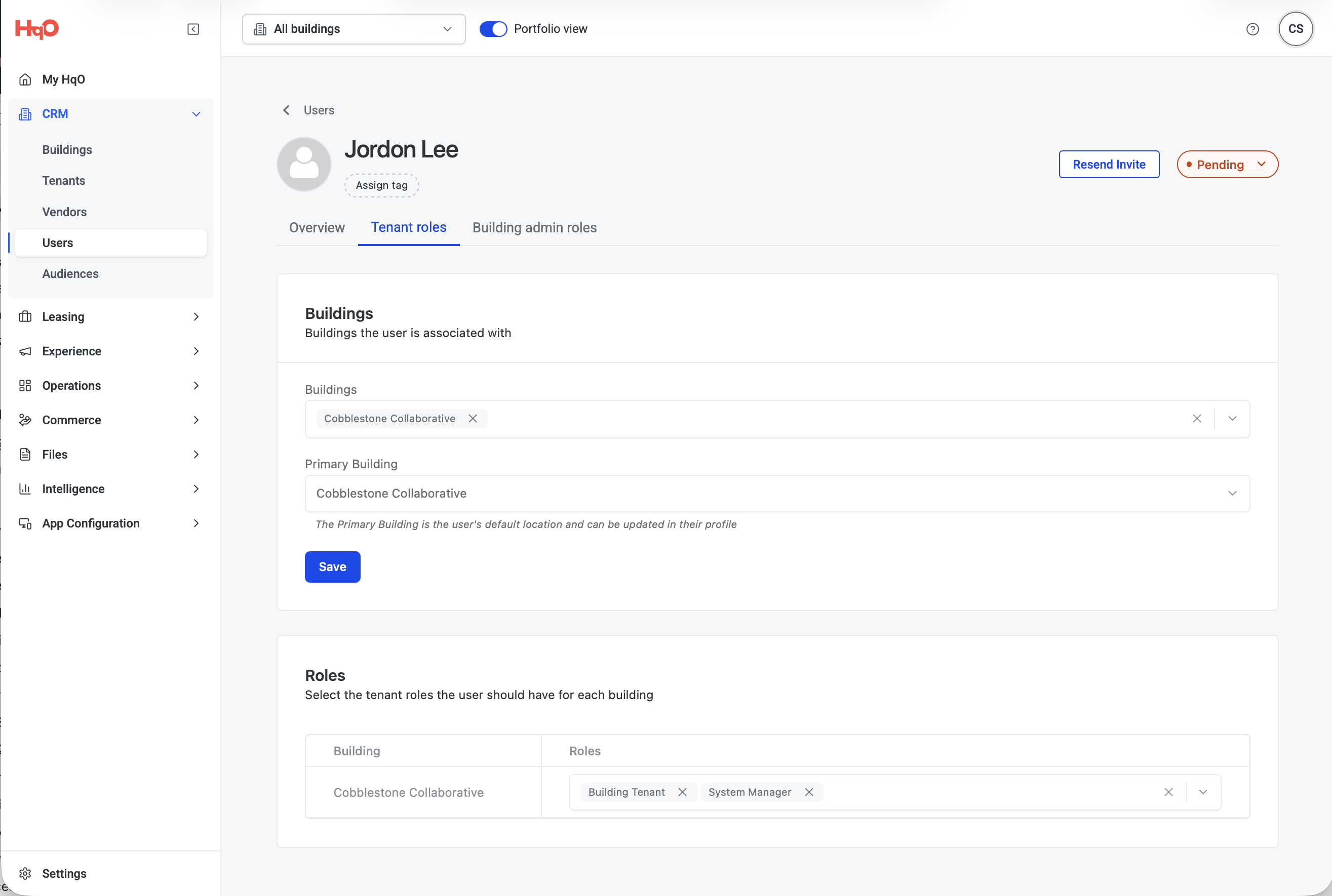
Administrators can assign tenant roles from: CRM → Users → User Profile → Tenant Roles
Building Assignment
Before assigning tenant roles, users must be associated with one or more buildings.
Buildings
The buildings the user belongs to.
Primary Building
The user's default building location. This can also be updated by the user within their profile.
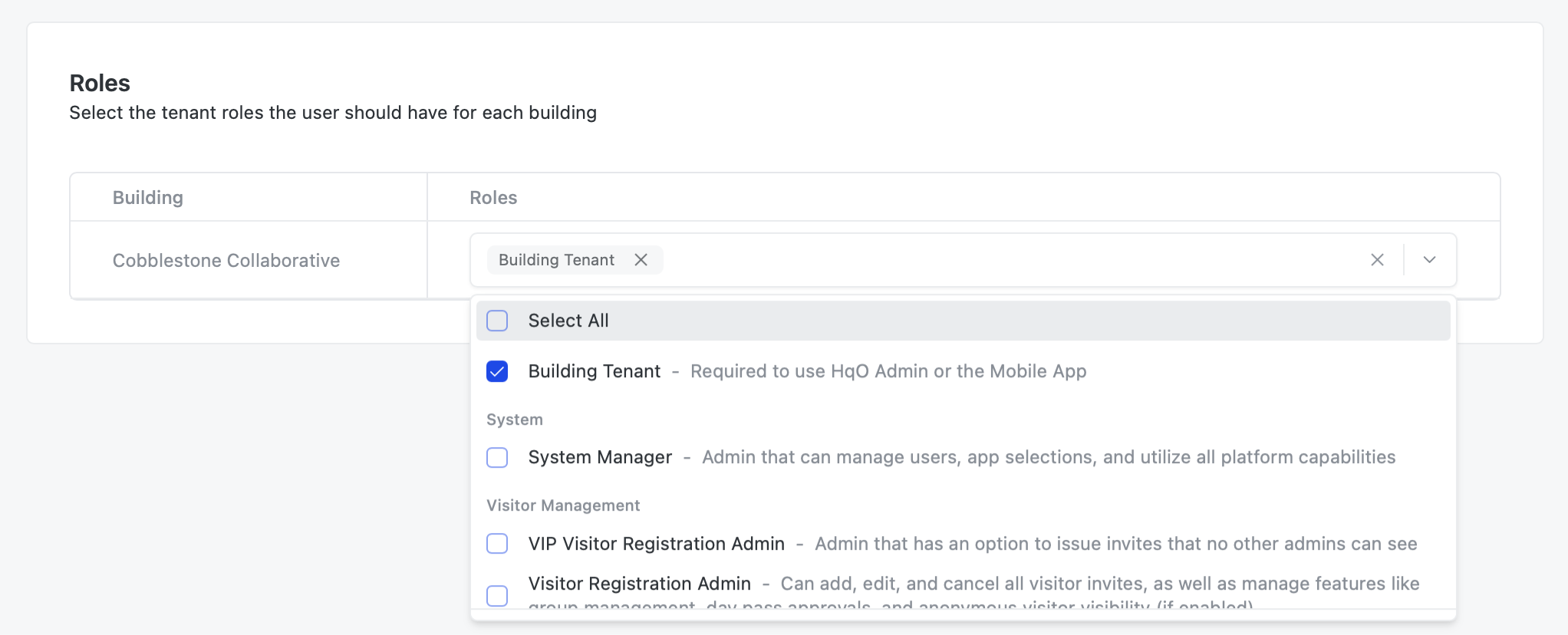
Available Tenant Roles
Tenant Roles determine which experiences and services a user can access within HqO.
|
Category |
Role |
Description |
|---|---|---|
|
Core Access |
Building Tenant |
Required to use HqO Admin and the HqO Mobile App. |
|
System |
Tenant Admin |
Can manage tenant users and invitations, enable or disable tenant-facing apps and modules, and, where enabled at the building level, manage service requests and override resource booking notice windows. |
|
Visitor Management |
VIP Visitor Registration Admin |
Can issue VIP visitor invitations that are not visible to other visitor administrators. |
|
Visitor Management |
Visitor Registration Admin |
Can add, edit, and cancel visitor invitations within their own tenant company, and manage visitor management settings such as group management, day pass approvals, and anonymous visitor visibility (if enabled). Users with a higher-permission role (landlord or internal) can view and manage visits across tenant companies. |
|
Visitor Management |
Visitor Registration Coordinator |
Can add, edit, and cancel any visitors they invite or invite on behalf of another user. |
|
Visitor Management |
Visitor Registration Host |
Can add, edit, and cancel their own visitors but cannot view visits created by others. |
|
Work Orders |
Work Order Requester |
Can submit and manage work order requests. |
|
Work Orders |
Work Order Admin |
Can view and manage work orders submitted by employees. |
|
Resource Booking |
Resource Reservation Reserver |
Can reserve workplace resources such as conference rooms, desks, and amenities. |
|
Mobile Access |
Mobile Access User |
Can use mobile credentials and mobile access functionality. |
|
Other |
Guest User |
Can use the application without a company association. |
|
Custom Groups |
Generic Group 1 |
Custom user group that can be granted access to utility buttons and configured experiences. |
|
Custom Groups |
Generic Group 2 |
Custom user group that can be granted access to utility buttons and configured experiences. |
|
Custom Groups |
Generic Group 3 |
Custom user group that can be granted access to utility buttons and configured experiences. |
|
Custom Groups |
Generic Group 4 |
Custom user group that can be granted access to utility buttons and configured experiences. |
|
Custom Groups |
Generic Group 5 |
Custom user group that can be granted access to utility buttons and configured experiences. |
Note:
The Building Tenant role is required for access to the HqO platform.
Users can be assigned multiple Tenant Roles, and permissions are cumulative.
Some roles may not grant functionality on their own and are instead used to target users in Feature Management, where access to specific Features is configured. For more information, see the Feature Management article.
For custom groups, please contact App Support.
Building Admin Roles
Building Admin Roles grant administrative access for managing buildings, operations, users, and platform configuration.
Administrators can assign these roles from: CRM → Users → User Profile Building → Admin Roles
Step 1: Assign Building Admin Roles
Step 2: Select one or more administrative roles for the user.
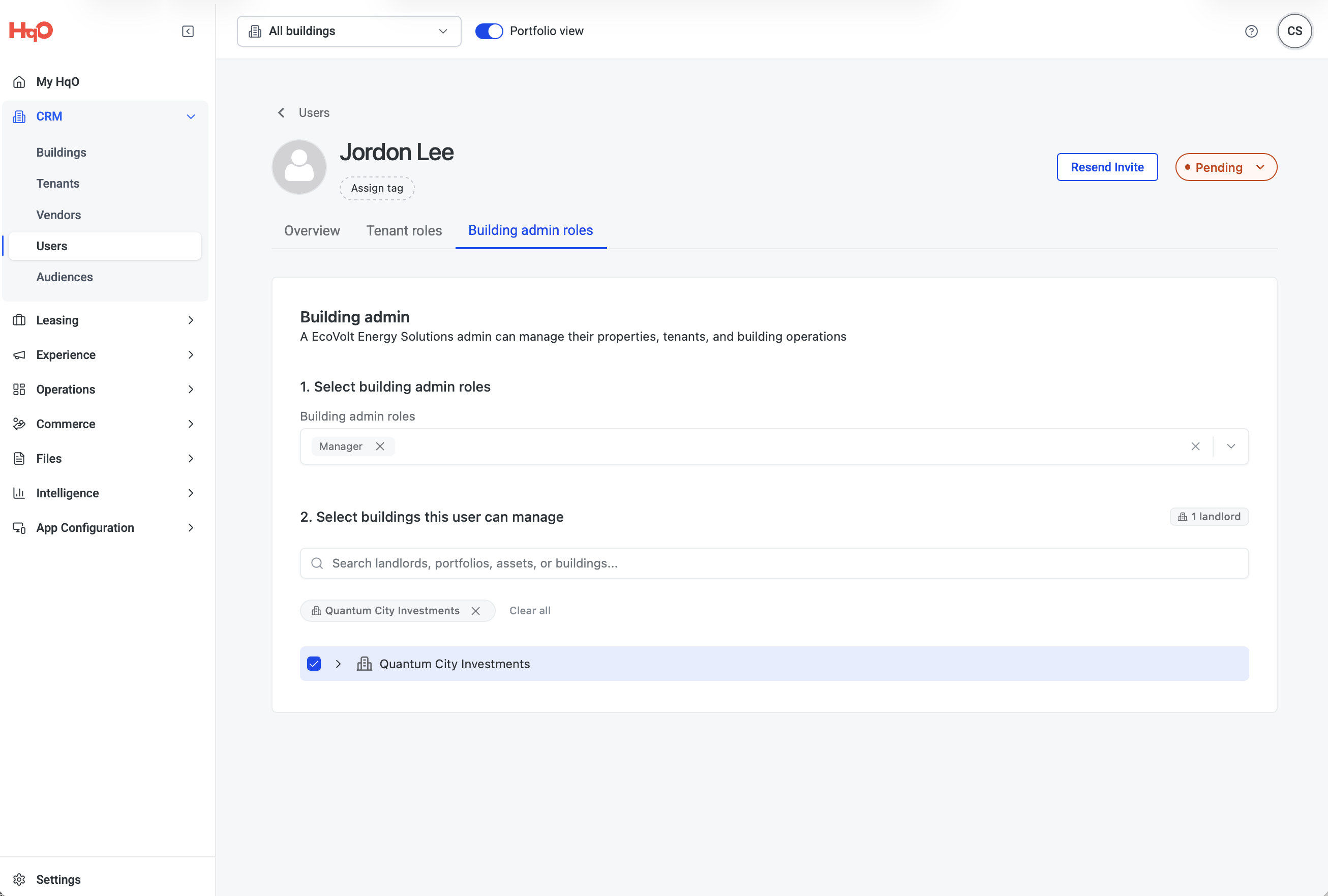
Building Admin Roles determine what administrative actions a user can perform within HqO and which buildings they can manage.
After assigning one or more Building Admin Roles, administrators must select the buildings that the user can access and manage.
Available Building Admin Roles
|
Category |
Role |
Description |
|---|---|---|
|
Administration & Management |
Super Admin |
Can manage all apps, configurations, and users in HqO. |
|
Administration & Management |
Manager |
Can manage company and module configurations. |
|
User Management |
User Admin |
Can manage users and user authorization. |
|
Experience |
Programmer |
Can create and manage content, surveys, events, and services. |
|
Experience |
Viewer |
Can view audiences, users, companies, and content but cannot make changes. |
|
Experience |
Notifier |
Can create and manage notifications. |
|
Operations |
Operator |
Can operate modules such as resource booking, service requests, and visitor registration, but cannot change system settings. |
|
Operations |
Security Admin |
Can manage all visitor management functionality. |
|
Operations |
Building Guard |
Can view visitors, manage visitor status, print badges, and notify hosts. |
|
Intelligence |
Intelligence |
Can manage Intelligence features within their assigned scope. |
|
Other |
Guest User |
Can utilize the application without a company association. |
Select Buildings This User Can Manage
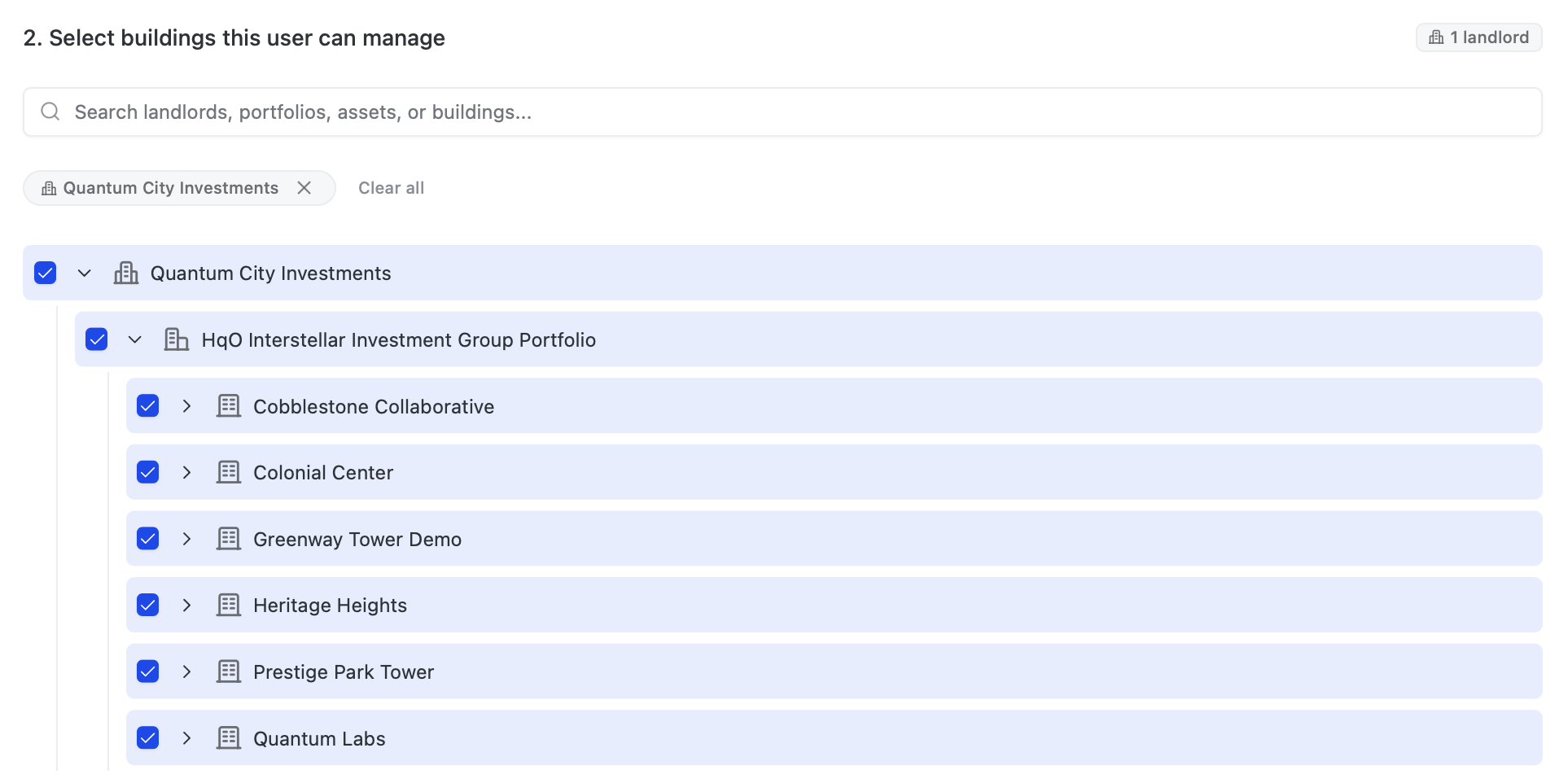
Buildings can be assigned individually or in bulk by selecting a landlord or portfolio. Selecting a landlord automatically grants access to all portfolios and buildings beneath it. Selecting a portfolio grants access to all buildings within that portfolio.
For example:
-
Select a Landlord to grant access to all buildings under that landlord.
-
Select a Portfolio to grant access to all buildings within that portfolio.
-
Select individual Buildings to grant access only to those specific buildings.
Note: Building Admin Roles determine what a user can do. Building selection determines where they can do it. A user must have both a Building Admin Role and at least one assigned building to manage properties within HqO.
Important Notes
-
A user can have multiple Tenant Roles.
-
A user can have multiple Building Admin Roles.
-
Building Admin permissions are scoped to assigned buildings.
-
Available roles may vary based on enabled modules and customer-specific configuration.
-
The Building Tenant role is required for access to HqO Admin and the HqO Mobile App.