

Overview
Utility buttons are created through XM Admin and are viewable on both HqO apps and HqO tenant web instances. These buttons can be configured by icon, color, and shape to match your branding.
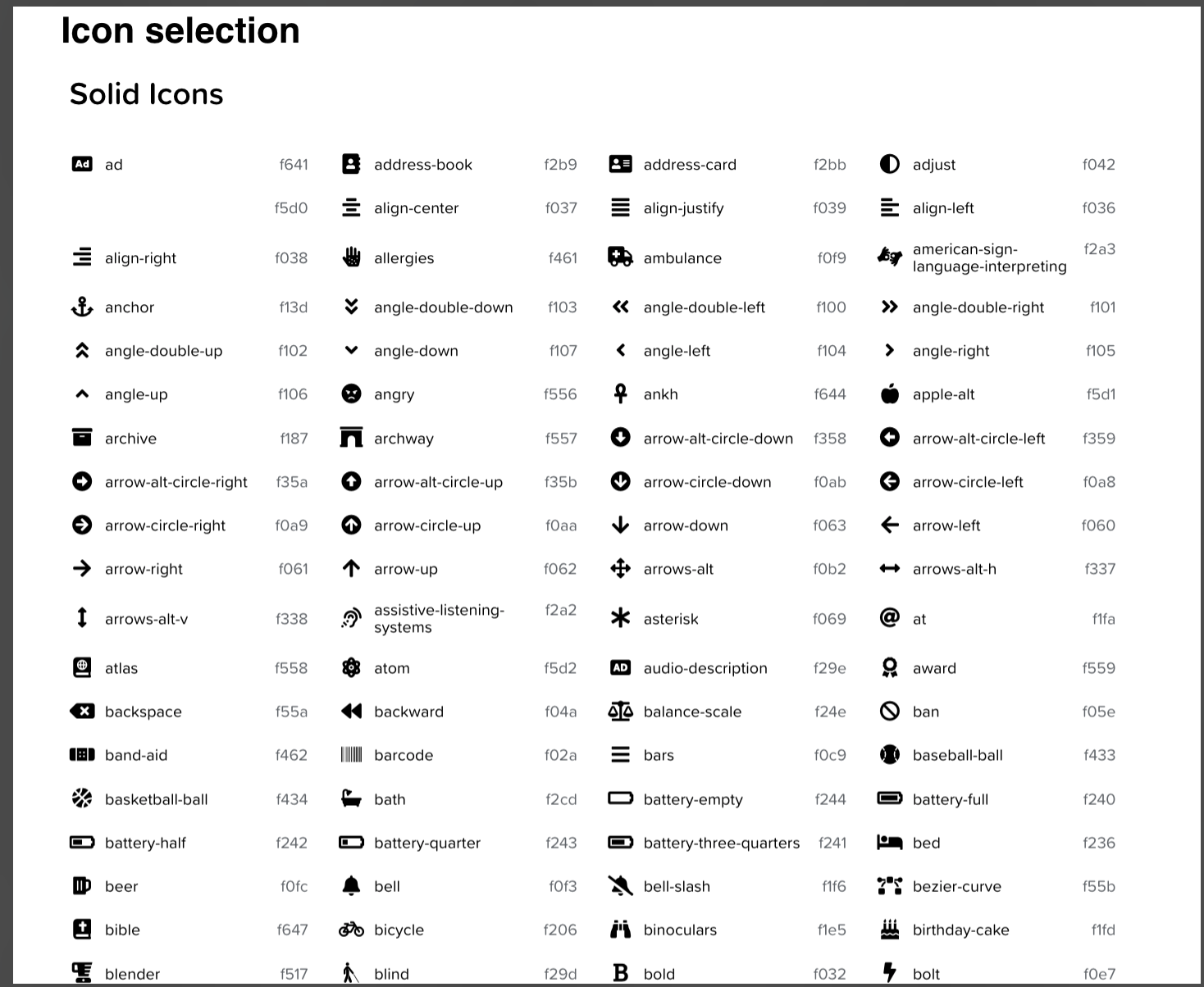
You can see the icon options available for the utility buttons here. Custom icons are not available. The display name is free text.
What are the benefits to customizing my utility buttons?
-
Clearer separation between brand and function
-
White gradient is replaced by a more common card format
-
Utility buttons sit in the drawer and don’t overlap the imagery
-
White gradient was meant to create separation in order to allow for both colored imagery and colored buttons without impacting accessibility
-
-
“See all” button allows you, as the user, to explore all functionality in one click improving discoverability
-
Button shape options allow you to choose what works best for your brand and the amount of capabilities available
Utility Button Shapes
Flexible Button shape options allow you to pick the button shape that works best for your brand
Button shape can be either Rectangles, Circles or Grid shape
-
Rectangles
-
Prioritizes a larger touch area
-
Highlights the most important functions
-
-
Circles
-
Prioritizes differentiation between text and icons
-
Ideal for 4+ functions
-
Most clearly differentiates display text of function from iconography
-
-
Grid
-
Prioritizes showing as many buttons as possible,
-
Display more of your functions, ideal for 1-3 functions, or 5+ functions
-
Eliminates horizontal scroll
-
Commonly used in consumer applications for categories of functionality
-
How do I update my utility button shapes?
Please note: This functionality is not currently available for all users in XM Admin. If you would like to make changes to your utility button shapes and icons, please contact your HqO Customer Success Manager or Implementation Manager.
Utility Button Icons
To further customize your utility buttons, you have the availability to select from a wide variety of icon options to better symbolize each type of utility.
Please see the following link to further review the below options at hand.
Please note: This functionality is not currently available for all users in HqO Admin. If you would like to make changes to your utility button shapes and icons, please contact your HqO Customer Success Manager or Implementation Manager.