

Overview
Credits allow landlords and property teams to assign booking credits for shared resources such as meeting rooms, conference facilities, and amenities. This flexible approach helps build stronger tenant relationships and encourages tenants to make better use of shared spaces.
Credits can be included in leases, offered as perks, or used to ensure fair access across tenants. By removing the payment friction of requiring a credit card for every booking, credits encourage exploration, engagement, and daily value from the workplace.
Key Benefits
For Property Teams
-
Control access by allocating credits across all resources or limiting them to specific amenities
-
Ensure fair allocation across tenants—prevent some tenants from monopolizing popular resources while others struggle to get slots
-
Automate distributions with recurring credits, configurable schedules, and rollover rules
-
Monitor credit usage with detailed reporting on allocations, transactions, active users, and top tenants
-
Reduce admin overhead—credits automate routine transactions so staff can focus on exceptions
For Landlords
-
Turn amenity spend from a cost center into a strategic asset for lease negotiations
-
Reduce reliance on one-time rent concessions by offering credits as ongoing value
-
Embed credits into lease agreements to offset TI allowances or concessions
For Tenants
-
Amenities feel like part of the office, not an add-on service requiring a credit card every time
-
View balances in real-time and choose between credits or standard payment at checkout
-
Encourages exploration and engagement with workplace amenities
Common Use Cases
-
Lease inclusion: Include credits as part of the lease agreement to provide ongoing value instead of one-time concessions
-
Fair access management: Limit credits per tenant to ensure equitable access to high-demand resources (e.g., 10 credits per month per tenant)
-
Tenant appreciation: Offer credits to top tenants or as a gesture of goodwill (e.g., after a building issue like a leak)
-
Promotional perks: Introduce credits as a new benefit to encourage tenants to try paid amenities
Understanding the Credits Dashboard
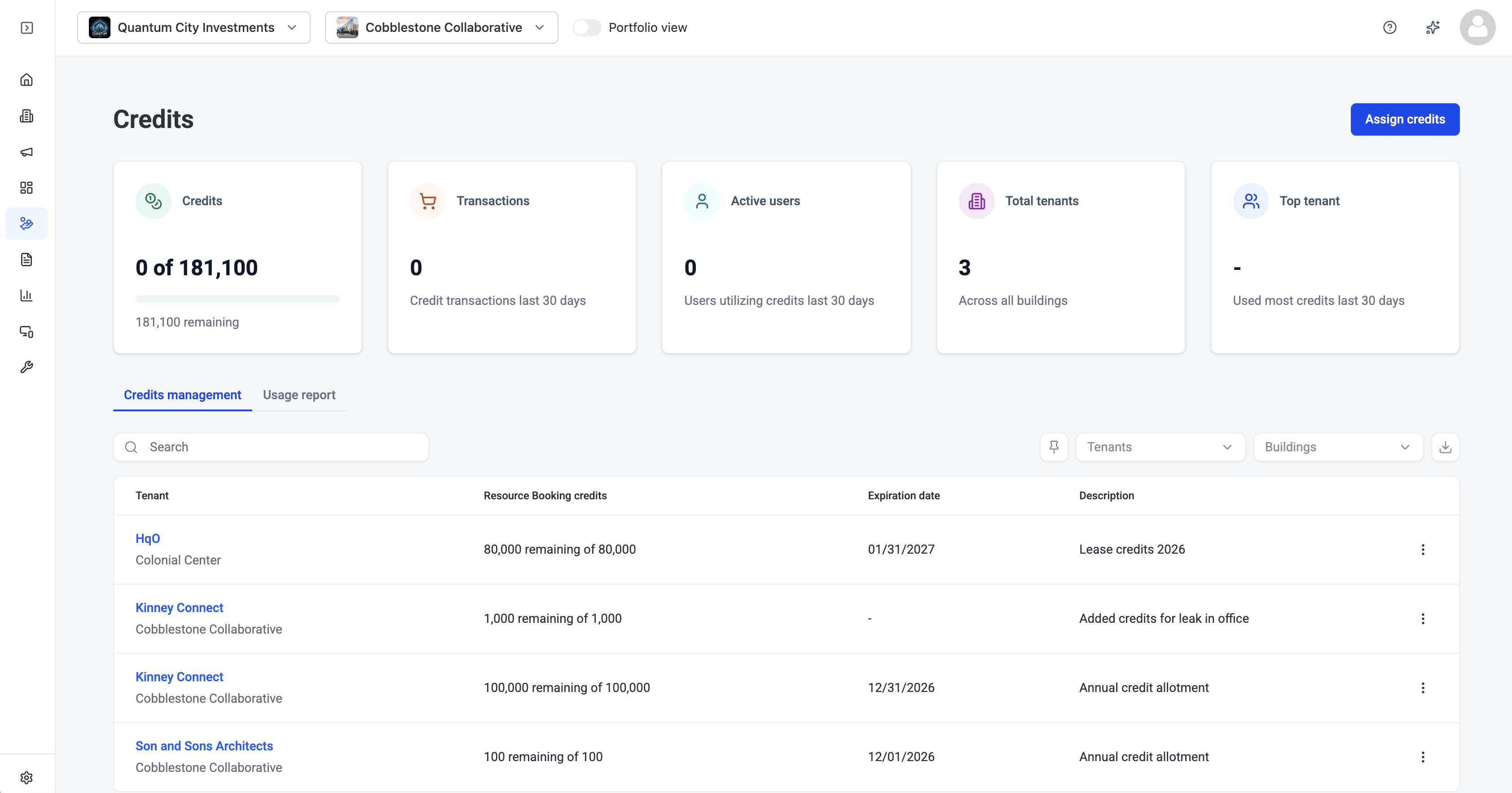
The Credits dashboard provides an at-a-glance view of credit activity across your portfolio or building:
-
Credits allocated: Total credits assigned to tenants
-
Credits used: Credits redeemed for bookings
-
Credits remaining: Available balance across all allocations
-
Transactions (last 30 days): Number of credit redemptions
-
Active users (last 30 days): Users who have redeemed credits
-
Top tenant: Tenant with the highest credit usage
The dashboard includes two tabs:
-
Credit management: View assigned credits, expiration dates, and descriptions. Filter by tenant or building, and export data.
-
Usage reports: See which users booked which resources, how many credits were used, the tenant, and building. Filter and export as needed.
How to Assign Credits
Step 1: Start a New Credit Allocation
-
Navigate to Commerce > Credits in the Admin Console
-
Click Assign Credits
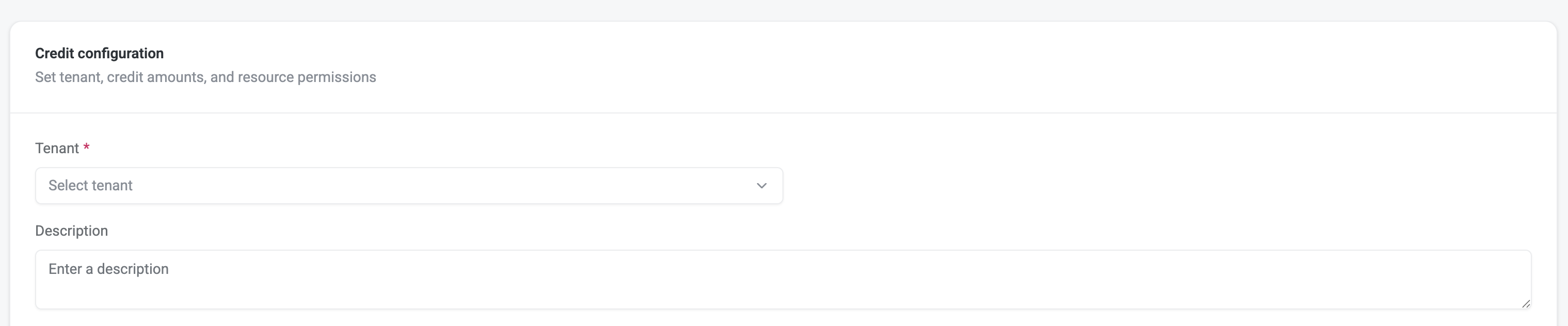
Step 2: Select a Tenant
-
Choose the tenant company to receive credits
-
If in portfolio view, confirm which building(s) the allocation applies to
-
Optionally add a description (e.g., "Yearly credits" or "Q1 Conference Room Allocation")
Step 3: Configure Credit Allocations
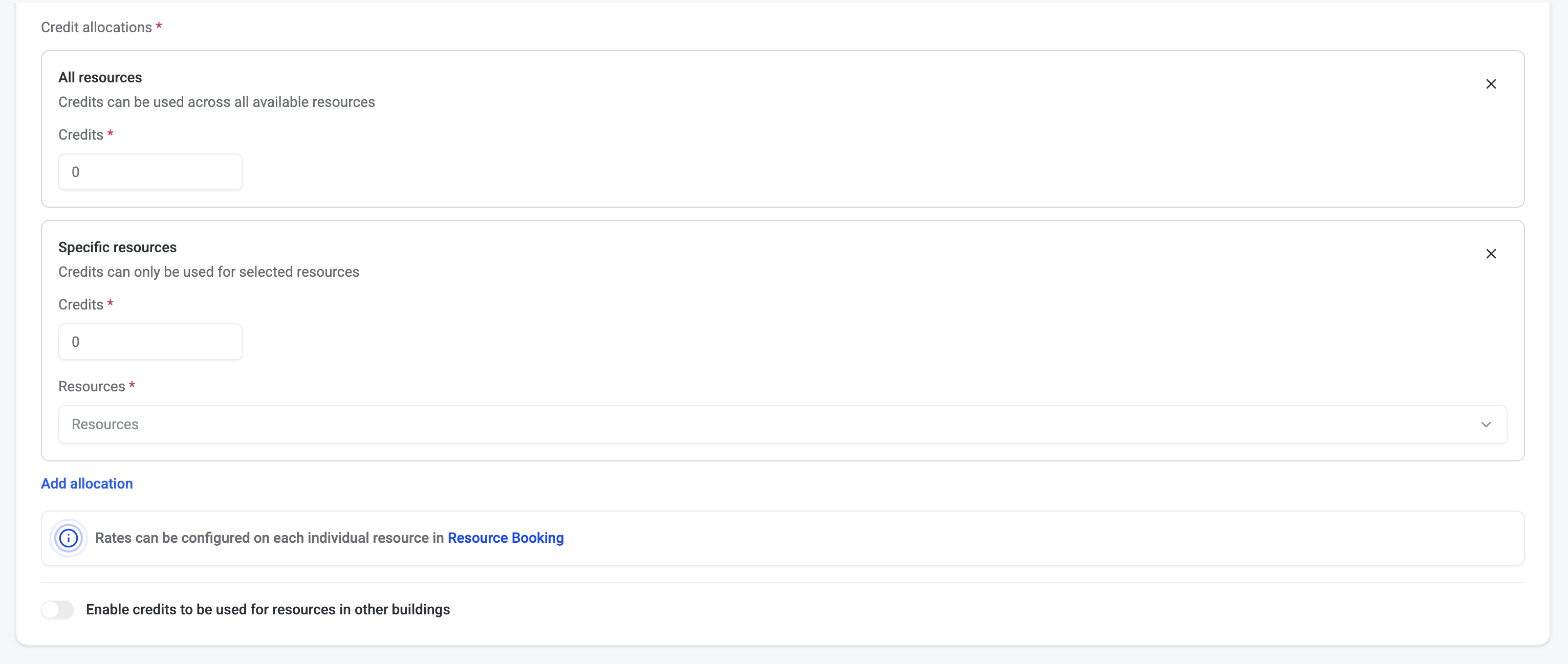
You have two options that can be combined:
-
All resources: Set a credit amount that can be used across any bookable resource (e.g., 60,000 credits for all resources)
-
Specific resources: Allocate credits to particular amenities (e.g., 10,000 credits for the roof deck, 10,000 credits for the conference center)
You can create multiple specific allocations and combine them with an all-resources allocation.
Note: If cross-building booking is enabled for the tenant, you’ll see an option to enable credits for cross-building use.
Step 4: Define Recipients (Targeting)
Choose who within the tenant receives the credits:
-
All users: Every user associated with the tenant company
-
Specific users: Select individual users by name
-
Specific roles: Target users with certain roles (e.g., "Resource Reservation Reserver")

Step 5: Set the Schedule
-
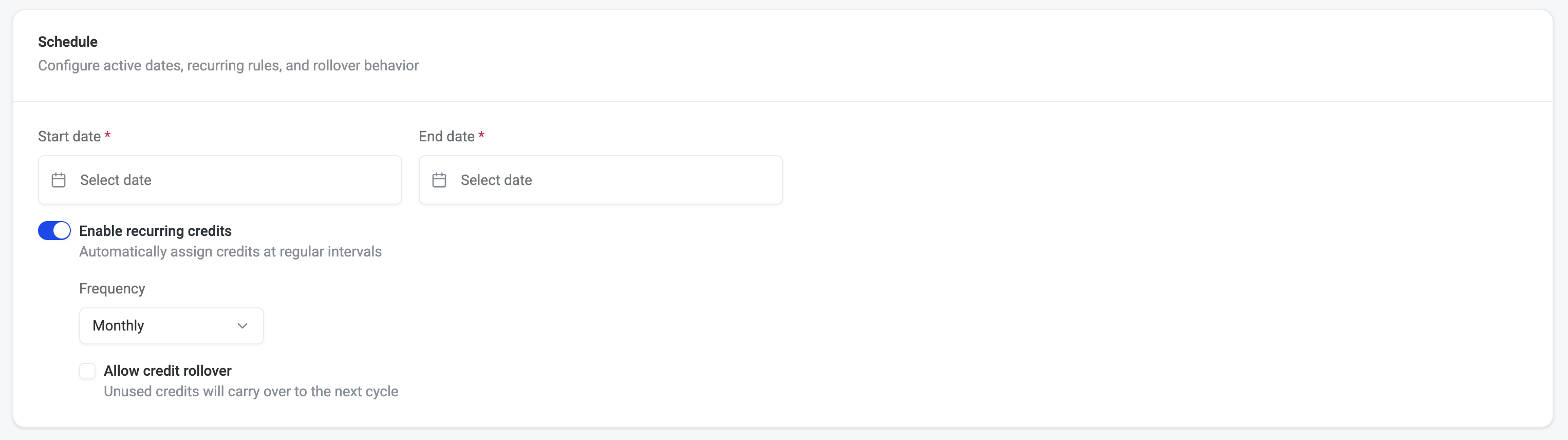
Set the start date for when credits become available
-
Optionally set an end date for when credits expire
-
To set up recurring credits, enable recurring credits and choose the frequency: weekly, monthly, quarterly, or yearly
-
Enable allow credit rollover if unused credits should carry forward to the next period (otherwise, it’s use-it-or-lose-it)
Step 6: Save and Activate
-
Click Assign to create the credit allocation
-
The allocation will appear in the credit management tab and credits will be available to the targeted users
Enable Credits on Resources
For tenants to use credits when booking, you must enable credits on each resource and set the credit price.
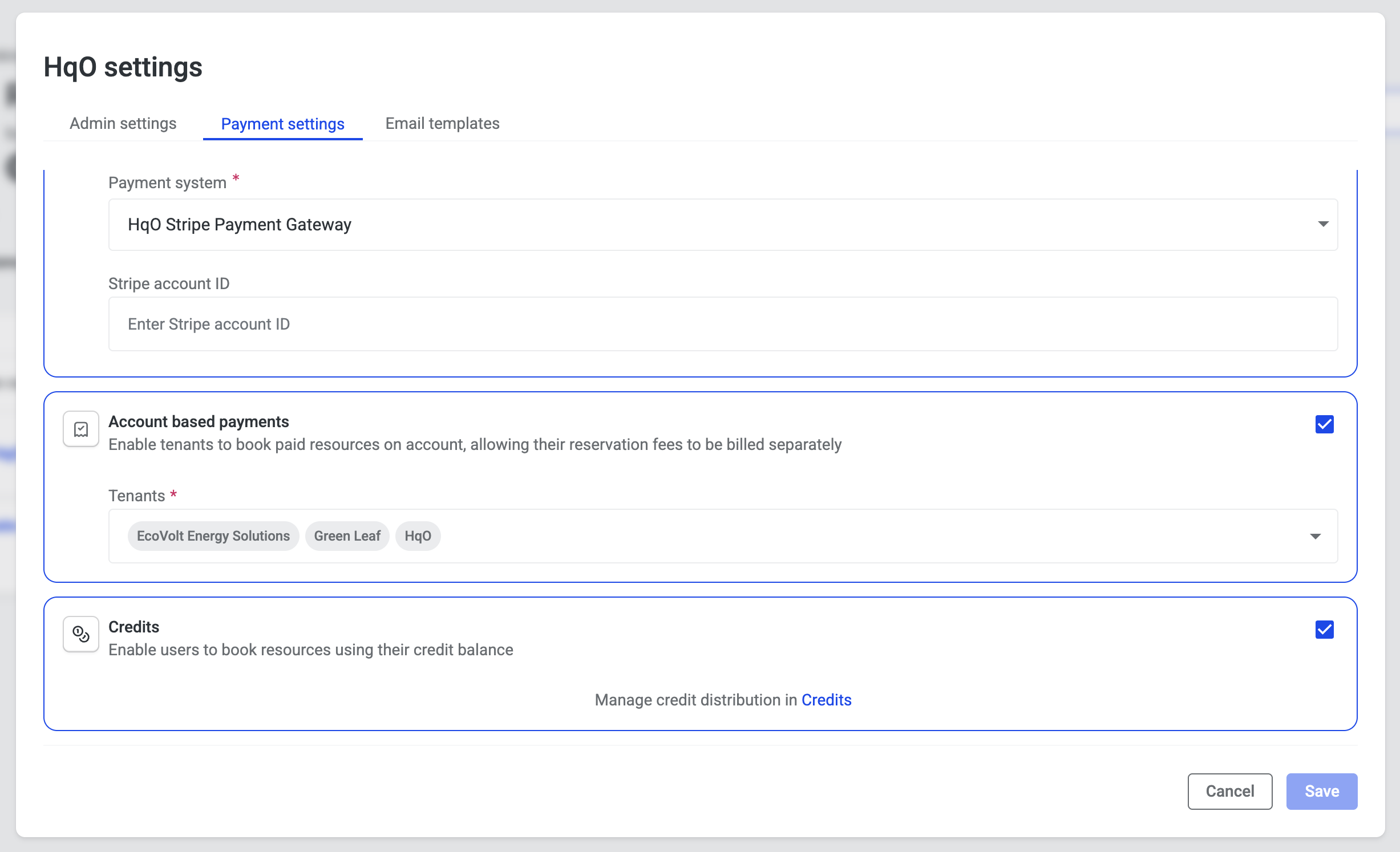
Step 1: Enable Credits in Payment Settings
-
Go to Resource Booking > Settings > Payment Settings
-
Enable Credits as a payment method
-
Save your changes
Step 2: Set Credit Pricing on a Resource
-
Navigate to the resource you want to configure
-
Go to the Availability tab
-
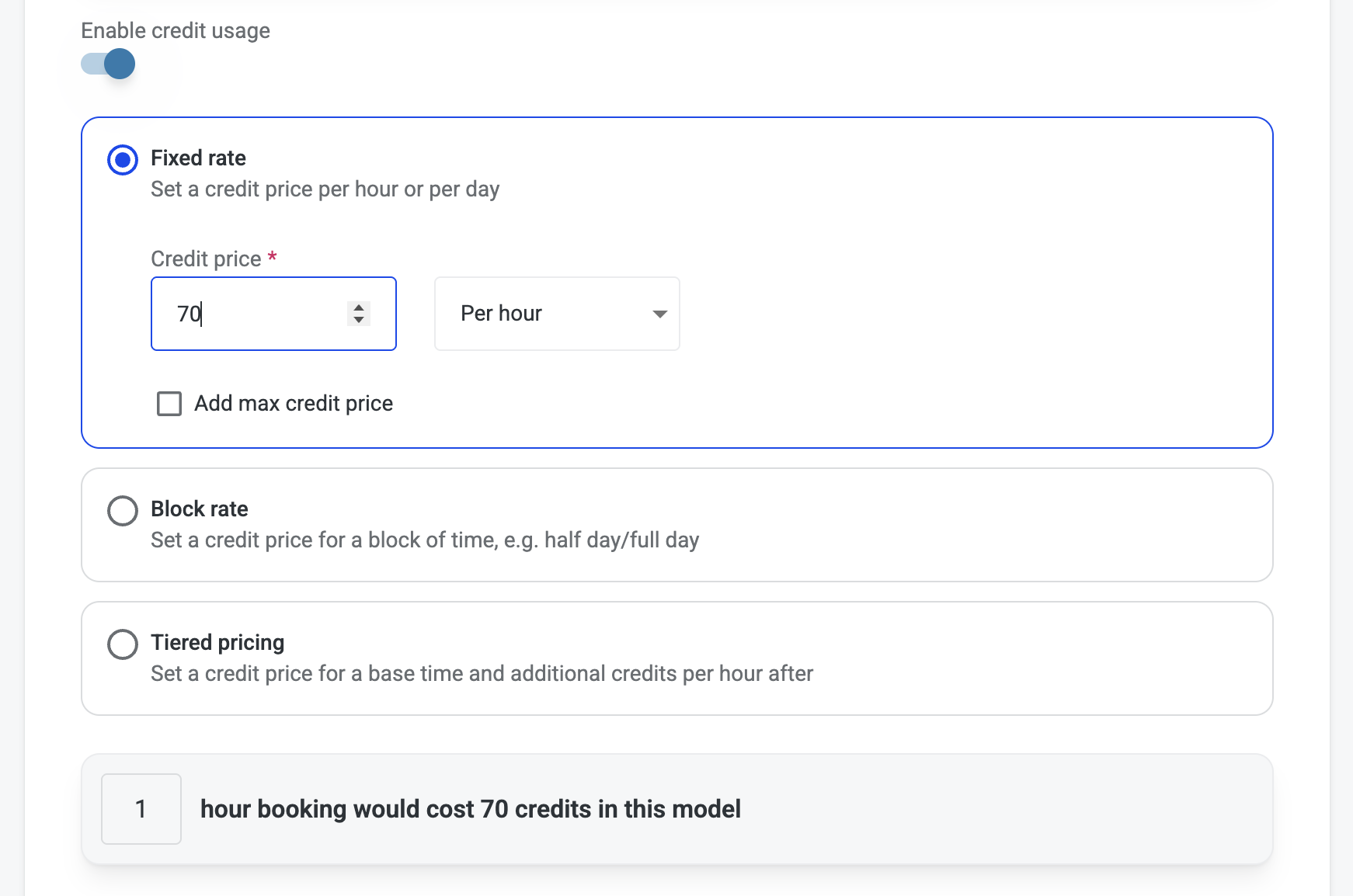
Toggle on Enable credit usage
-
Select a pricing model and set the credit price
Credit Pricing Models
Credits are flexible—you define what a credit is worth:
-
Fixed rate: A set number of credits per hour (e.g., 70 credits/hour or 1 credit/hour)
-
Block pricing: Different credit amounts for different time blocks
-
Tiered pricing: Credit rates that vary based on duration
Common approaches:
-
1 credit = $1 (so a $70/hour room costs 70 credits/hour)
-
1 credit = 1 hour (so any room costs 1 credit per hour)
-
Premium pricing: Larger/nicer rooms cost more credits per hour (e.g., 3 credits for an auditorium vs. 1 credit for a small meeting room)
Max credit price: Optionally set a maximum credit charge for a booking. For example, if the max is 300 credits, a full-day booking would cap at 300 credits regardless of hourly rate.
Tenant Booking Experience
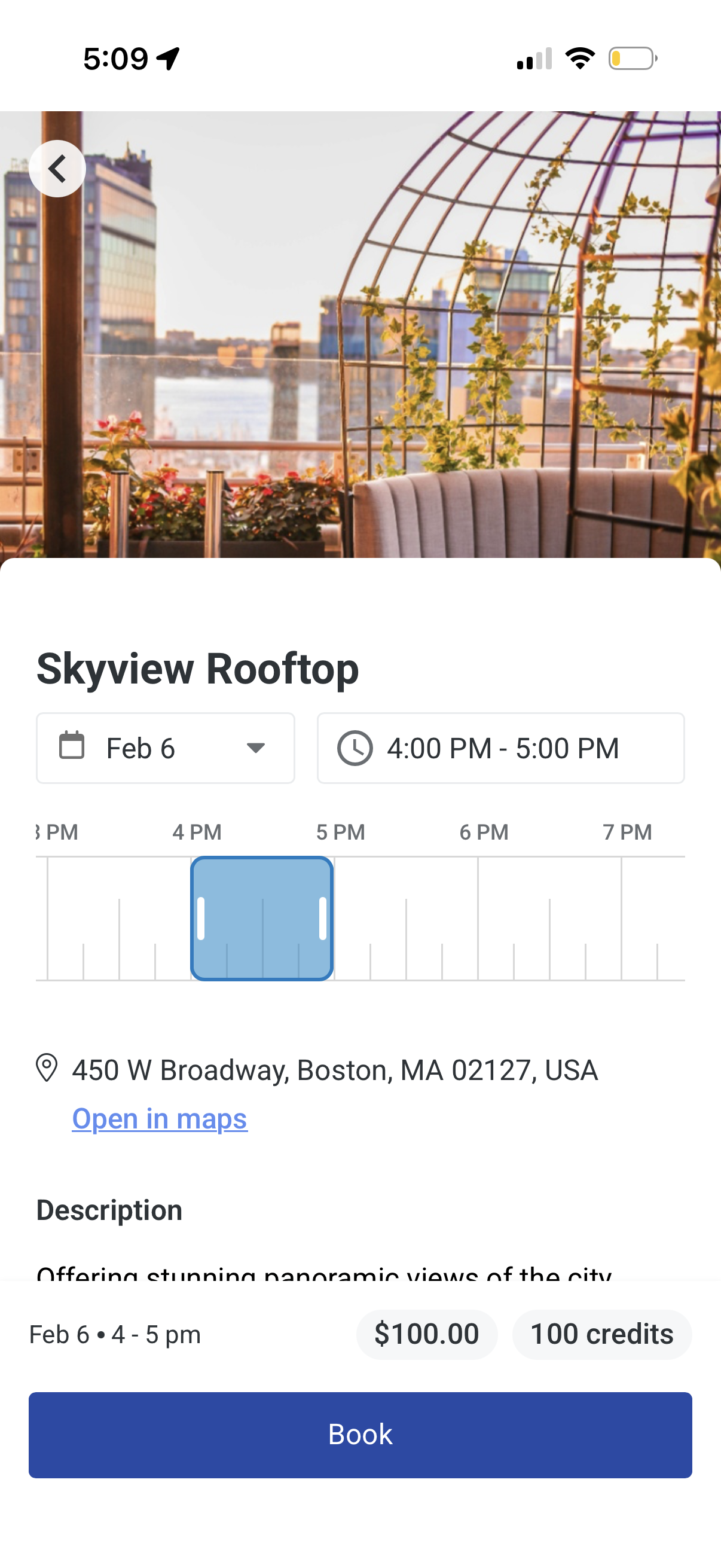
When a tenant with assigned credits books a resource that accepts credits:
-
They see both the dollar price and credit price displayed
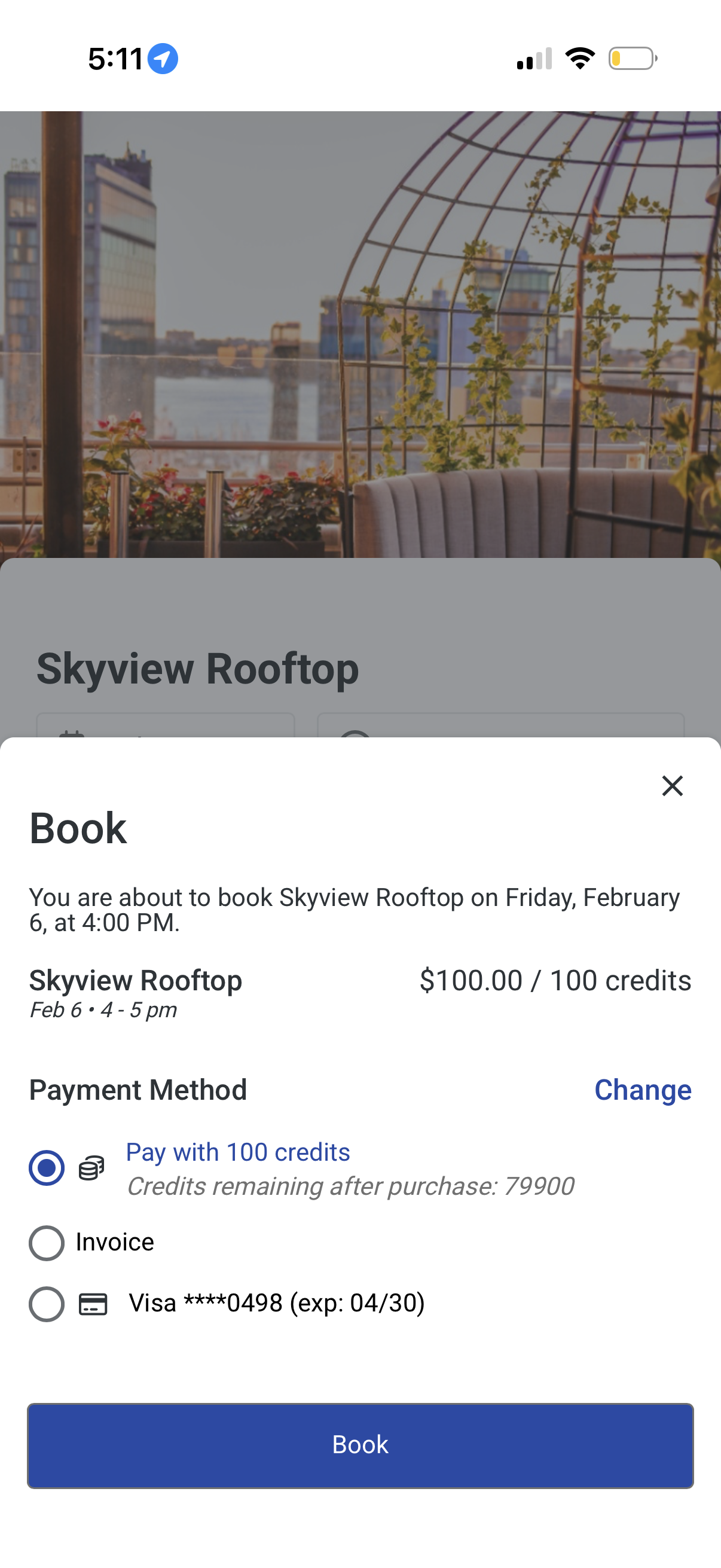
-
At checkout, they choose their payment method: credits, invoice (if enabled), or credit card
-
They can see their remaining credit balance after the purchase
-
The booking confirmation shows the payment method used
Note: Users who have not been assigned credits will only see the dollar price. If a resource doesn’t have a credit price configured, credits won’t appear as a payment option.
Important Notes
-
Discounts apply to dollar prices only: If a discount is applied (e.g., 50% off), it reduces the dollar price, not the credit price. Credits are often viewed as a discount themselves.
-
No partial credit payments: Users cannot split a booking between credits and another payment method. They must pay fully with credits or fully with another method.
-
Cancellation refunds: When a booking paid with credits is canceled, credits are automatically refunded to the user’s balance based on your cancellation policy.
-
Admin-only assignment: Currently, only administrators can assign credits. Tenants cannot assign or transfer credits.
Frequently Asked Questions
Who can assign credits?
Only administrators with the Manager or Super Admin role can assign credits.
Can tenants see their credit balance?
Yes, tenants can see their balance when booking a resource. A dedicated credits view in the tenant portal and mobile app wallet is planned for a future release.
Do users get notified when credits are about to expire?
Not currently, but expiration notifications are being considered for a future release.
Can a tenant admin see credit usage for their company?
A tenant admin view is on the roadmap. In the meantime, property teams can filter the Usage Reports by tenant and export the data to share with them.
What if a tenant has credits but the resource only accepts dollars?
If a resource doesn’t have credit pricing enabled, the user will need to pay with a different method (credit card or invoice). Credits are only available on resources where credit pricing has been configured.
Can I have a resource that only accepts credits (no dollar price)?
Yes, you can configure a resource to only have a credit price. Users without credits would not be able to book that resource.
How do I track credit transactions?
The Resource Booking section now includes a "Payment type" column in the bookings table showing whether credits were used. The Credits Usage Reports tab also provides detailed transaction history.