

Overview
HqO integrates with Telecine to bring your building content directly to the screens in your lobbies, common areas, and other spaces. Content and events you publish in HqO can now show up in the physical spaces where people actually are — making HqO the single source of truth for building content, on every surface.
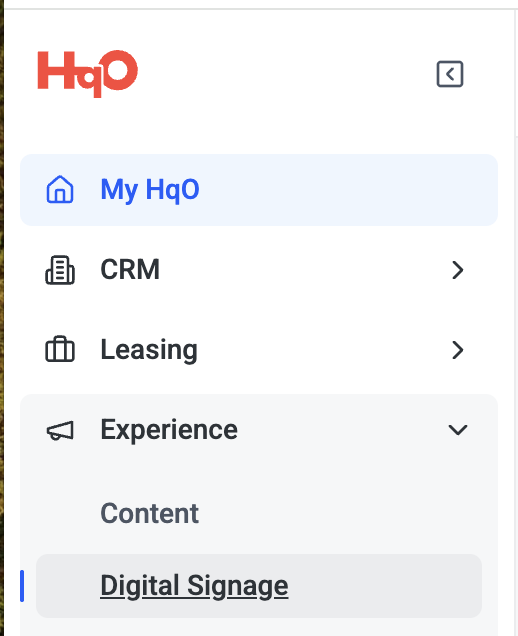
Manage all digital signage content in one place via the Digital Signage page in Experiences. When publishing content or events, simply select which buildings should display it on their screens and it will appear automatically.
The Digital Signage integration is available for landlord companies. To enable it for your organization, contact your HqO representative. Once enabled, the Digital Signage tab will appear under Settings in HqO Admin.
Getting set up
Setup requires a few quick steps on both the HqO side and the Telecine side. Your HqO representative can coordinate with Telecine on your behalf if needed.
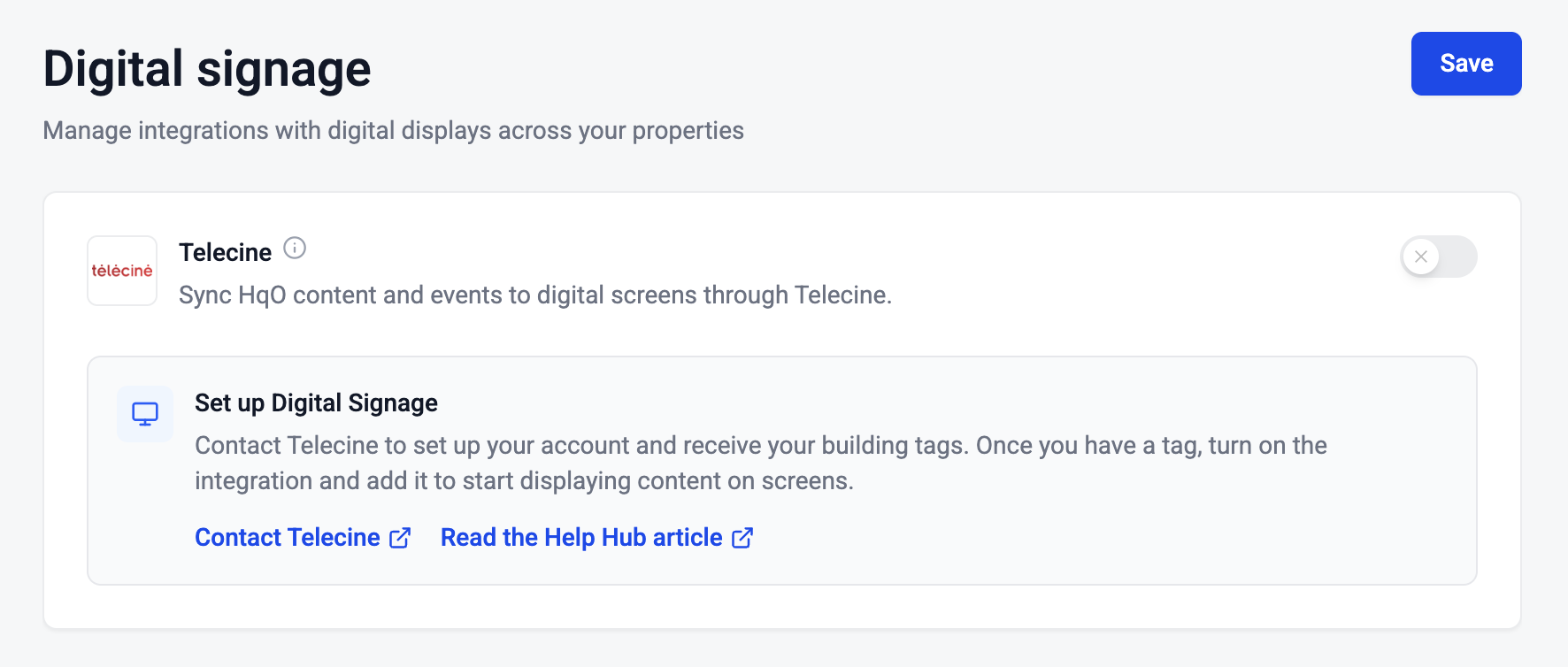
Step 1 — Enable the integration in HqO
-
Go to Settings in HqO Admin.
-
Select the Digital Signage tab.
-
Find the Telecine integration and toggle it on.
Step 2 — Add your buildings
-
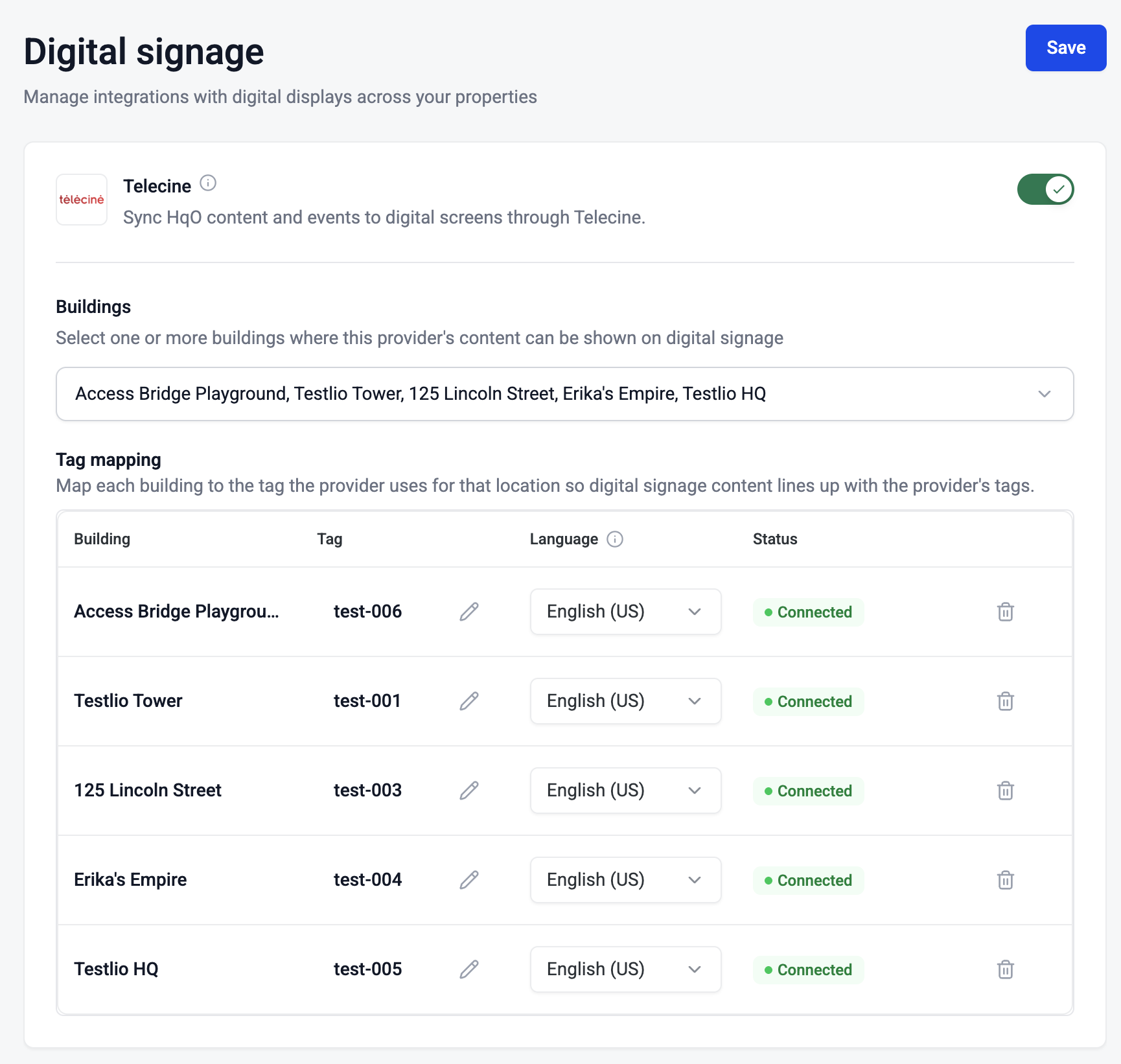
On the same Digital Signage settings tab, click Add building.
-
Select the buildings you want to display content for.
Step 3 — Enter the location tag for each building
Telecine will provide a location tag for each screen location in your property. Enter the tag for each building in the Tag field on the Digital Signage settings page, then save.
If you don't have your location tags yet, reach out to your Telecine contact or ask your HqO representative to facilitate the introduction.
Adding content to screens
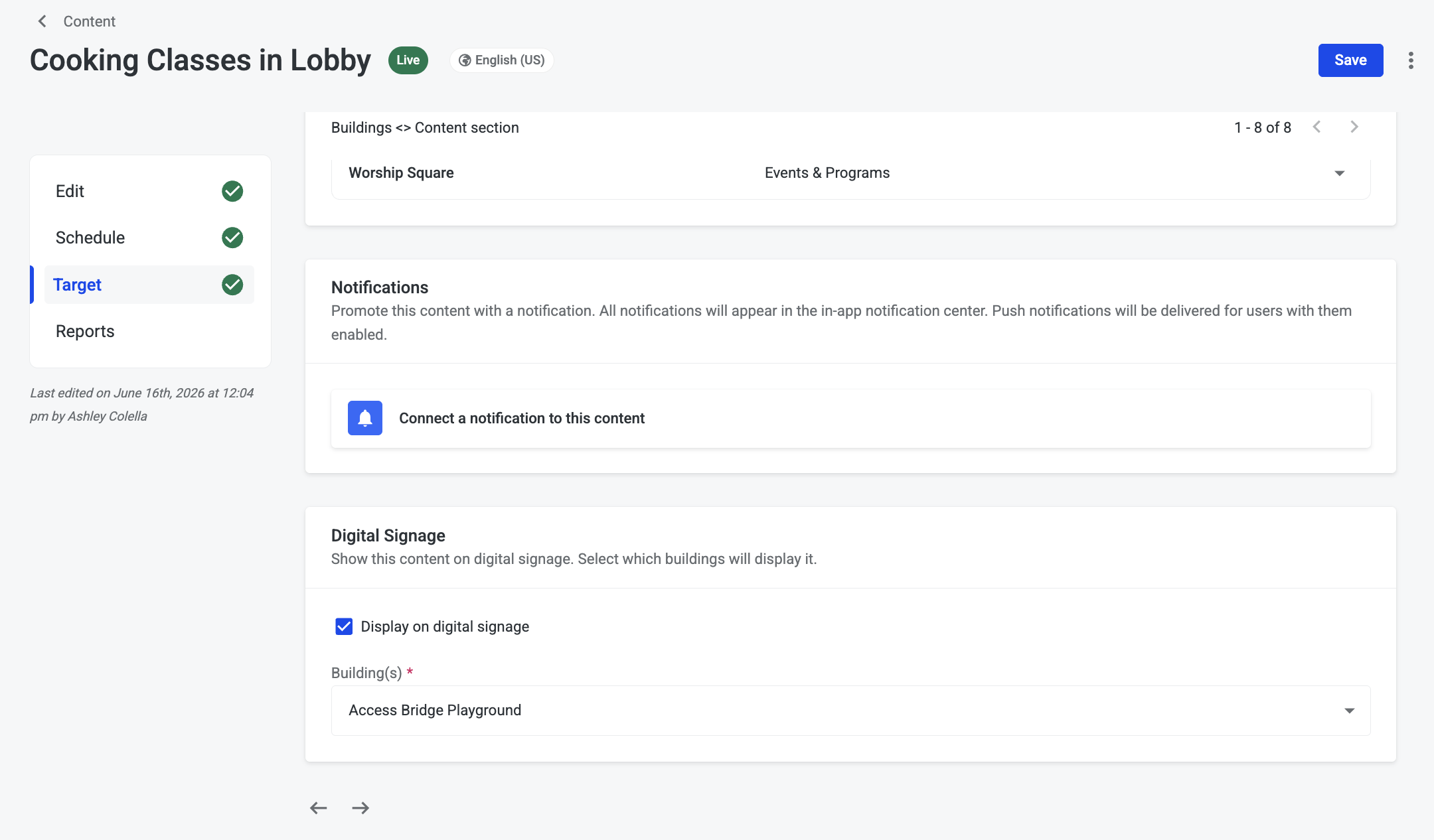
Once the integration is active, you can select which buildings display a piece of content directly when creating or editing it — or manage it from the dedicated Digital Signage page.
When publishing content or events
-
Create or edit a piece of content or an event in HqO Admin.
-
In the Digital Signage section, check Display on digital signage.
-
Select the buildings where it should appear and publish.
From the Digital Signage page
-
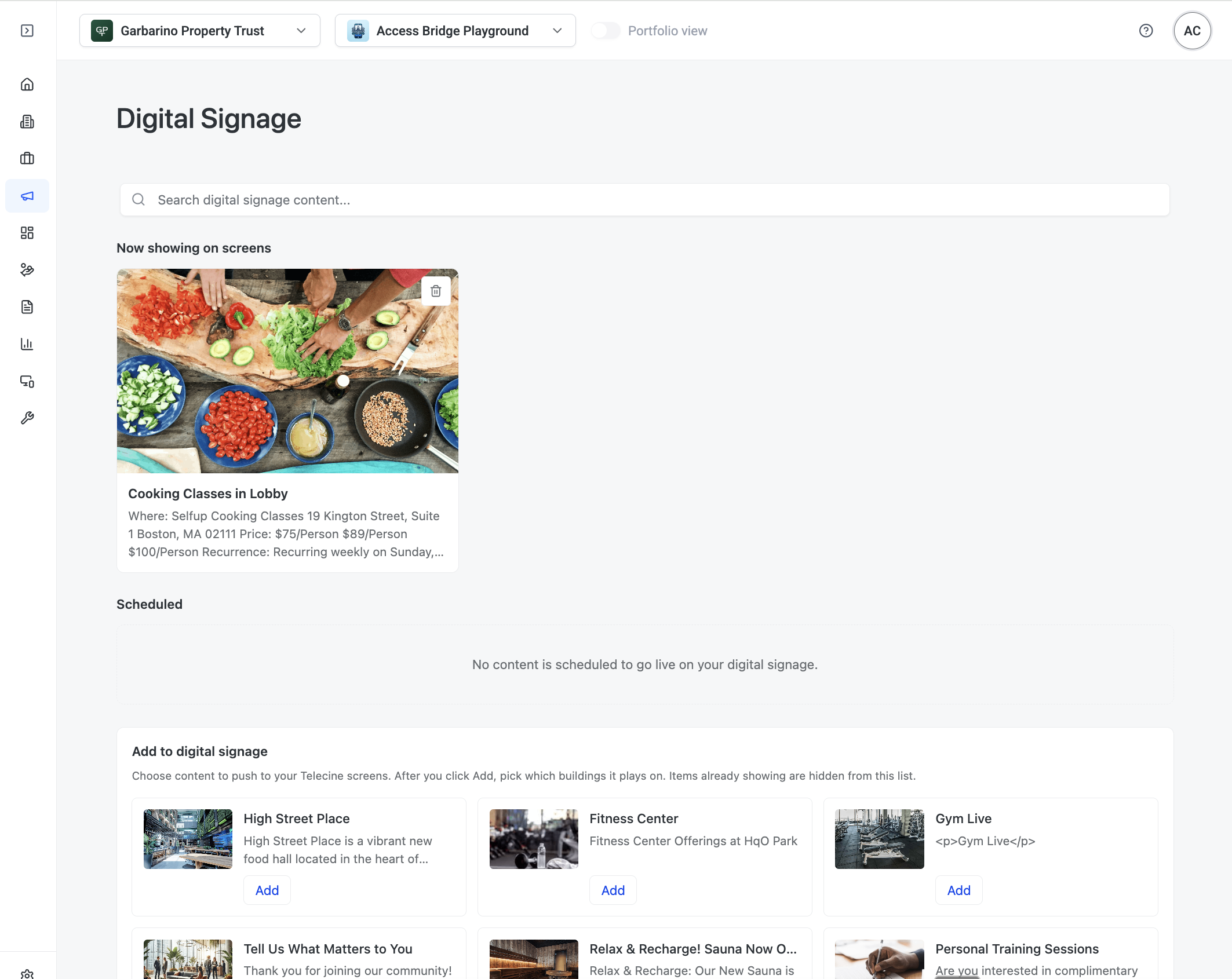
The Digital Signage page gives you a clear view of everything currently going to your screens:
-
Now showing on screens — content that is live right now.
-
Scheduled — content with a future start date that will appear when it goes live.
-
Add to Digital Signage — all other building content available to add.
-
Use the search bar to filter across all three sections. To remove something from screens, click the delete icon next to the item.
-
Turning the integration on or off
You can enable or disable the Telecine integration at any time from Settings > Digital Signage. Turning it off clears your content from Telecine screens. Turning it back on restores any content that is still live.