

Local Experiences
Bring local events, concerts, festivals, and more to your tenants without lifting a finger.
Overview
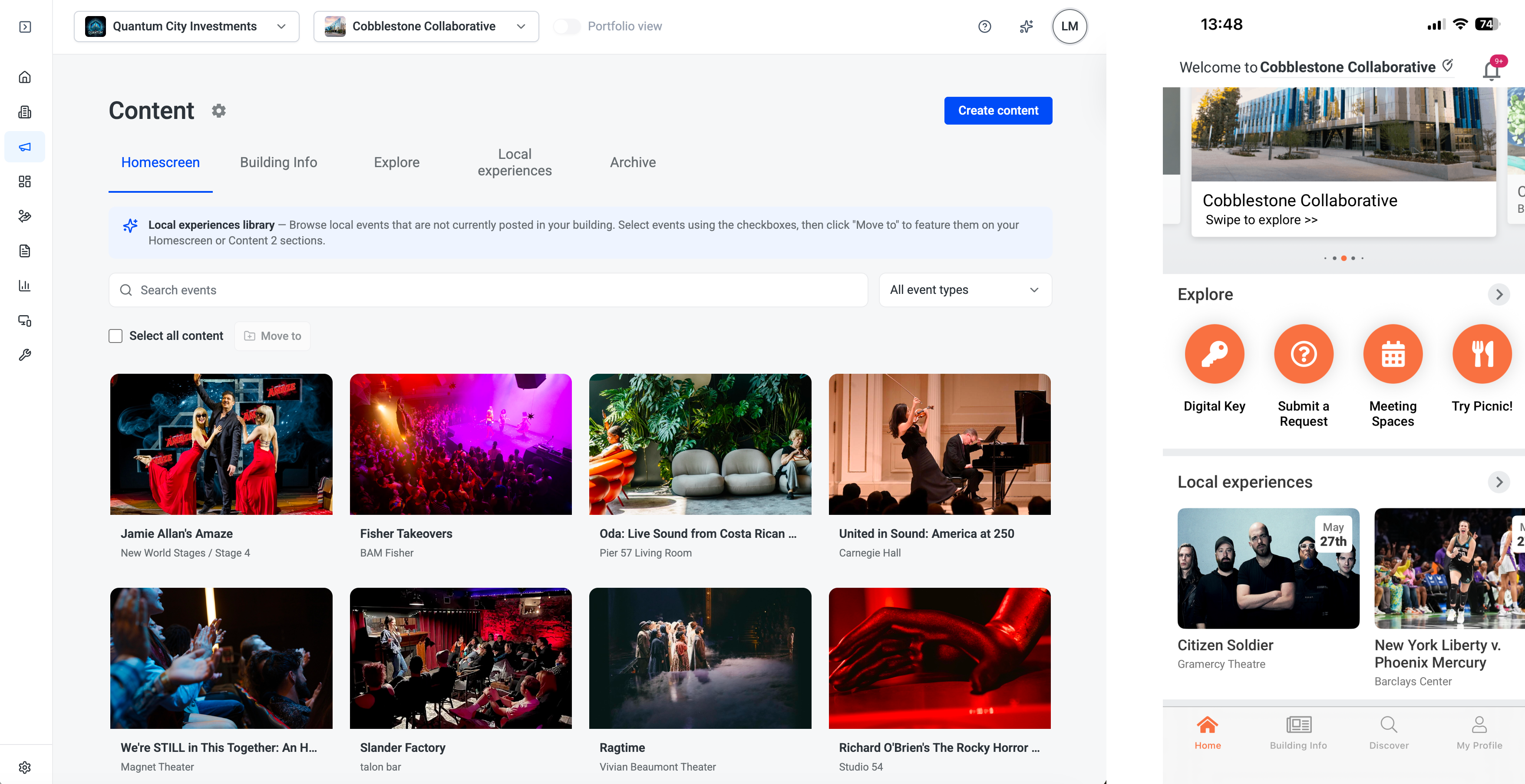
Local Experiences lets building admins surface nearby events directly in their HqO app without any manual coordination. Once enabled, HqO pulls events from a curated database and populates them in your content sections on a rolling 30-day basis — so your tenants always have a fresh, relevant events calendar.
Events are sourced automatically based on your building's location, and you control which event types appear and how they are distributed to tenants.
Enabling Local Experiences
-
In HqO Admin, go to Experience → Content.
-
Click the Local experiences tab.
-
Click Set up local experiences. This takes you to Settings → Local experiences.
-
Toggle Local experiences on.
-
Your building's city is pre-populated based on your building address. Confirm the city shown is correct.
-
Choose a distribution option - auto-populate or manual.
-
Click Save.
Once saved, a Local experiences section is automatically added to your app's content. Events will begin populating within the rolling 30-day window ahead of each event date.
Distribution options
After enabling Local Experiences, choose how events are surfaced to tenants:
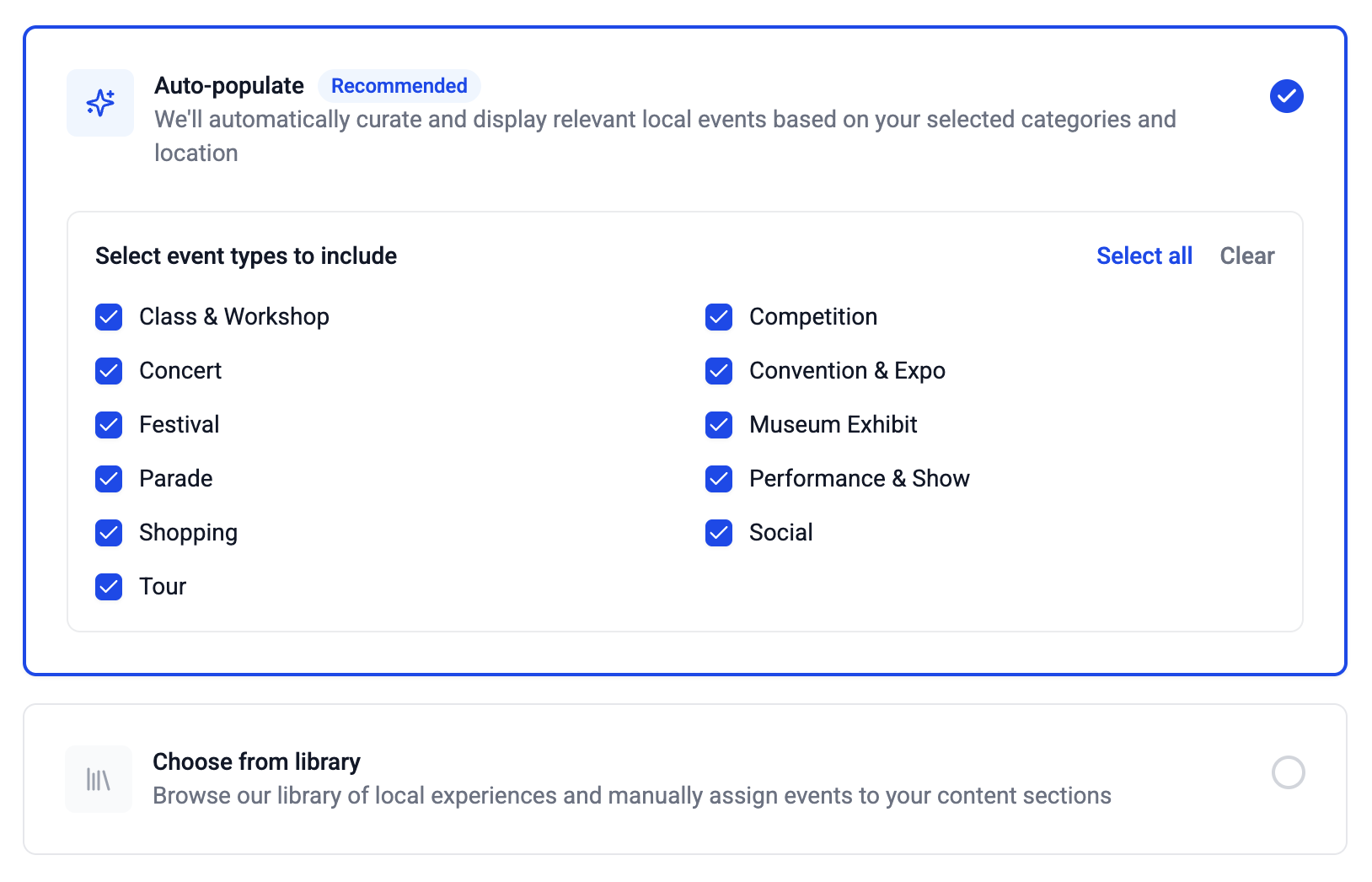
Auto-populate (recommended)
HqO automatically curates and displays relevant local events in a dedicated content section based on your selected city and event types. No manual publishing required.
Select the event types you want to include — or use Select all to include everything:
|
Event type |
Description |
|---|---|
|
Class & Workshop |
Fitness, art, learning, and skill-building sessions |
|
Concert |
Live music performances |
|
Competition |
Sporting events, tournaments, and contests |
|
Convention & Expo |
Industry conferences and trade shows |
|
Festival |
Community festivals and cultural celebrations |
|
Museum Exhibit |
Exhibitions at local museums and galleries |
|
Parade |
Street parades and processions |
|
Performance & Show |
Theater, dance, and live entertainment |
|
Shopping |
Markets, pop-ups, and retail events |
|
Social |
Networking events, happy hours, and community gatherings |
|
Tour |
Guided tours and walking experiences |
Choose from library
Browse the full local events library and manually select which events to feature. Selected events can be moved to your Homescreen or Content sections. This option gives you full control over what appears in your app.
To use the library:
-
Go to Experience → Content → Local experiences.
-
Browse or search available events.
-
Check the box next to any events you want to feature.
-
Click Move to and select the content section where you'd like the events to appear.
Browsing and publishing events
When Local Experiences is set up, the Local experiences tab in Experience → Content shows a live feed of upcoming local events near your building.
-
Events are displayed on a rolling 30-day basis — only events within 30 days of their event date are shown.
-
Use the Search events bar or the All event types filter to find specific events.
-
Events marked Live are already published in your app.
Portfolio-wide settings
If you manage multiple buildings, you can configure Local Experiences across your entire portfolio from a single place.
-
Enable Portfolio view in the top navigation bar.
-
Go to Settings → Local experiences.
-
Buildings with an existing Local Experiences setup will display their configured cities.
-
Use Auto-populate settings to bulk-apply event type preferences across all buildings at once.
<Note>
Individual building configurations can still be adjusted per building after a portfolio-wide update is applied.
</Note>
Requesting a new city
Local Experiences currently supports a set of available cities. If your building is located in a city that isn't listed, you can submit a request directly from the settings page.
-
Go to Settings → Local experiences.
-
Under the Cities selector, click Request it now next to the "Not seeing your city?" prompt.
-
An email request will be sent to the HqO team
The HqO team will follow up on availability and timelines for adding your city.