

Overview
Our built-in service booking tool integrates with “Timekit”. This allows us to set up recurring appointment booking in our own native app experience instead of through external software such as Calendly or Eventbrite.
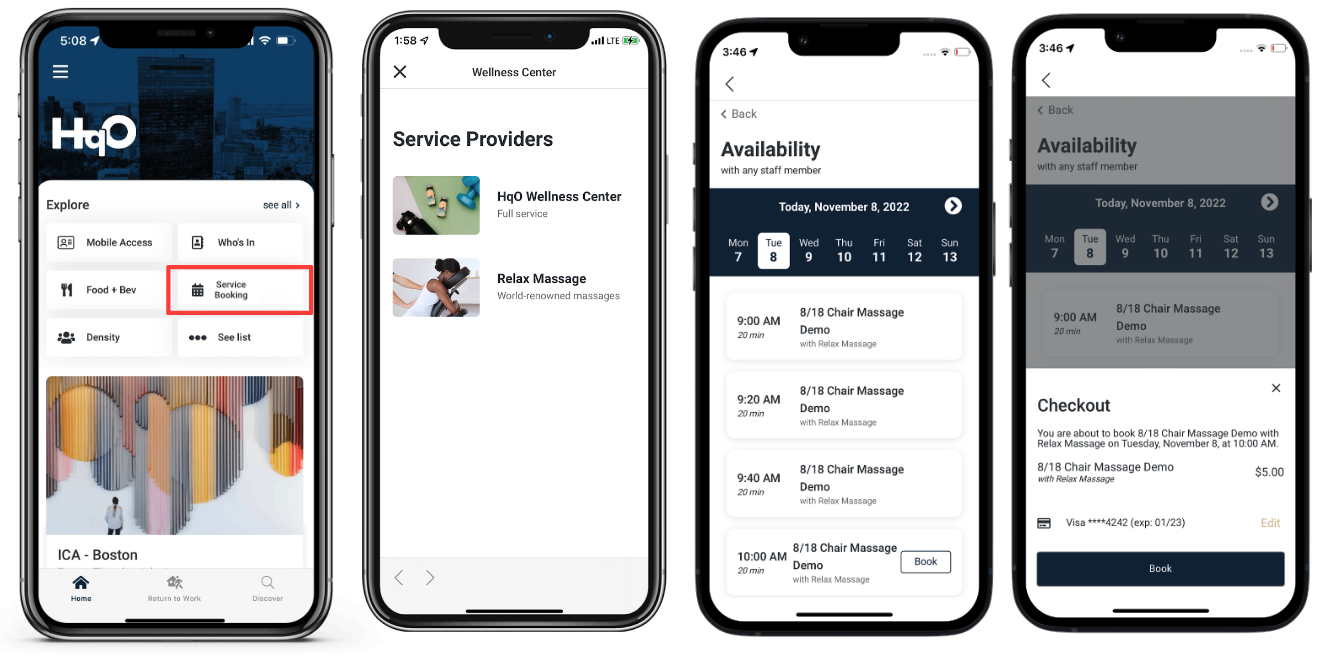
Mobile App Experience
-
User is able to sign up for on-site building services such as manicures, massages, etc.
-
User is able to view upcoming reservations
HqO: Admin Experience
-
Admins can view and cancel service booking requests
-
Admins can export the list of reservations to share with vendors
-
Admins can set up new services with the help of their HqO services associate
-
Admins can choose if services are free or require payment from users
-
Paid services can be set up through Timekit by attaching a Stripe ID with the help of an HqO service associate
-
-
Admins can choose the timeframe they’d like to offer services during
-
Admins can select when they’d like users to be able to start booking services
-
Admins can block specific dates (i.e. holidays)
Timekit: Admin Experience
-
Vendors for 1:1 appointments can configure notifications for new bookings
-
Vendor will follow the invitation email sent to them
-
Vendor will navigate to their “User settings” by clicking on their initials at the top right of the Timekit webpage
-
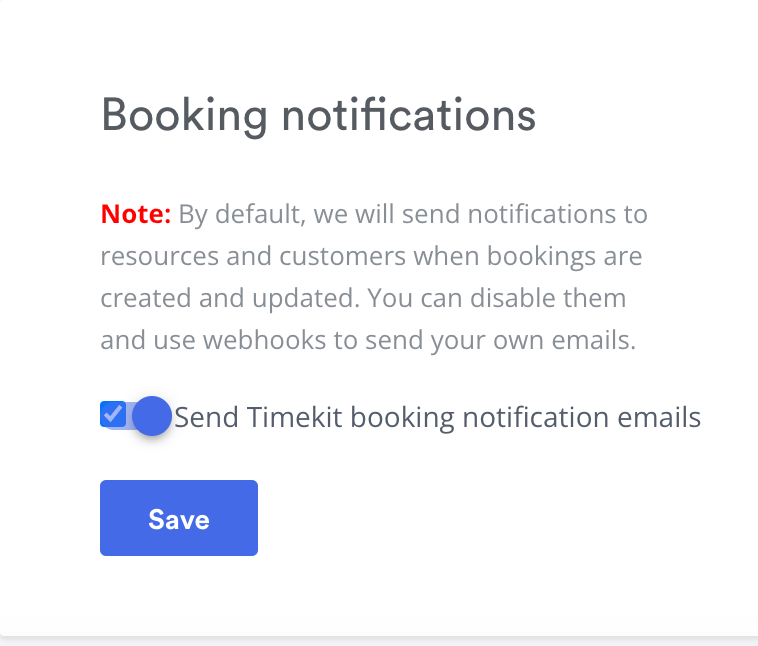
Vendor should scroll down and make sure “Send Timekit booking notification emails” is enabled.
-
-
Vendors can view upcoming bookings in Timekit
-
Paid appointments for customers that have set up StripeConnect
Configuring Service Booking
Step 1: Submit the form below to HqO for the appropriate service type you are offering
Step 2: Create the Utility Button
Please note: This functionality is not currently available for all users in HqO Admin. If you would like to make changes to your app’s utility buttons, please contact your HqO Customer Success Manager or Implementation Manager.
Step 2: Once HqO confirms the service has been configured in Timekit
Create a Service Provider and Attach it to a Timekit project
-
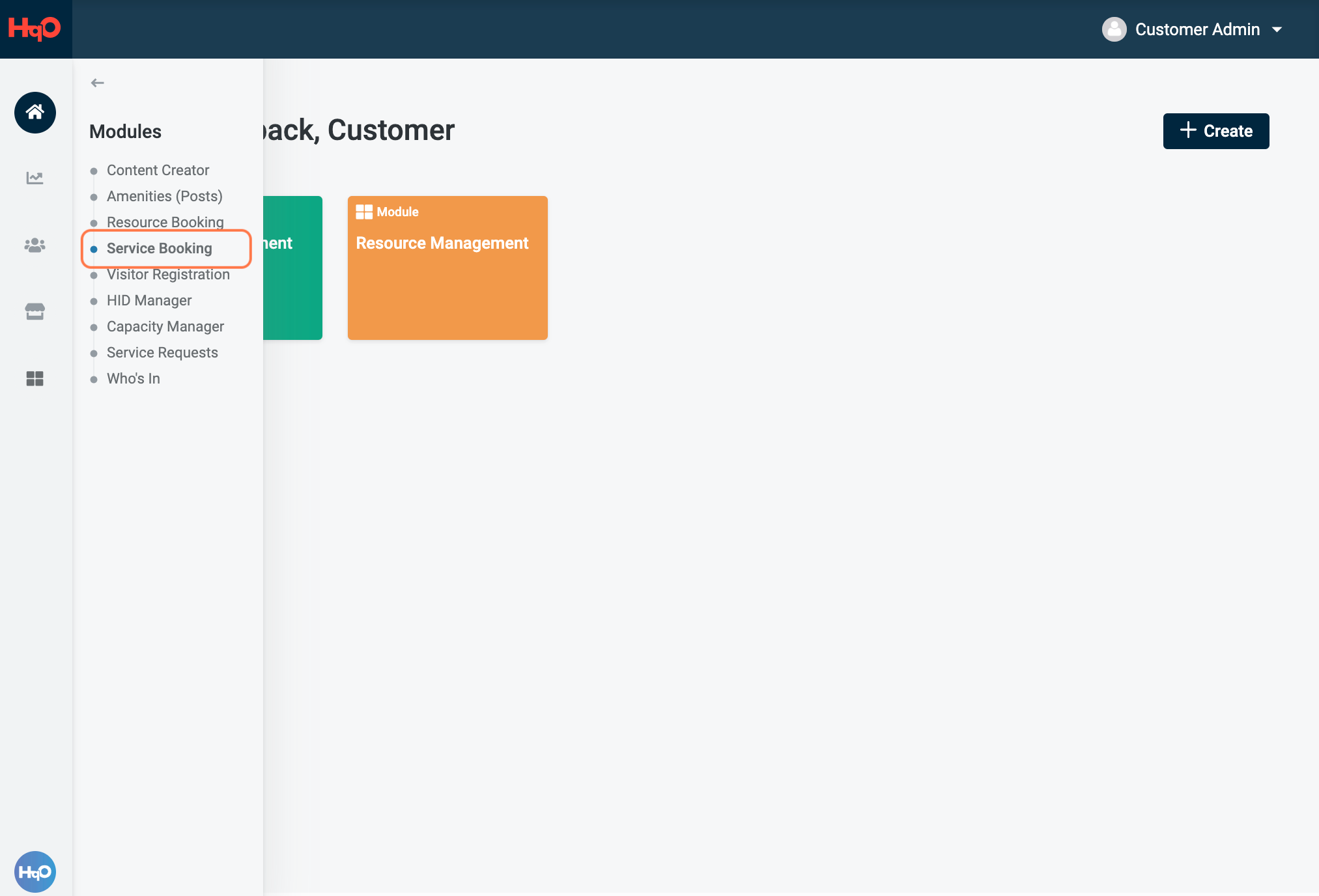
Navigate to the asset you want to add the resource to, then open the Modules > Service Booking page.
-
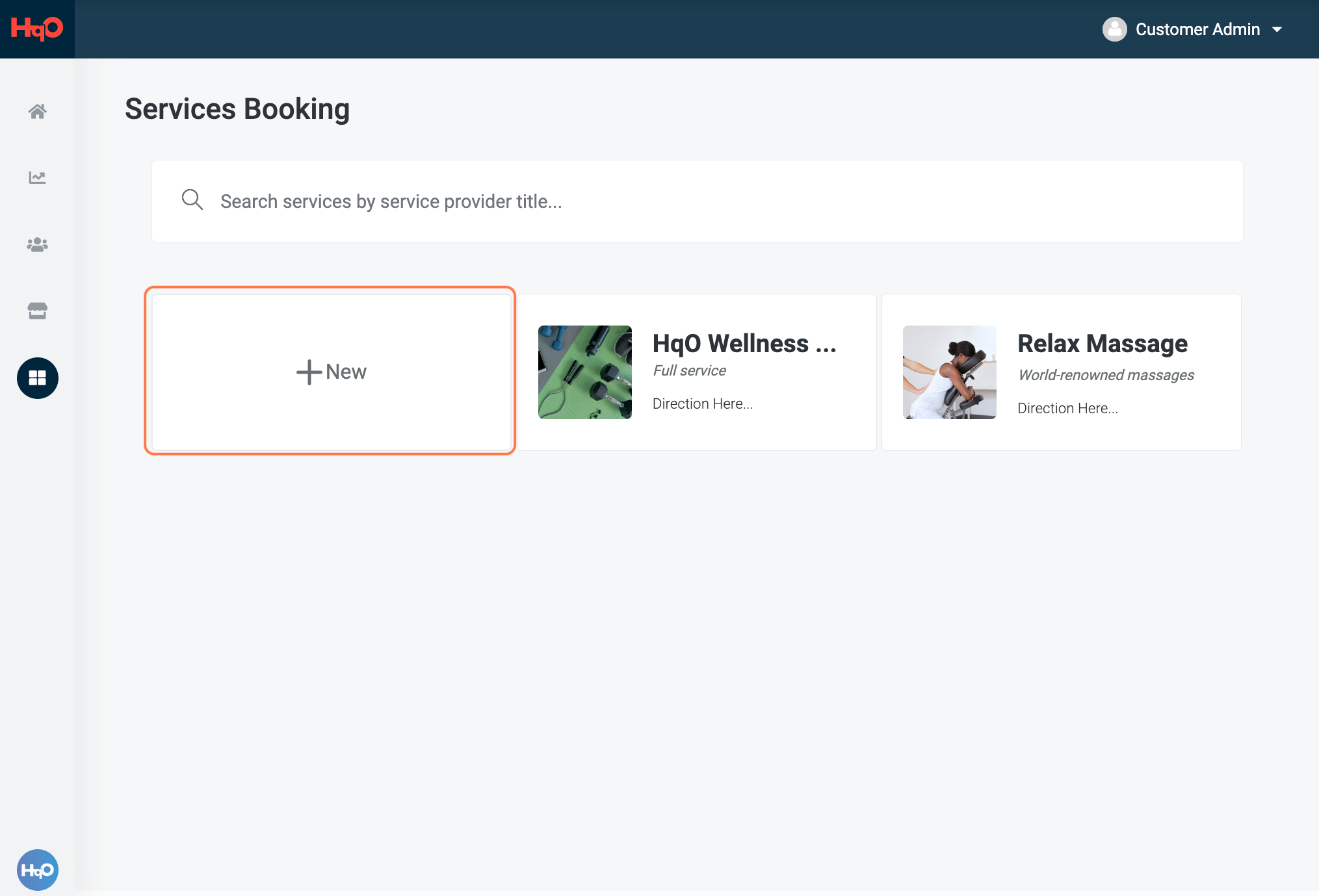
Click “New”
-
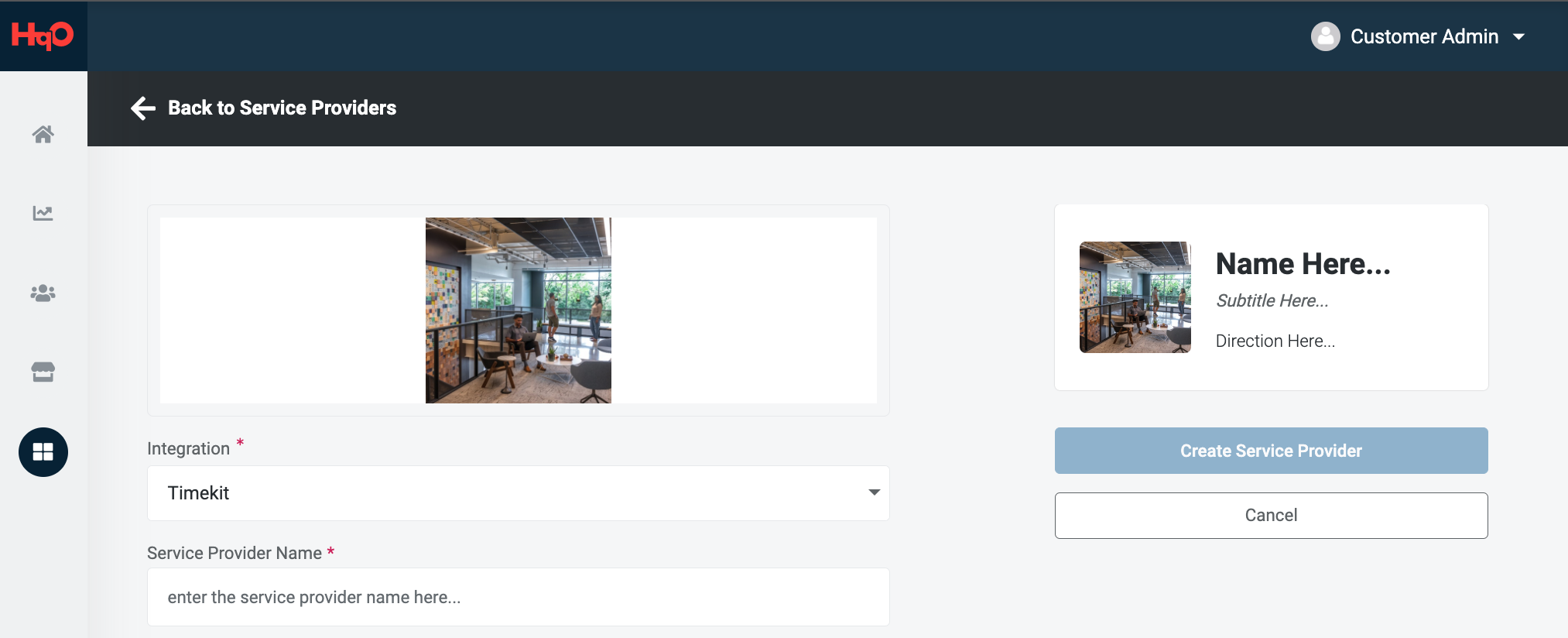
Select the category dropdown “Timekit”. You will then see the following fields. * indicates required fields.
-
Service Provider logo/image*
-
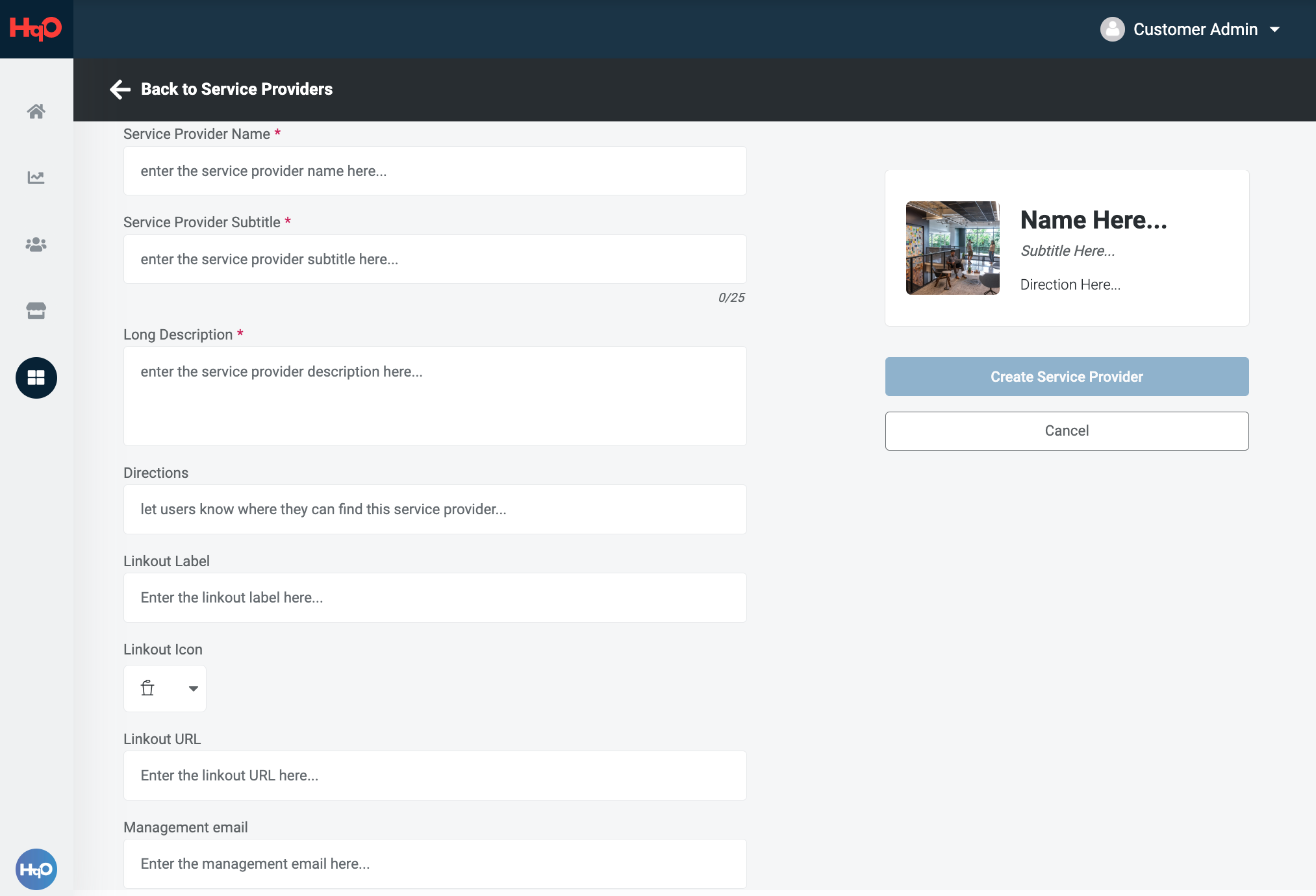
Service Provider Name*
-
Service Provider Subtitle*
-
Long Description*
-
Directions (i.e. Location, this will appear in the confirmation email users receive)
-
Linkout Label - What will the linkout be called in the app?
-
Linkout Icon - What will the linkout icon look like?
-
Linkout URL - Where will the linkout go? (This can be a provider’s website, or any other URL.)
-
Management email - If you want users to see an email in-app that they can contact for questions, enter it here. This email will also be included in the confirmation email users receive.
-
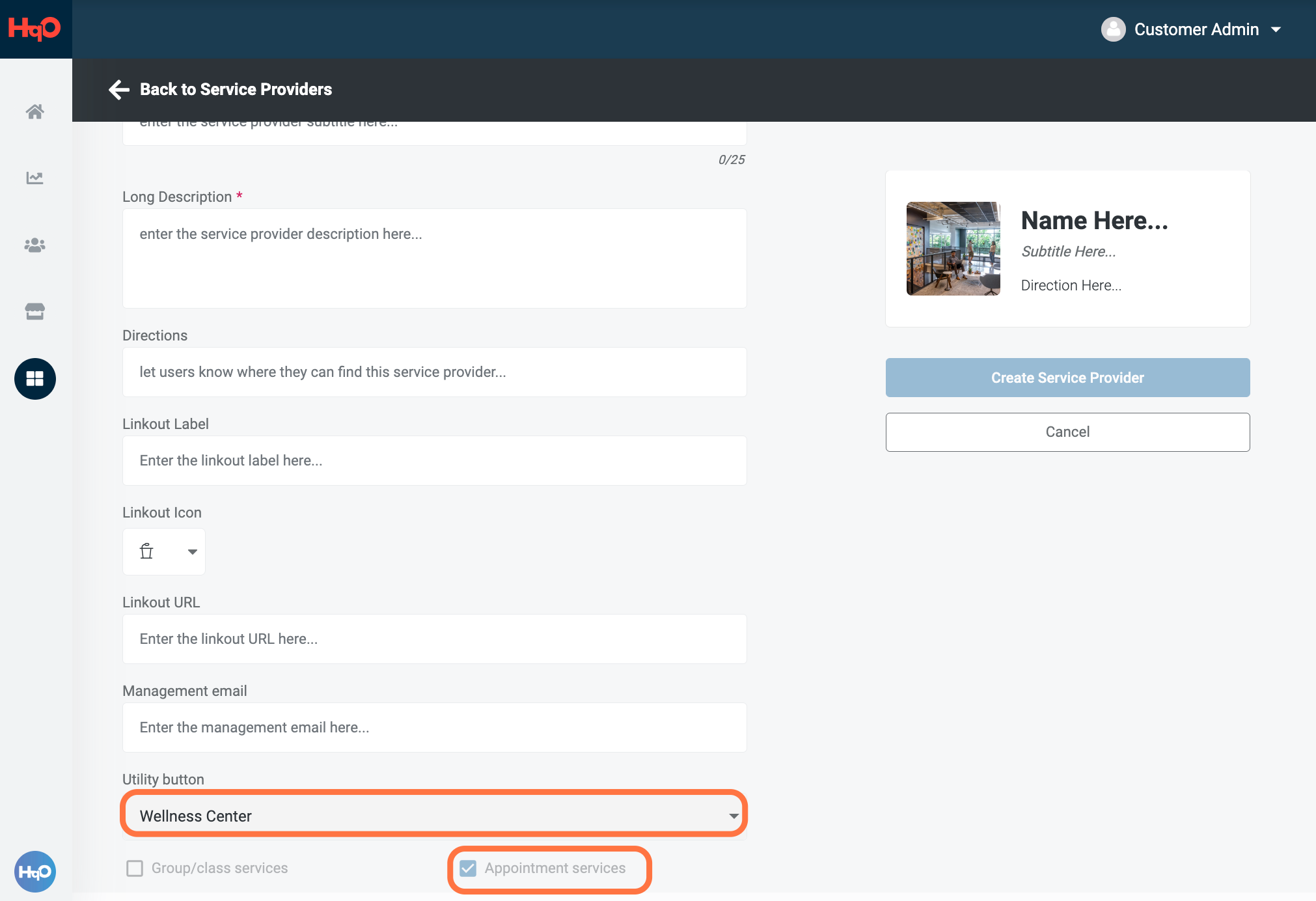
Utility button - Select the Service Booking utility button from the dropdown menu
-
Group/class services and Appointment services checkboxes- You can’t select anything here because we currently only support Appointment services
-
-
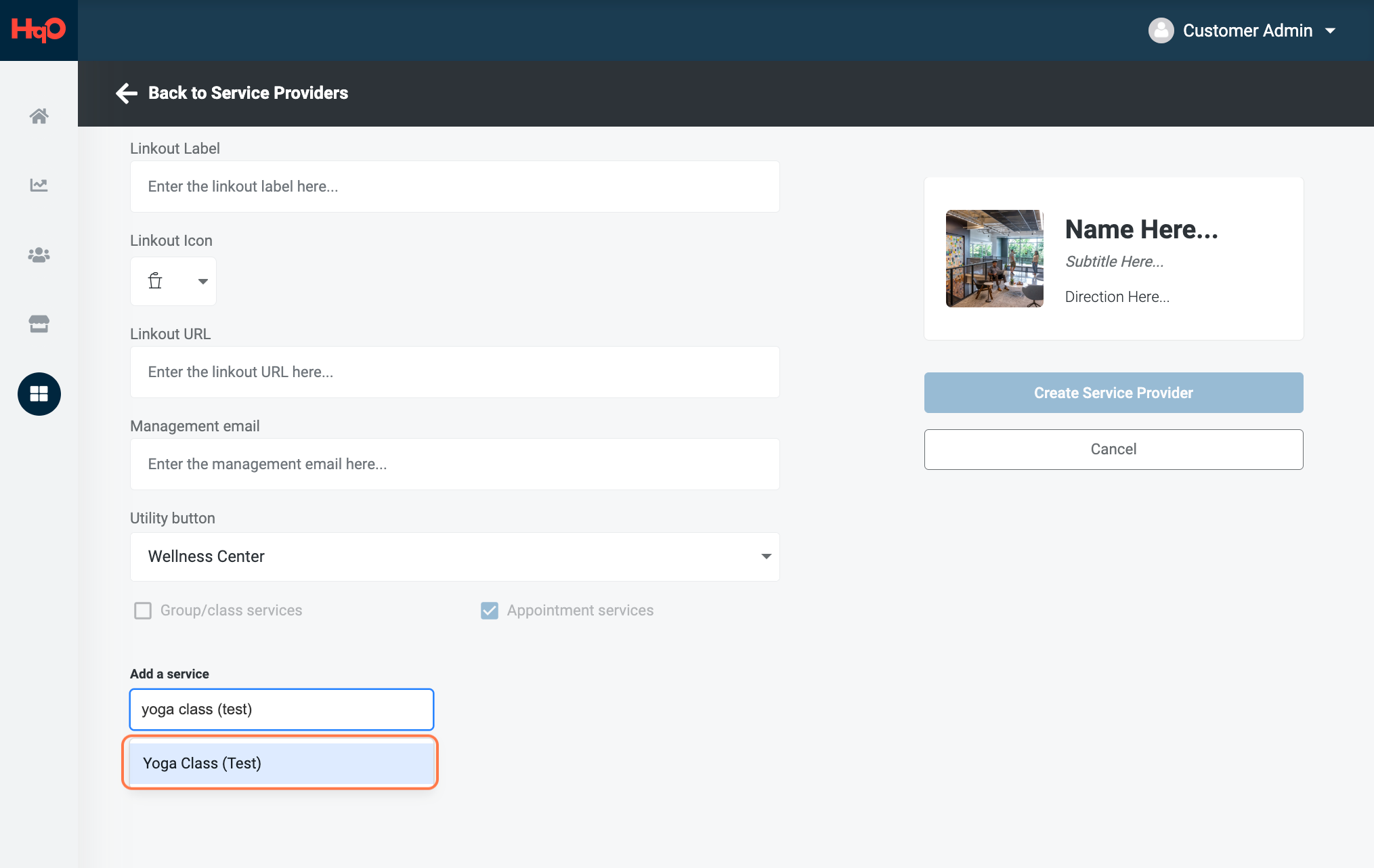
Click into the Add a service field and begin typing the name of the service HqO confirmed they created in Timekit to find the service you would like to add. Once you select a service to add, additional dropdowns will appear.
-
You CAN reuse the same Project for different dates (ex if the manicurist returns weekly), but each Project can only be attached to one service provider in HqO Admin at a time. So, if you have the same schedule of manicures for two different buildings, you will need to create two separate Projects. However, you can get them to share availability by using the same Timekit Resource for both bookings.
-
-
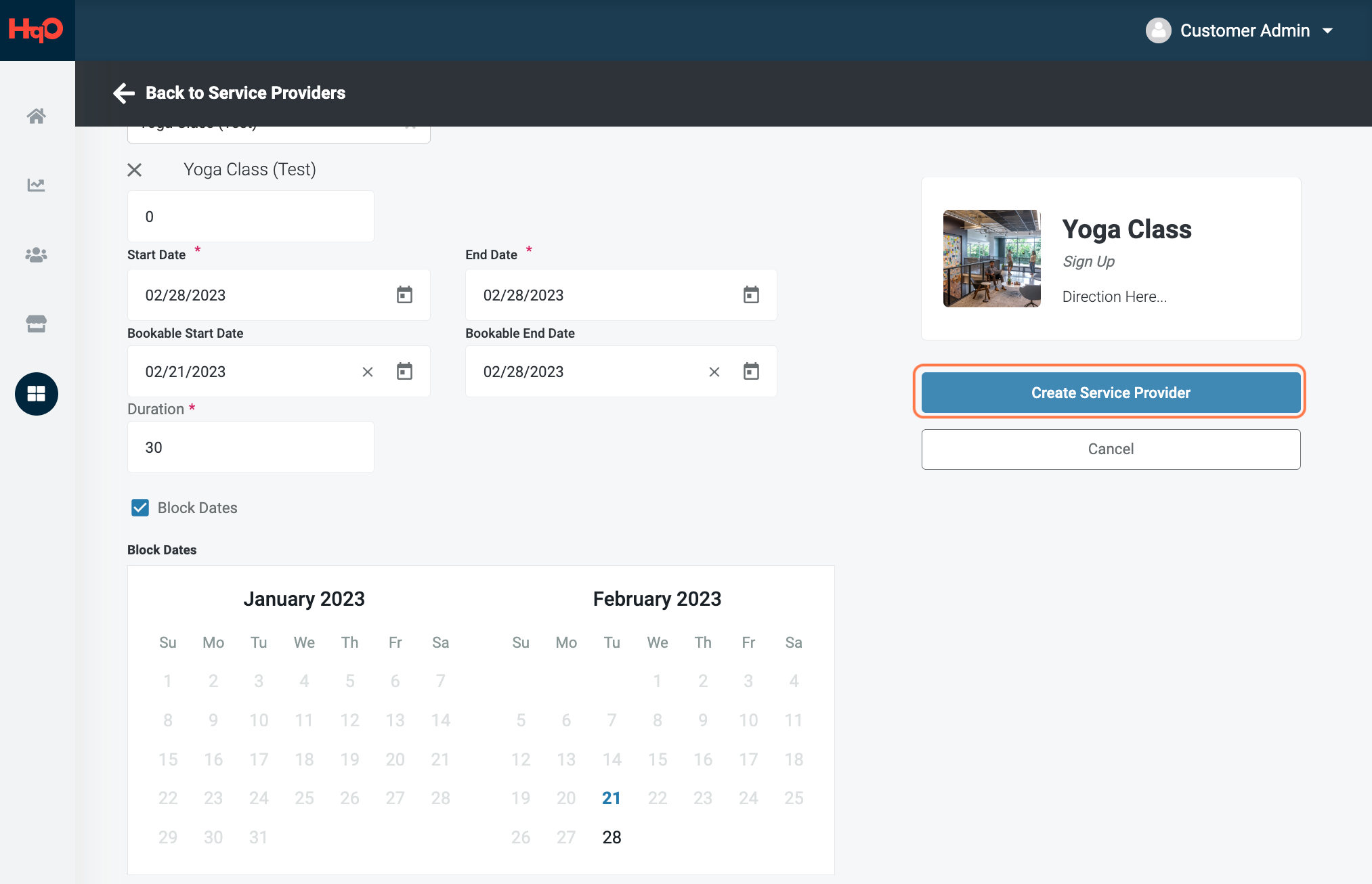
Here you will set dates for the service and the service duration.
-
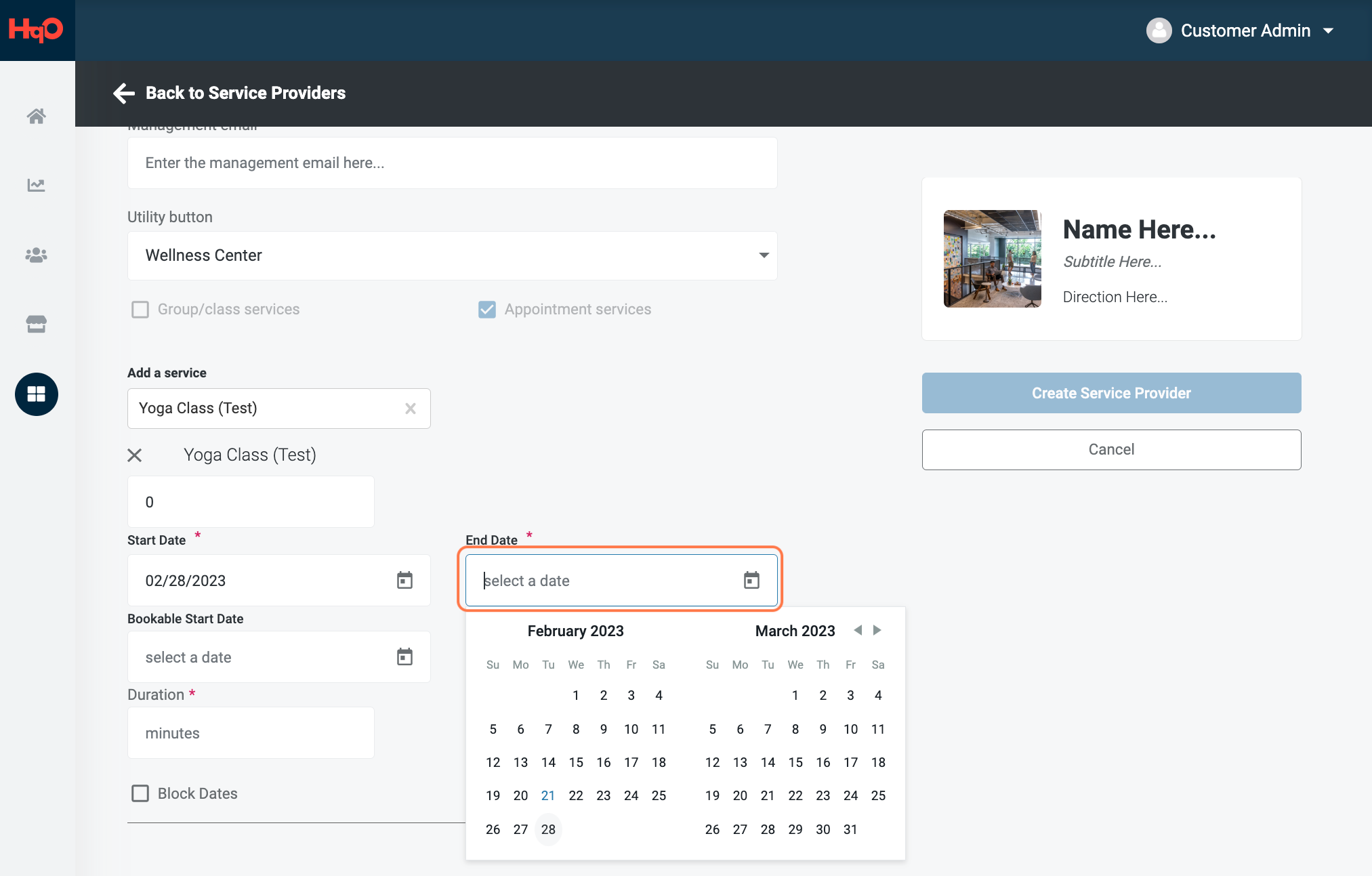
Start Date and End Date: This determines when the service itself is happening. If manicures go from 11/1 to 11/5, these dates should be set as start and end dates. If a yoga class is happening on 2/28, the start and end dates should both be 2/28.
-
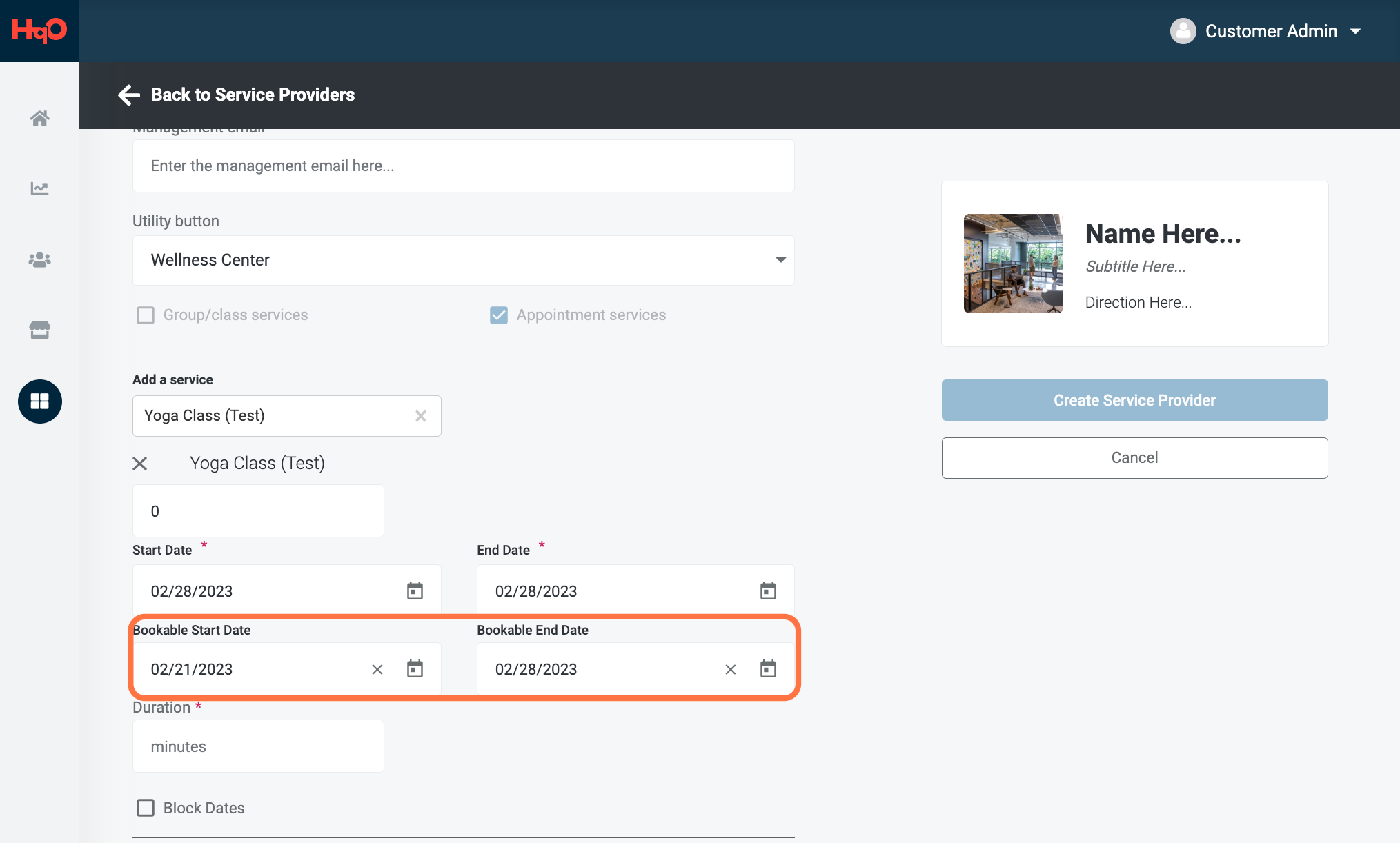
Bookable Start Date and Bookable End Date: These settings determine when a user can book a service. If you want the service available for users to book one week before the service start date, set the bookable start date as such. This is an optional field.
-
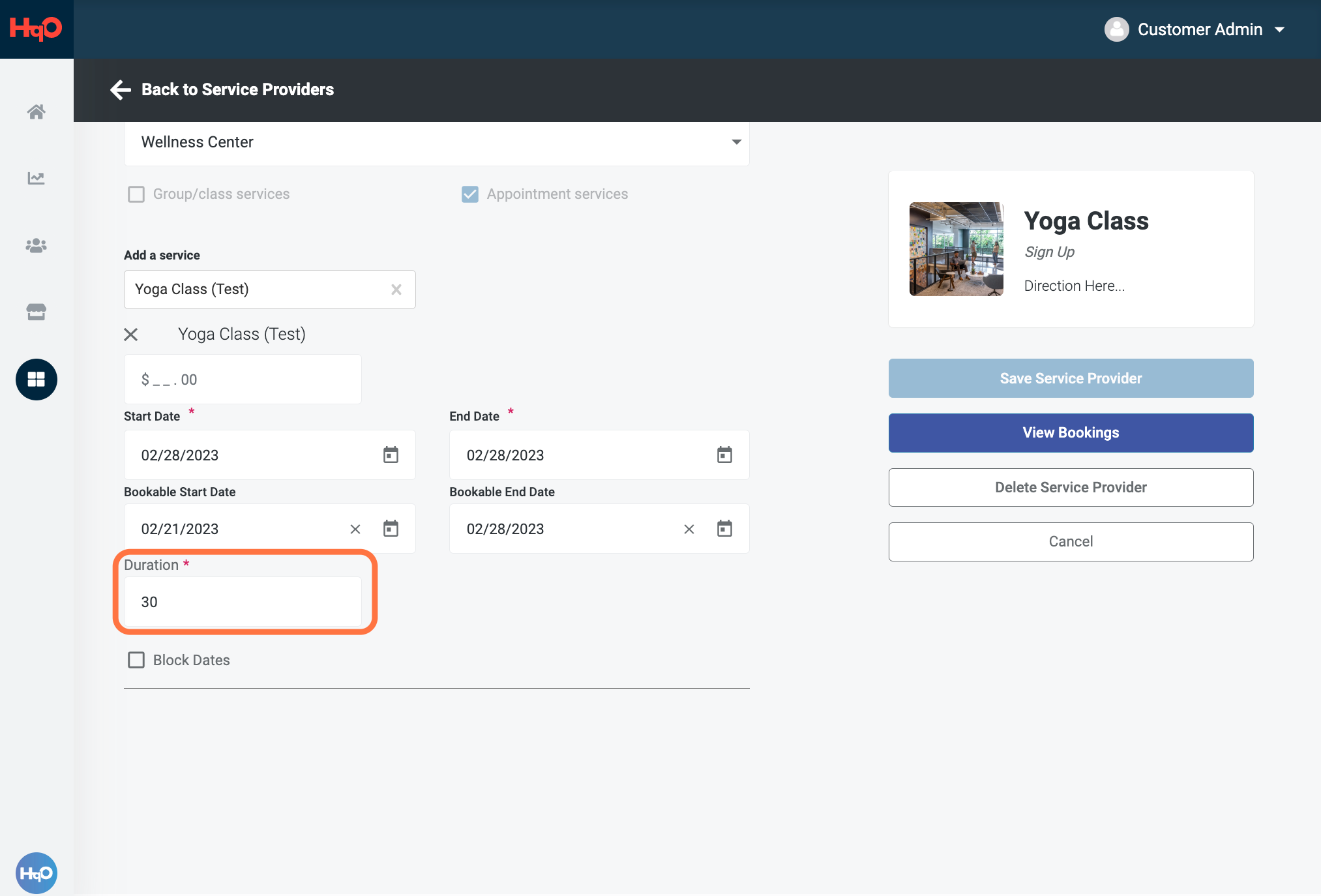
Duration: Enter the bookable time period for the individual service (i.e. 30-minute manicure session, 60-minute yoga class)
-
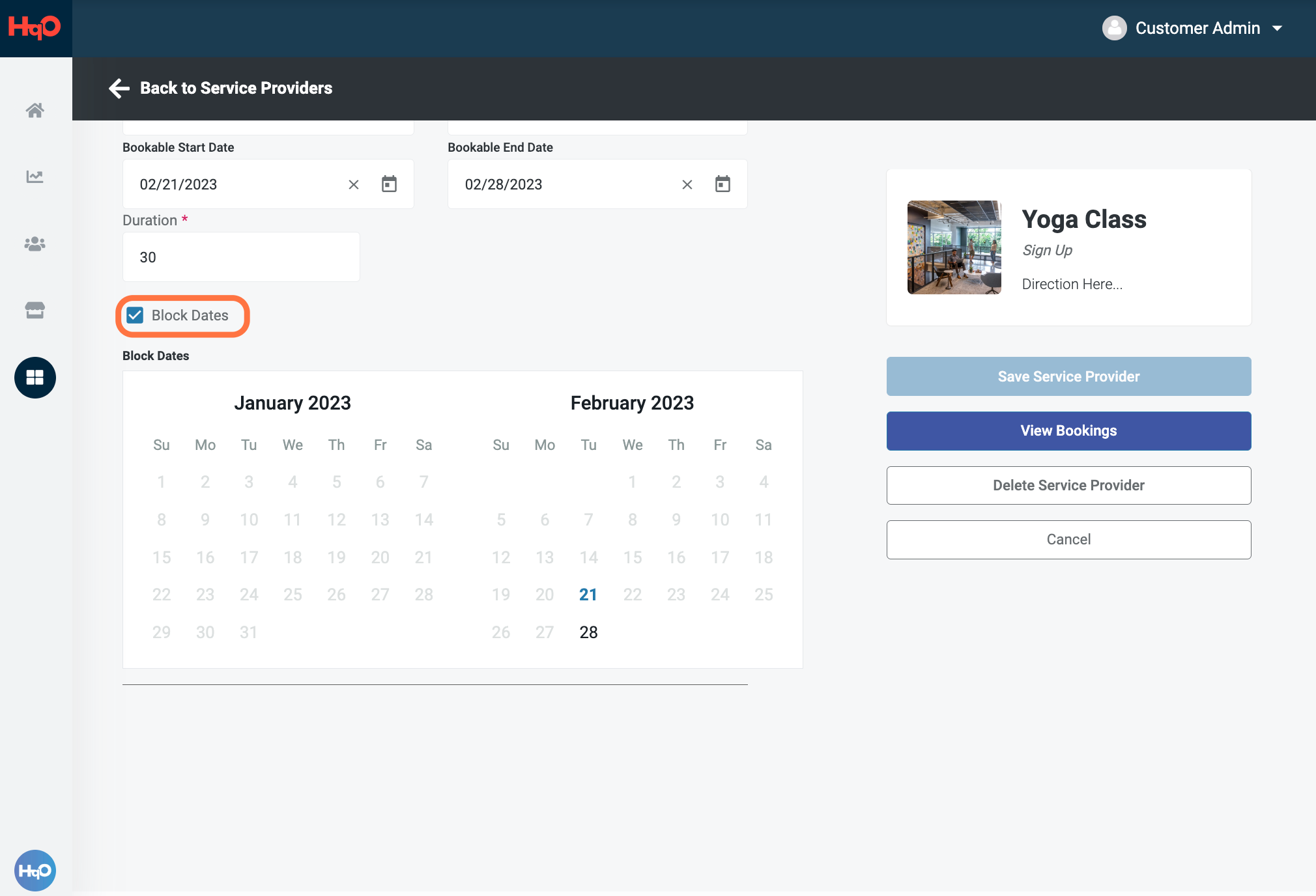
You can select Block Dates in order to make specific dates unavailable. For example, if you have services every Monday, but not on Labor Day, you can block it off here. This block date section can be used to block individual dates or longer blocks of dates.
-
-
Click Create Service Provider and you’re all set to go!
-
You will now see the service under the utility button you selected.
-
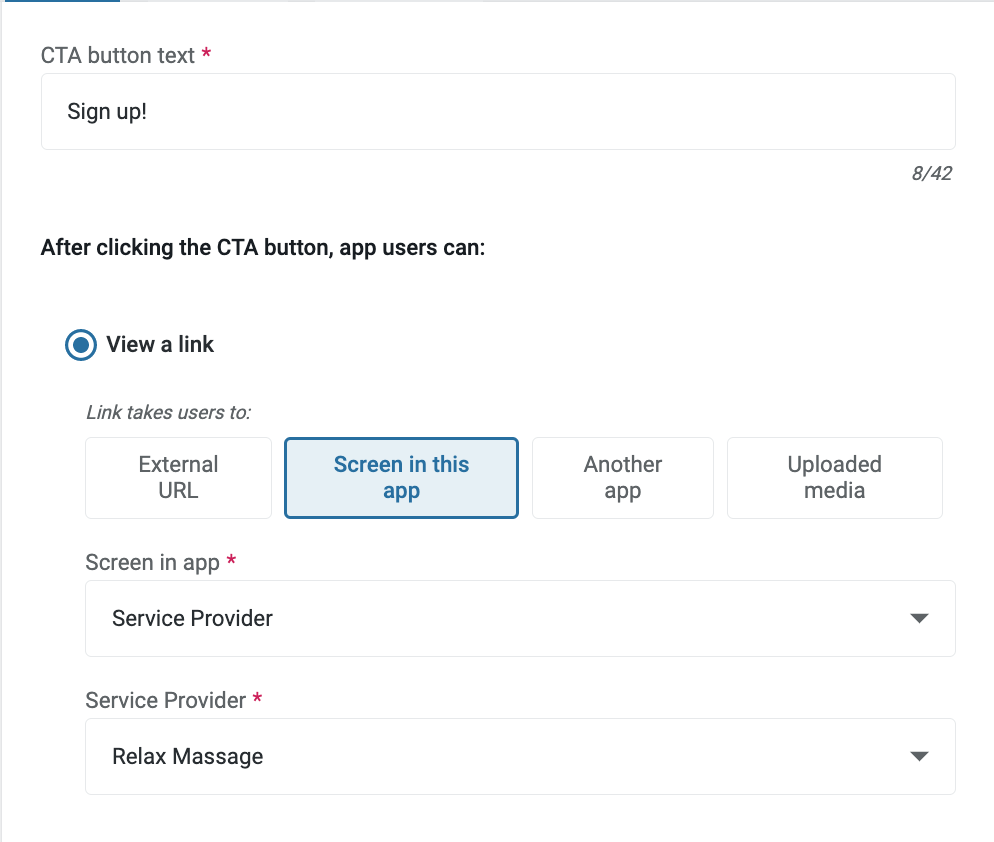
Attaching a Service to a Content Tile
Instead of attaching a service to a utility button, you can create a post and link the service directly to a content post.
Viewing Bookings in HqO Admin
-
On the left panel, navigate to "Modules" (the 4 squares) - Select "Service Booking"
-
Select the service you would like to review the bookings for
-
On the right side, select "view bookings" under the service's image
-
Select the furthest date you would like to pull bookings. Note: It will default from today's date - all future bookings.
-
To edit, select the calendar icon and select the date you would like to view