

Check-In Overview
HqO’s Check-In functionality requires end users to check-in to a resource reservation within 30 minutes or else the reservation will be released. This functionality will help improve workplace utilization. The end user will be reminded twice to check into their resource via both push notifications and emails. Your team will be able to enable the check in functionality on a resource by resource basis. This functionality is currently supported with HqO Built-In Resource Booking.
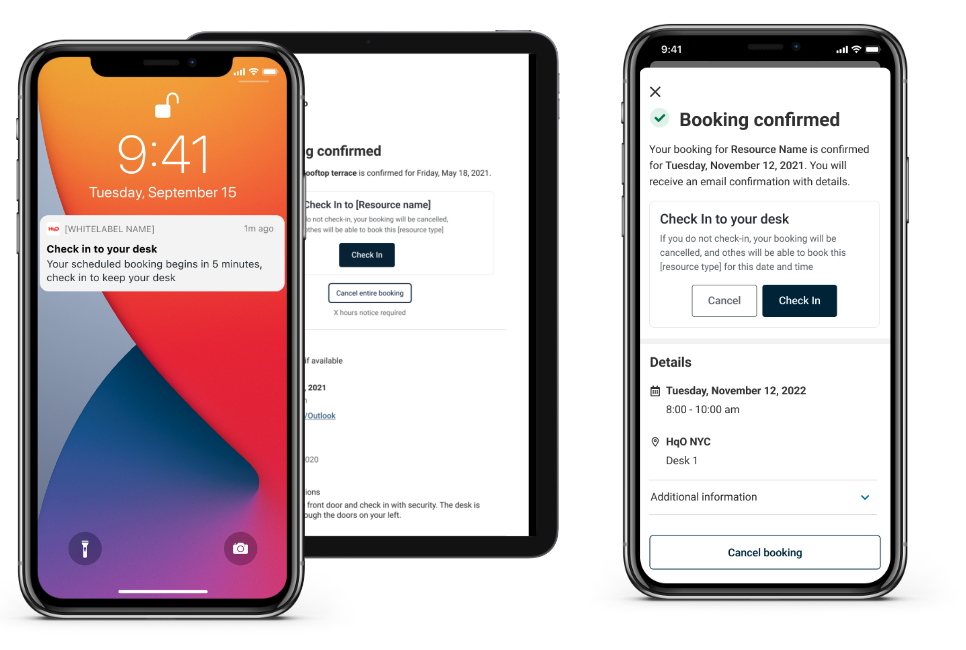
Mobile App Experience
-
For enabled resources, user will be required to check-into reservations
-
User can proactively check into their reservations in the Upcoming Reservations section
-
If not yet checked-in, user will receive a push notification (if enabled) 15 minutes prior to the reservation and again 25 minutes after the start time of the reservation
-
If the user does not check-in, the reservation will be released
Admin Experience
-
Admins can manage which resources have check-in functionality enabled
Configuring Check-In
Step 1: Configure HqO Built-In Resource Booking
If not yet configured, follow steps here to set up HqO Built-In Resource Booking
Step 2. Enable Check-In on Integration
-
Log into HqO Admin and navigate to Resource Booking under the modules tab
-
Click on the ⚙️ icon and select the HqO Integration
-
Enable Check-In Functionality
Step 3: Enable Check-In on Resources
-
Click on the resource
-
On the Details Tab, toggle on Check In Enabled
-
Click Save
Frequently Asked Questions
Can I update the times for when notifications are sent?
Currently that is not supported functionality.