

HqO Help

Adding & Removing Email Domains from an Existing Company

Adding a domain

Step 1: Navigate to the relevant building in XM Admin

https://lh7-rt.googleusercontent.com/docsz/AD_4nXfkVp7rbimXxaBbVFFqOcXVmSXRO7Hzz6lFHklXOkL9oRkLrdctq_p3T7XnsAf06EJW8WcI0j6ch29fqFeQmceGmVyEbZUlrZsL-MwZ8xnA23sYomhUnHgYMCvd6_P2cFzeCXRq3ijZIhrpTQXst_yrRks7?key=2Hrj7L1jOHqi4_3_Kh7I_g

Step 2: Select the 'Users’ icon and select ‘Companies’
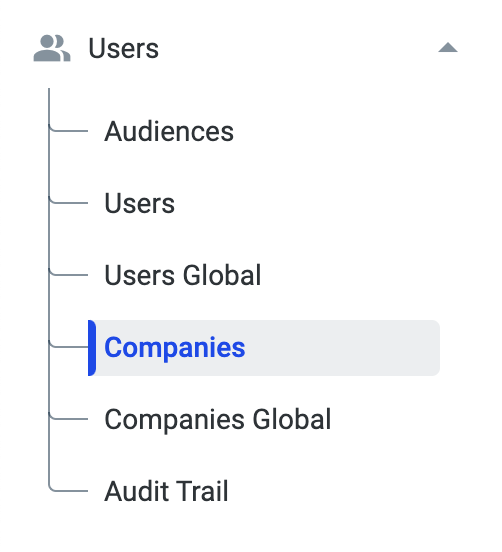
Screenshot 2024-08-08 at 3.55.33 PM.png

Step 3: Search for the company and click on the name to open the company’s info page
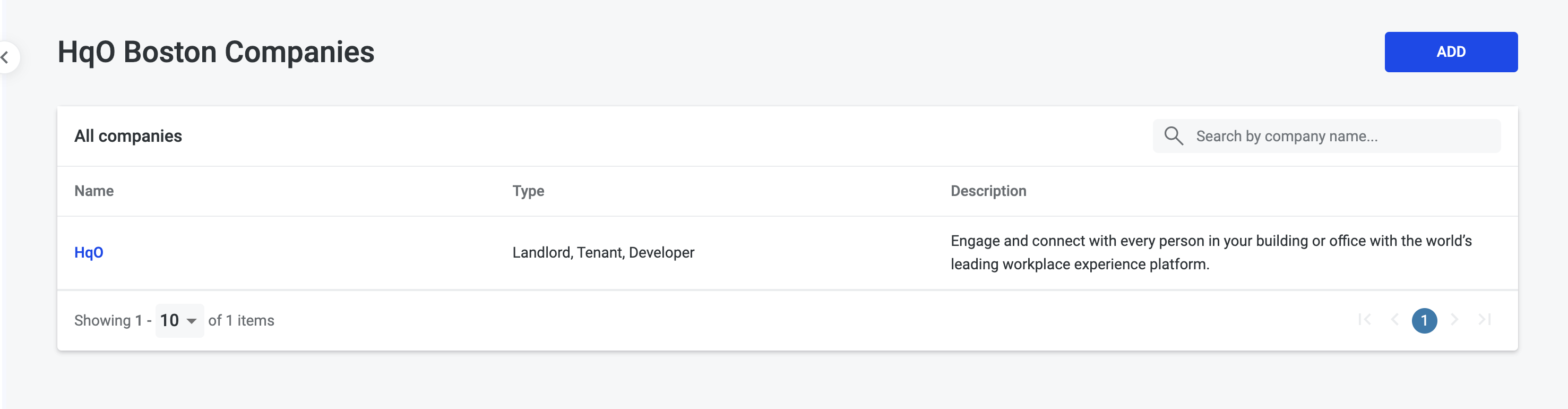
Screenshot 2024-08-08 at 4.02.51 PM.png

Step 4: Scroll to the “Domains” section

Screenshot 2024-08-08 at 4.03.32 PM.png

Step 5: Type in the name of the domain (with no”@”) and then click “Add”

Screenshot 2024-08-08 at 4.03.58 PM.png

Step 6: Click “Save company” to save changes
Screenshot 2024-08-08 at 4.05.31 PM.png


Removing a domain

Step 1: Follow steps 1 - 4 above for adding a domain

Step 2: Click the trash can icon next to the domain

Screenshot 2024-08-08 at 4.06.15 PM.png

Step 3: Click “Save company” to save the changes

Screenshot 2024-08-08 at 4.05.31 PM.png