

Overview
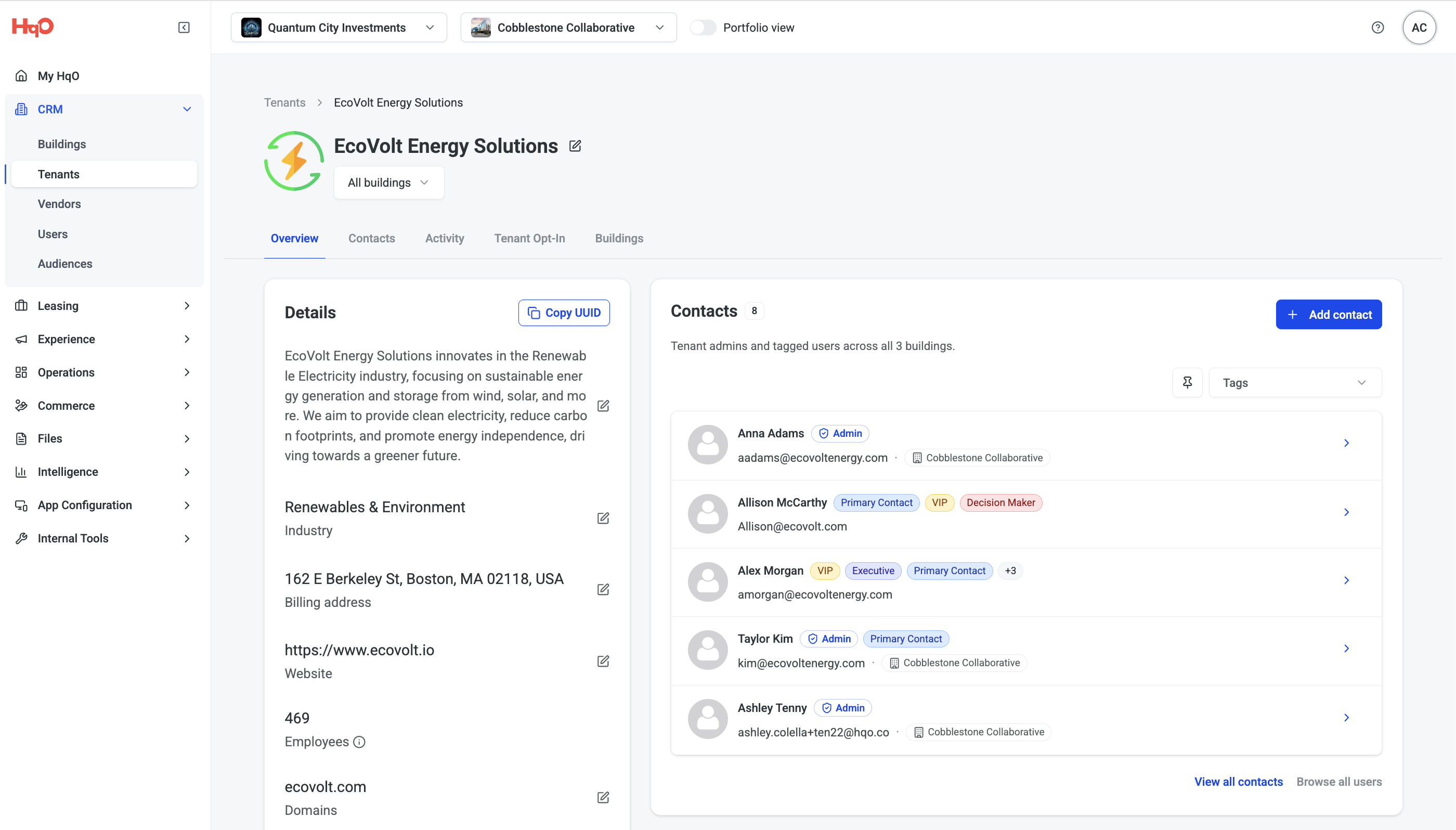
The Tenant Detail Page is your action center for managing individual tenant relationships. This comprehensive dashboard provides property teams with a complete view of tenant health, key contacts, activity history, and building assignments—all with inline editing capabilities that let you update information in real-time. The Detail Page transforms how you monitor and maintain critical tenant relationships across your portfolio.
Key Benefits
-
Tenant Health at a Glance - Overview cards provide instant insight into tenant details, contacts, activity, and building presence
-
Flexible Portfolio Views - Building filter lets you view data across all properties or drill down to specific buildings
-
Inline Editing - Update any information directly on the page with a single click—no navigation required
-
Relationship Intelligence - Track important contacts and their activity to deliver personalized, informed service
-
Centralized Information - Everything about a tenant relationship lives in one place, accessible to your entire team
Key Features
Building Filter
At the top of the Tenant Detail Page, the Building Filter allows you to adjust your view:
-
All Buildings - See portfolio-wide data for tenants that occupy multiple properties
-
Specific Building(s) - Filter to one or more buildings to view location-specific information
When you change the building filter, all data cards on the page update dynamically to reflect your selection. This is particularly valuable for tenants with presence across multiple properties in your portfolio.
Overview Tab - Four Core Cards
The Overview tab displays four cards that provide a comprehensive snapshot of the tenant:
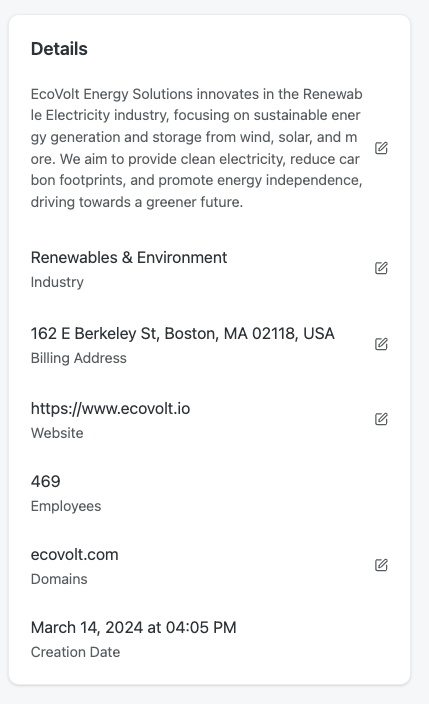
1. Details Card
Core tenant information including:
-
Company name
-
Industry
-
Total employees
-
Monthly rent
-
Square footage
-
Lease end date
-
Status (Active/Inactive/Missing Data)
-
Contact information and additional details
Inline Editing: Click the pencil icon to edit any field directly on the card.
2. Tenant Contacts
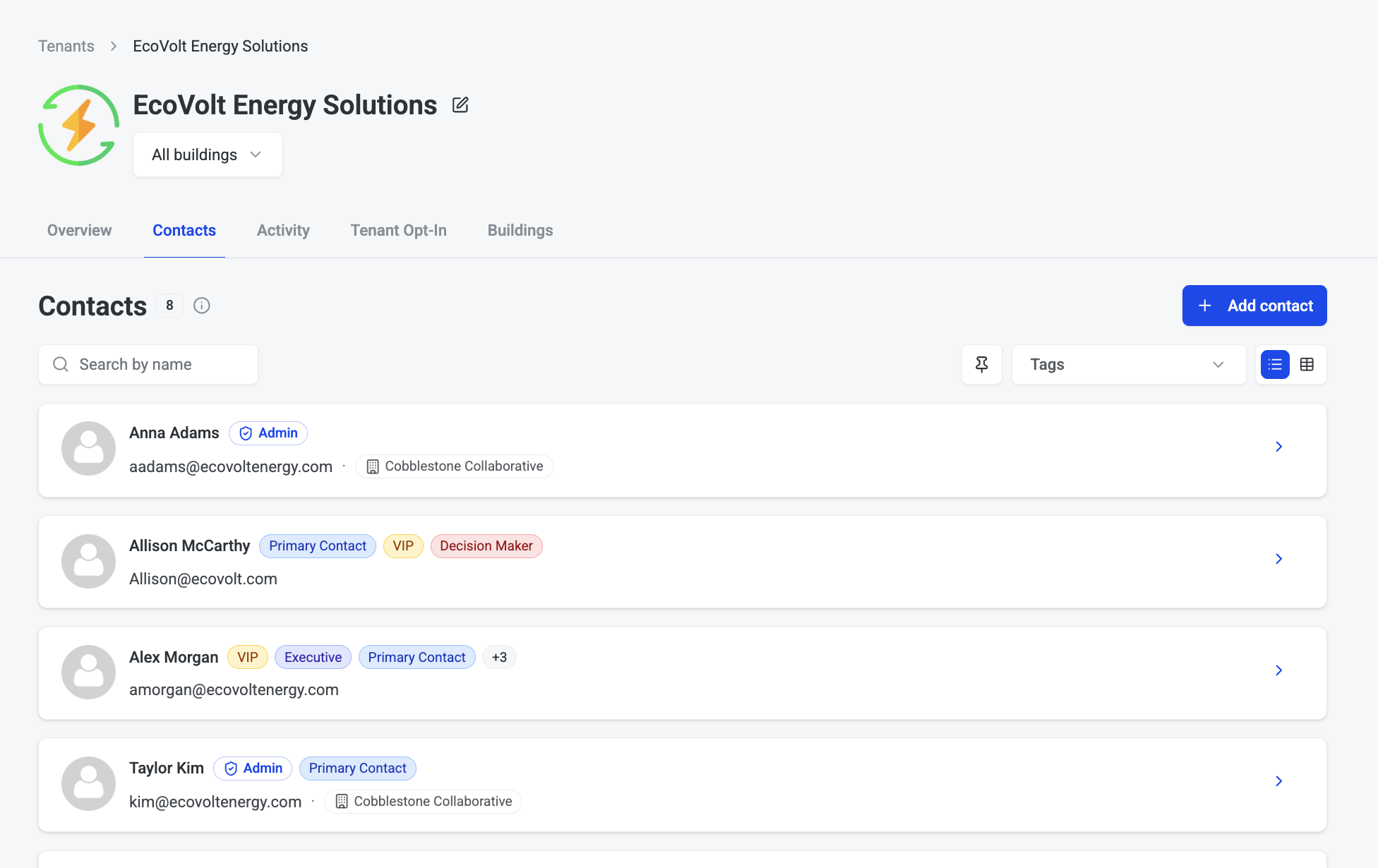
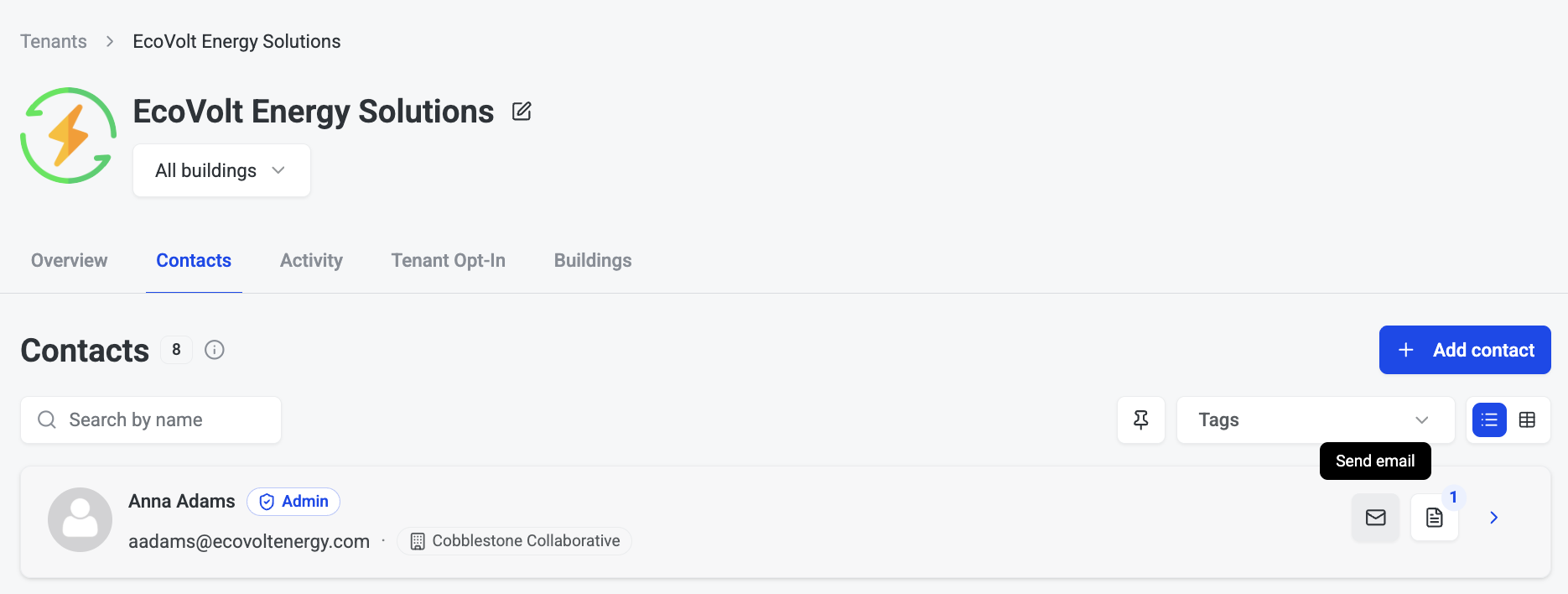
Each tenant has a Contacts tab that surfaces the key people associated with that tenant — tenant admins and anyone tagged on the Users page (VIP, Decision Maker, Emergency Contact, etc.).
Adding a contact
Click + Add contact from the Contacts card to open a search popover. Type a name or email to find existing users at the tenant's company, or enter an email address to invite someone new. When adding a contact, you can optionally designate them as a tenant admin.
Invited users who haven't yet accepted appear as pending rows in the list.
Reason chips
Each contact row displays a chip showing why they appear — their role (e.g. Tenant Admin) or any tags assigned to them on the Users page. This makes it easy to see at a glance who your key contacts are and why.
Browsing all users
Use the Browse all users link on the Contacts card to open the Users page pre-filtered to that tenant's company.
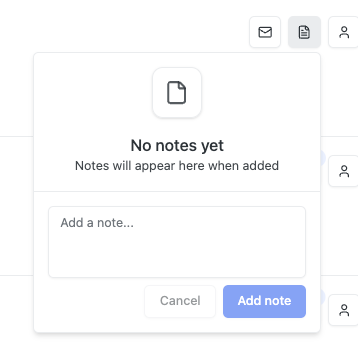
2A. Notes
Notes are the way that property and asset teams can keep track of critical information and interactions, and it be seen across their entire portfolio user teams. Things like “this person likes to be called Michael not Mike” or “this person likes their coffee black” might be helpful, experience based information that can be entered into notes.
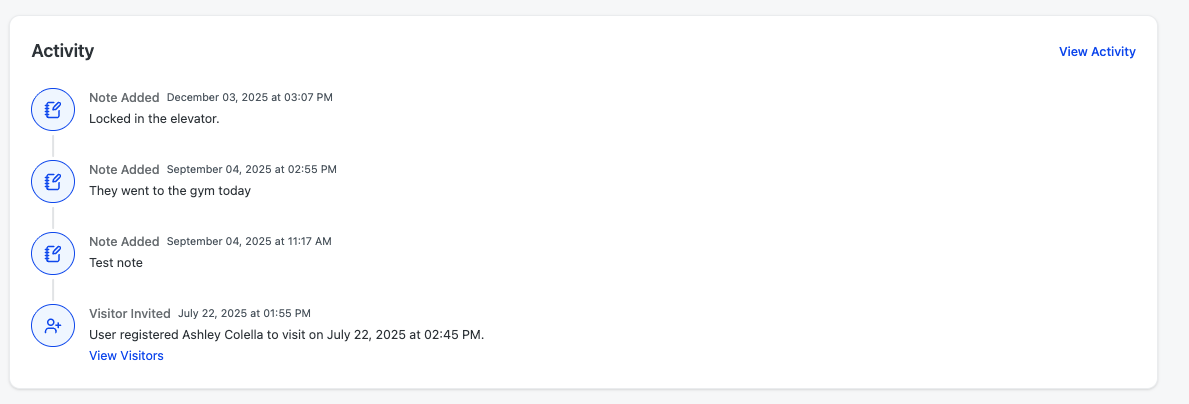
3. Activity Card
A timeline of all HqO-tracked activity for this tenant's users:
-
Badge-ins and access events
-
Resource bookings
-
Event RSVPs
-
Service requests
-
Any interaction captured by the HqO platform
This activity log helps you understand tenant engagement levels and identify opportunities to enhance their experience.
4. Buildings Card
Shows which building(s) in your portfolio the tenant occupies:
-
Building names and addresses
-
Quick navigation to building-specific views
-
Particularly important for tenants with multi-building presence
Inline Editing: All four cards feature the pencil icon—click to edit information in real-time without leaving the page.
Secondary Navigation Tabs
Beyond the Overview tab, four additional tabs provide deeper functionality:
Contacts Tab
An expanded view of all contacts associated with this tenant. This detailed view allows you to:
-
See the complete list of tenant users
-
Apply tags to organize and categorize contacts (see Tagging documentation)
-
Filter contacts by tags to quickly find specific people
-
Manage contact information
Activity Tab
A detailed timeline view of all tenant activity captured by HqO:
-
More comprehensive than the Activity card on Overview
-
Filter by activity type or date range
-
Export activity data for reporting
App Configurations Tab
Platform-specific settings and configurations for this tenant (details available in separate documentation).
Buildings Tab
An expanded view of all buildings where this tenant has presence:
-
Building-specific details
-
Square footage per location
-
Lease information by building
-
Quick navigation to building management
How to Use the Tenant Detail Page
Accessing the Tenant Detail Page
-
Navigate to Tenant in the left-hand navigation to open the Tenant List View
-
Click any tenant name in the table
-
The Tenant Detail Page opens, displaying the Overview tab by default
Using the Building Filter
To View Portfolio-Wide Data:
-
Ensure the building filter is set to All Buildings (default)
-
All cards display aggregated data across all properties where the tenant is located
To View Building-Specific Data:
-
Click the Building Filter dropdown
-
Select one or more specific buildings
-
All cards update to show data only for the selected building(s)
-
This is especially useful for tenants occupying multiple properties
Editing Tenant Information
Using Inline Editing:
-
Locate the card containing the information you want to update
-
Click the pencil icon in the top right corner of the card
-
Edit fields directly on the card
-
The card updates immediately—no page refresh required
Best Practice: Inline editing makes it fast to update information as you learn it, helping you maintain accurate, current tenant data without workflow interruption.
Viewing and Managing Contacts
From the Contacts Card (Overview Tab):
-
View a summary of key contacts for this tenant
-
Click any contact name to open their individual detail page
-
See tags applied to contacts (VIP, Executive, Primary Contact, etc.)
From the Contacts Tab (Secondary Navigation):
-
Click Contacts in the secondary navigation
-
View the complete list of all users associated with this tenant
-
Use filters to find specific contacts
-
Apply and manage tags (see Contact Tagging documentation)
Monitoring Tenant Activity
From the Activity Card (Overview Tab):
-
See recent activity at a glance
-
Quickly assess tenant engagement levels
From the Activity Tab (Secondary Navigation):
-
Click Activity in the secondary navigation
-
View comprehensive activity timeline
-
Filter by activity type or date range
-
Export activity data for reporting purposes
Managing Multi-Building Tenants
For Tenants in Multiple Buildings:
-
Use the Building Filter to toggle between portfolio and building views
-
Navigate to the Buildings Tab for detailed breakdown by location
-
Update building-specific information using inline editing
-
Track square footage, rent, and lease terms per building
Navigation Tips
-
Quick Return to List View: Click Tenant in the left-hand navigation to return to the Tenant List View
-
Jump Between Tenants: Use browser back/forward buttons or return to List View to select another tenant
-
Tab Navigation: Use secondary nav tabs to access detailed views without losing your place
-
Building Context: Remember that the building filter affects all data on the page—check your selection when reviewing metrics
Best Practices
-
Keep Contacts Updated - Regularly review and update the Contacts card to ensure your team knows who the important people are at each tenant
-
Use Building Filter Strategically - For multi-building tenants, toggle between "All Buildings" and specific locations to understand both portfolio-wide and site-specific dynamics
-
Monitor Activity Regularly - Check the Activity card to gauge tenant engagement and identify opportunities to enhance their experience
-
Leverage Inline Editing - Update information as you learn it rather than batching edits later—inline editing makes real-time maintenance effortless
-
Tag Contacts Appropriately - Apply meaningful tags to contacts (VIP, Executive, Primary Contact) so your entire team can deliver informed, personalized service