

Overview
The Tenant List View is your portfolio command center—a centralized CRM interface designed to give property managers, asset managers, and real estate professionals complete visibility and control over all tenants across their properties. This updated view transforms tenant management from a simple reference list into an actionable intelligence hub with real-time portfolio metrics, comprehensive tenant data, and inline management capabilities.
Key Benefits
-
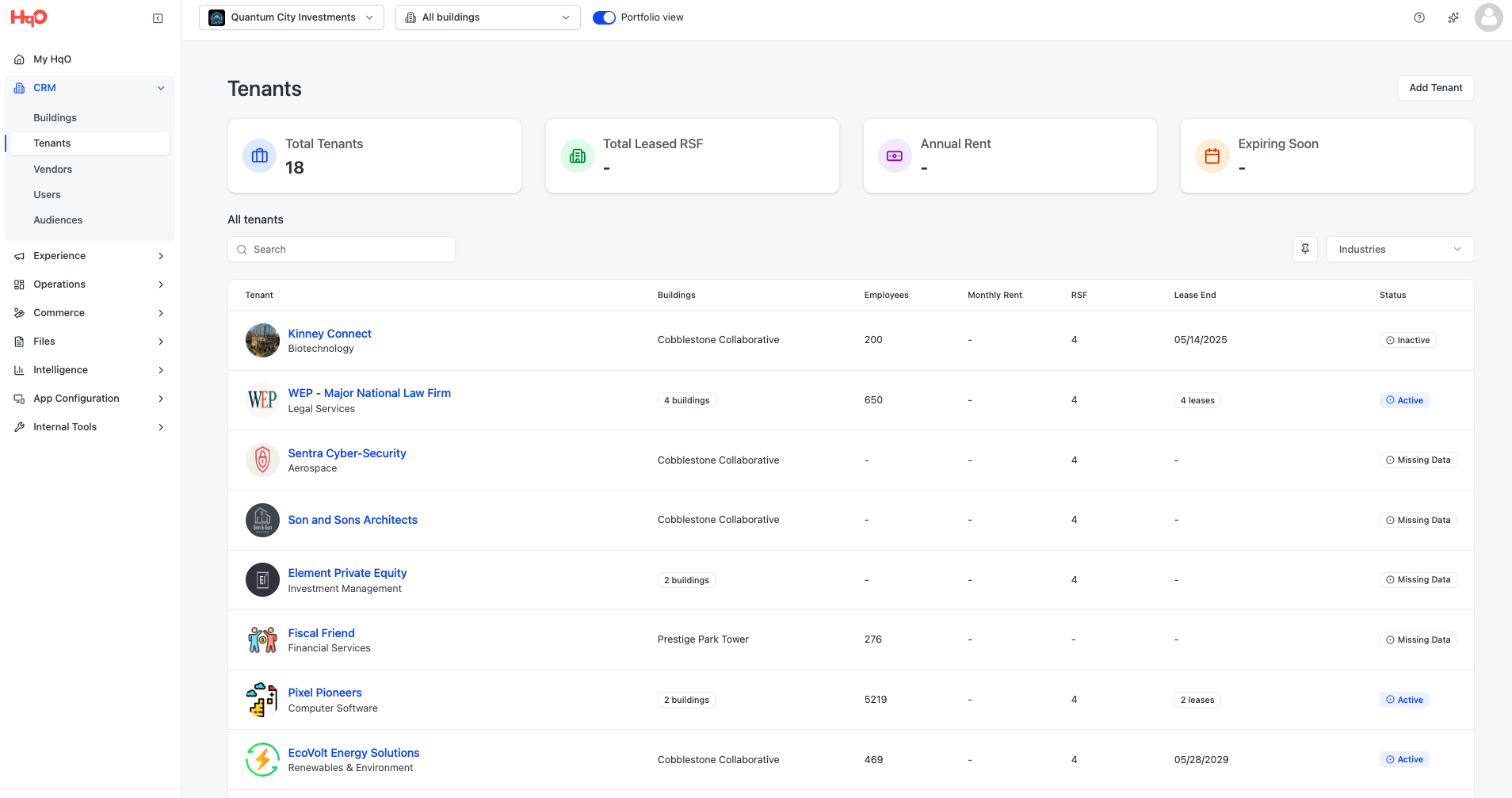
Portfolio Intelligence at a Glance - Dashboard cards provide instant visibility into Total Tenants, Total Leased Square Feet, Annual Rent, and Leases Expiring Soon
-
Comprehensive Tenant Data - Track critical relationship details including industry, buildings, employee count, monthly rent, square footage, lease end dates, and tenant status
-
Streamlined Workflow - Search, filter, and manage tenants without navigating multiple systems—everything lives in one place
-
True CRM Foundation - Maintain detailed tenant records that power informed decision-making and exceptional service delivery across your entire team
Key Features
Portfolio Dashboard Cards
Four metric cards at the top of the Tenant List View provide real-time portfolio insights:
-
Total Tenants - Count of all tenant companies across your properties
-
Total Leased Square Feet - Aggregate square footage under lease
-
Annual Rent - Total annual rent across your portfolio
-
Expiring Soon - Number of tenants with leases ending in the near term
These cards help you quickly understand portfolio health and identify areas requiring attention.
Comprehensive Tenant Table
The tenant table displays critical information for portfolio management:
-
Tenant Name - Company name
-
Industry - Business sector/category
-
Building(s) - Property or properties where tenant is located (can span multiple buildings)
-
Total Employees - Number of employees at the tenant
-
Monthly Rent - Rent amount per month
-
Square Footage - Total leased square footage
-
Lease End Date - When the current lease expires
-
Status - Active, Inactive, or Missing Data
Note on Data Completeness: Many existing tenant records may show empty fields or "Missing Data" status initially. This is expected—HqO hasn't historically tracked comprehensive tenant information. With these CRM capabilities now available, property teams can populate and maintain this critical data going forward.
Search & Filters
-
Search by Tenant Name - Quickly locate any tenant company across your portfolio
-
Filter by Industry - View tenants by business sector (additional filters coming soon)
-
Pin Filters - Save your filter selections so they persist when you return to the page
Adding Tenants
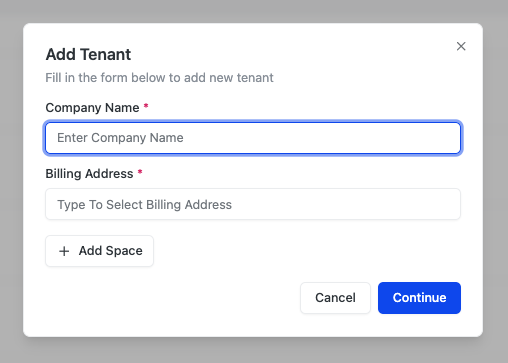
Create new tenant records directly from the Tenant List View:
-
Click "Add Tenant" and search for the company name
-
If the tenant exists in HqO's database, some information is pre-filled automatically
-
Assign the tenant to one or more properties
-
Add relevant details: square footage, monthly rent, lease dates, email domains, and more
-
Save the entry—the new tenant appears in your list immediately
-
If your building is published, new tenants can now sign up for the application
How to Use the Tenant List View
Viewing Tenants
-
Navigate to the Tenant tab in the left-hand navigation
-
The Tenant List View displays with dashboard cards at the top and the tenant table below
-
Tenants are sorted by default; use table headers to re-sort by any column
Using Search & Filters
To Search:
-
Enter a company name in the search bar
-
The table updates in real-time to show matching results
To Filter:
-
Click the Industry filter dropdown
-
Select one or more industries to display
-
Click Apply to update the table
-
Use the Pin icon to save your filter settings for your next visit
To Clear Filters:
-
Click the filter dropdown
-
Select Clear or remove individual selections
-
The table returns to showing all tenants
Adding a New Tenant
-
Click "Add Tenant" in the top right
-
Search for the tenant company name
-
If found in HqO's database, information pre-fills automatically
-
-
Assign the tenant to one or more buildings in your portfolio
-
Complete additional fields:
-
Industry
-
Total Employees
-
Monthly Rent
-
Square Footage
-
Lease End Date
-
Email Domains
-
-
Click Save
-
The new tenant appears in your Tenant List View
-
If your building is published, the tenant can now sign up for your app
Navigating to Tenant Details
Click any tenant name in the table to open the Tenant Detail Page, where you can view and manage comprehensive information about that specific tenant relationship.
Best Practices
-
Populate Data Gradually - Start with critical fields (Lease End Date, Monthly Rent, Square Footage) and build out other details over time
-
Use Industry Filters - Organize your portfolio view by business sector to identify patterns and opportunities
-
Monitor "Expiring Soon" - Check this dashboard card regularly to proactively manage lease renewals
-
Leverage Search for Speed - When managing large portfolios, use search rather than scrolling to quickly locate specific tenants
-
Pin Your Most-Used Filters - Save time by pinning filters you reference frequentlyOverview