

Overview
The Combined Resources feature in HqO Admin allows property teams to manage flexible spaces that can be divided or merged using removable walls or partitions. This is ideal for properties with configurable layouts—such as meeting rooms that can be expanded into larger collaboration spaces or separated for smaller groups.
By combining existing resources, admins can create new “parent” spaces that automatically manage availability, ensuring no double bookings occur across connected rooms.
How It Works
Use this feature when:
-
A space can be reconfigured into different layouts (e.g., movable walls or partitions).
-
You want a single booking option for a larger combined space while maintaining visibility and control of its smaller component spaces.
For example, if your building has a Conference Room and a Collaboration Space that can open into one large meeting area, you can create a Combined Resource representing that larger space.
Creating a Combined Resource
-
In the Resources tab, click the dropdown and select Create Combined Resource.
-
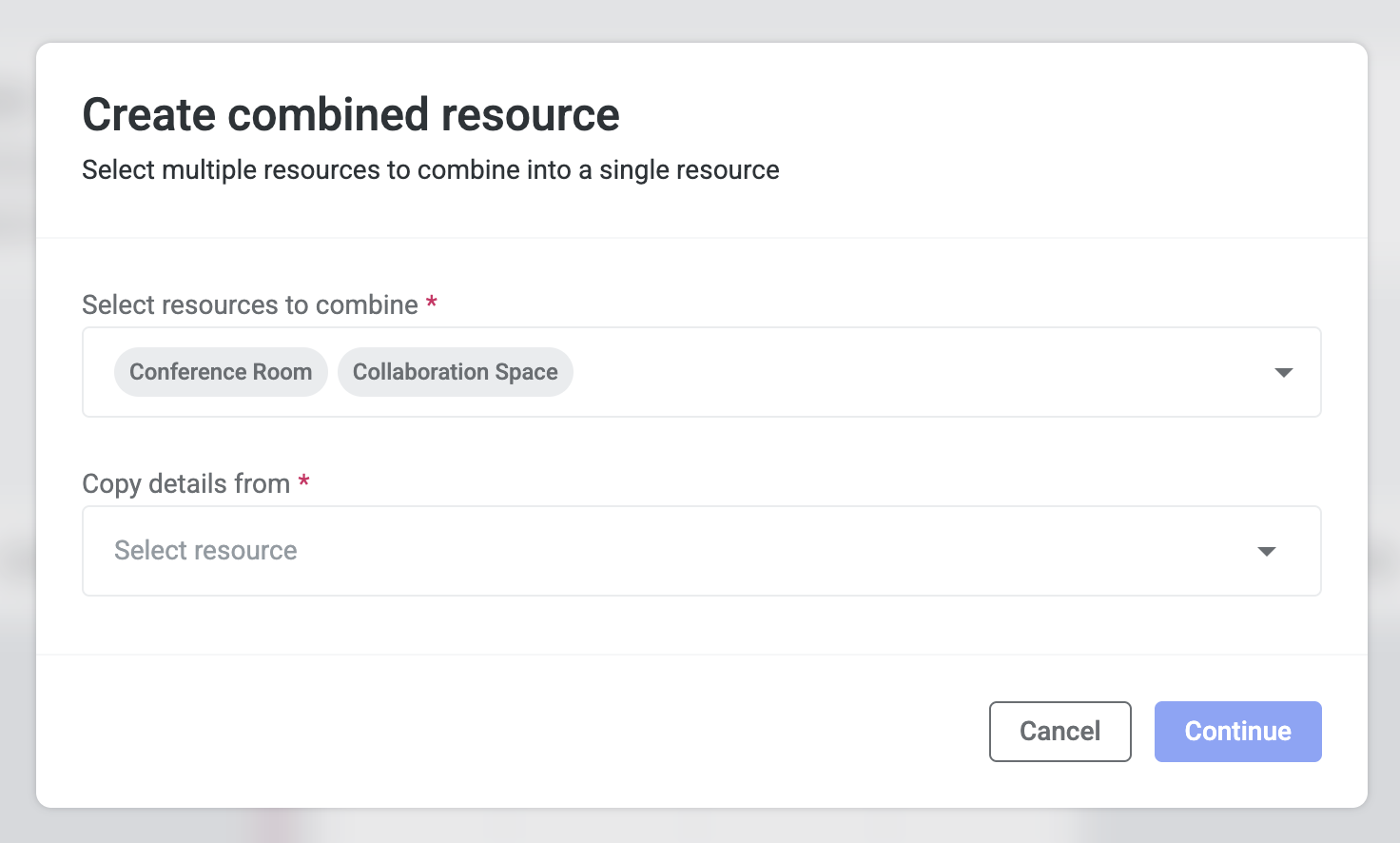
Choose two or more existing spaces you’d like to combine.
-
Tip: It’s best to create all your smallest individual spaces first before creating combinations.
-
-
Select one of the existing resources to copy details from.
-
This will pull over the photo, description, rules, and terms from the selected resource.
-
-
Update any details as needed:
-
Name: Update the title to reflect the combined space (e.g., “Conference and Collaboration Room”).
-
Type: Adjust the type (e.g., “Large Meeting Room”).
-
Capacity: Automatically calculates from the sum of child spaces.
-
Photo: Optional—upload an image that reflects the combined layout.
-
Pricing: If the smaller rooms are paid, you can set a new rate for the combined space (e.g., 1.5x or 2x the base rate).
-
Availability: Optionally modify to match your desired schedule.
-
Once configured, click Create Combined Resource.
Viewing Combined Resources
-
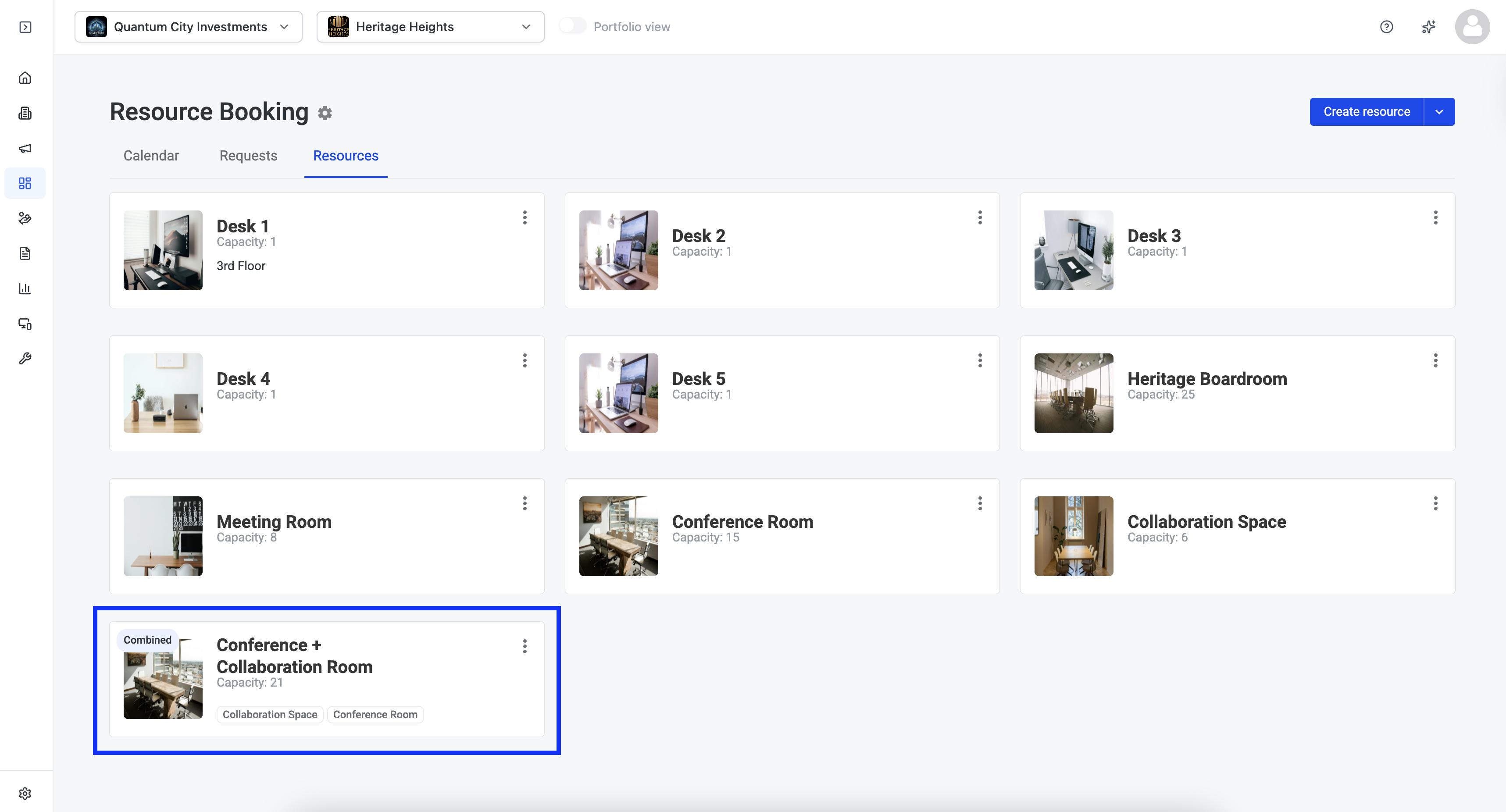
After creation, the combined space will appear in your Resources List alongside individual rooms.
-
The combined space acts as a “parent,” while the original spaces are “children.”
-
In the admin view, you can easily see which child rooms belong to a combined resource.
Booking Flow and Conflict Management
As a Tenant:
-
Tenants will see both individual rooms and combined rooms as individual bookable spaces.
-
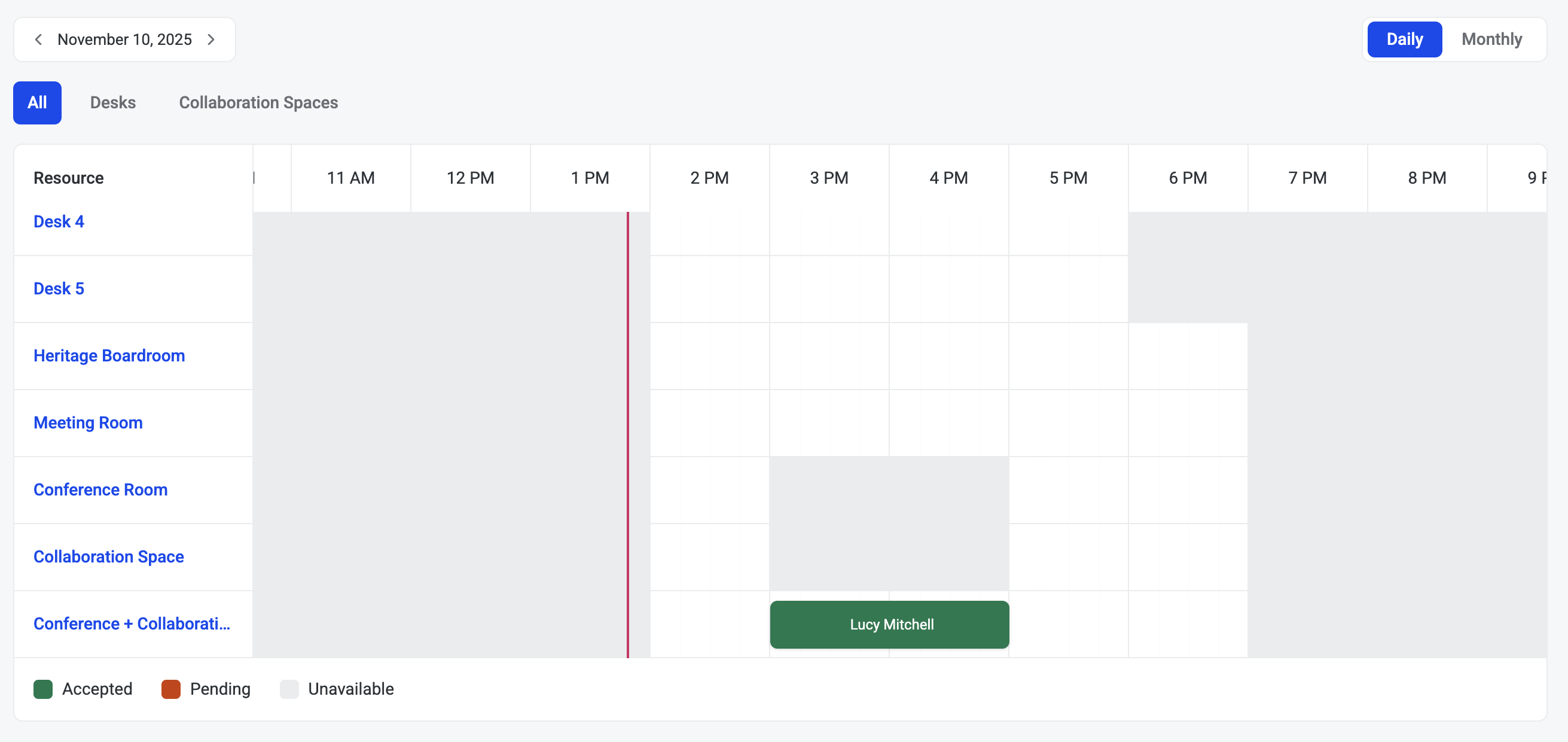
When a tenant books a combined resource, both child rooms are automatically blocked off for that time.
-
This prevents any double-booking conflicts between connected spaces.
As an Admin:
-
Admins can view and manage all combined bookings in the calendar.
-
You can approve, deny, or edit combined bookings just like standard ones.
-
When a combined room is booked, its child spaces will appear as unavailable for the same time period.
Key Benefits
-
Eliminates Double Bookings: Automatically blocks related spaces when a combined room is reserved.
-
Simplifies Space Management: Create flexible configurations without complex manual tracking.
-
Supports Dynamic Pricing: Easily set custom rates for larger, combined areas.
-
Maintains Visibility: Admins can view all linked relationships between parent and child spaces.
Best Practices
-
Always create your smallest room configurations first before combining them.
-
Use clear and descriptive names for combined spaces to avoid confusion (e.g., “Large Boardroom (Combined)”).
-
Review and update photos, rules, and amenities to represent what the combined layout looks like to tenants.