

Overview
Booking notes allow you to capture and share important internal information about a resource booking with your team. These notes help you maintain context and deliver exceptional hospitality experiences by keeping all relevant booking information in one place.
What are Booking notes?
Booking notes are internal comments visible only to admins and team members with resource booking permissions. They are never shown to end users, making them perfect for team coordination and internal communication about bookings.
Common use cases:
-
Recording special requests discussed via email or in person
-
Noting tenant preferences or important context
-
Planning surprise amenities or celebrations
-
Documenting special setup requirements
-
Sharing important reminders with your team
How to Add or Edit a Note
You can add or edit a note on any booking at any point—whether it's a future booking, one that's currently in progress, or even after it's completed.
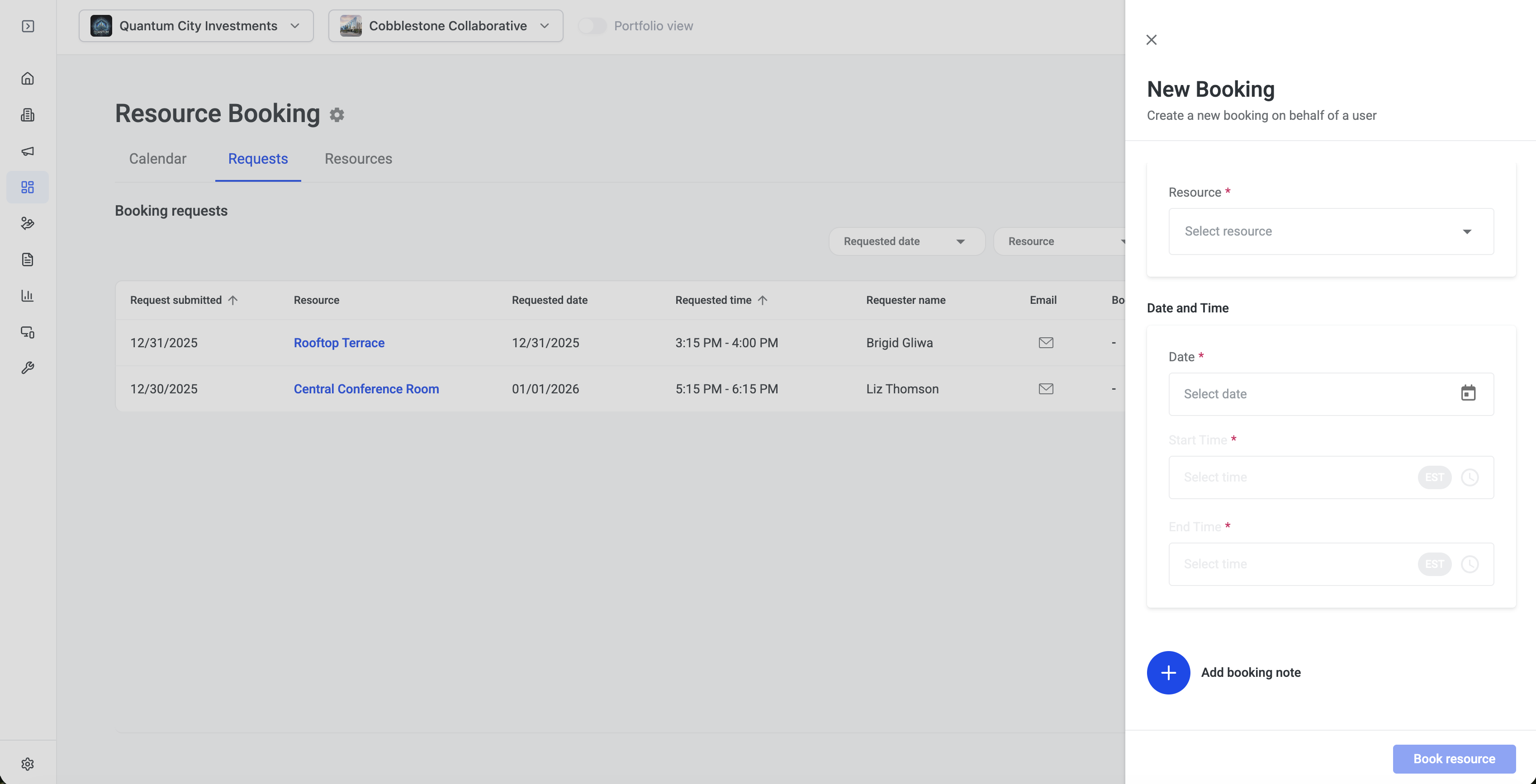
For new bookings:
-
Navigate to the Calendar or Requests tab
-
Click "Book Resource"
-
Fill in the booking details
-
Scroll to the "Booking note" section at the bottom of the form
-
Enter your note
-
Complete and save the booking
For existing or past bookings:
-
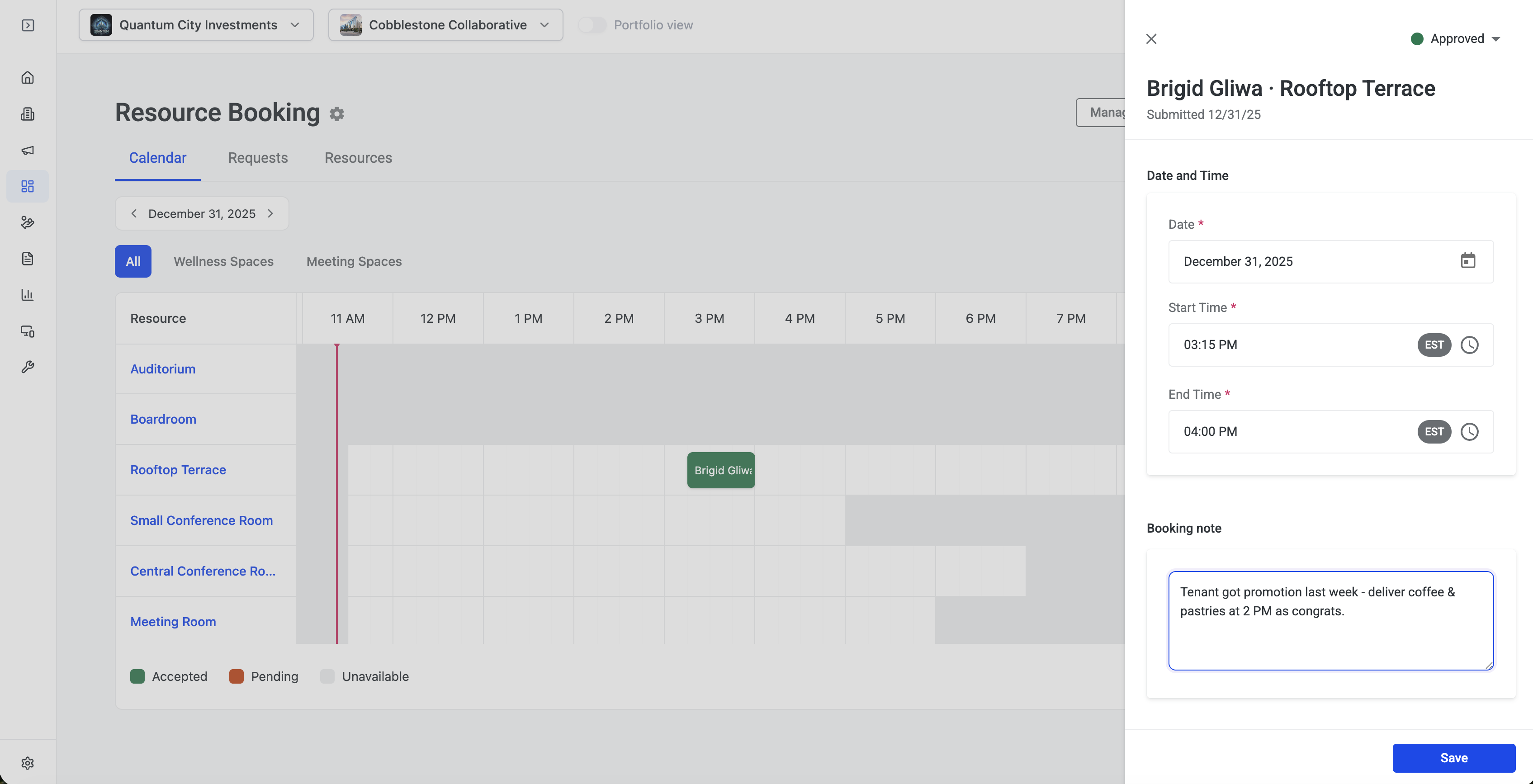
Navigate to the Calendar view
-
Click on the booking you want to add a note to
-
The booking details drawer will open
-
Scroll to the bottom to find the "Booking note" section
-
Click "Add note" to create one, or directly edit the note if one already exists
-
Enter or update your information
-
Click "Save"
Example
A tenant mentions in passing that they just got a promotion. You can add a note to their conference room booking: "Tenant got promotion last week - deliver coffee & pastries at 2 PM as congrats." Later, another team member can edit the note to add: "Delivered at 2 PM - tenant was thrilled!" This keeps your team aligned and informed.
Important Things to Know
-
One note per booking: Each booking has a single note field that can be updated at any time
-
Edit anytime: Notes can be added or edited before, during, or after a booking
-
Team visibility: Any admin or user with resource booking permissions can view and edit the note
-
Internal only: Notes are never visible to end users who made the booking
-
Shared editing: All team members with permissions can update the same note, so the most recent information is always available