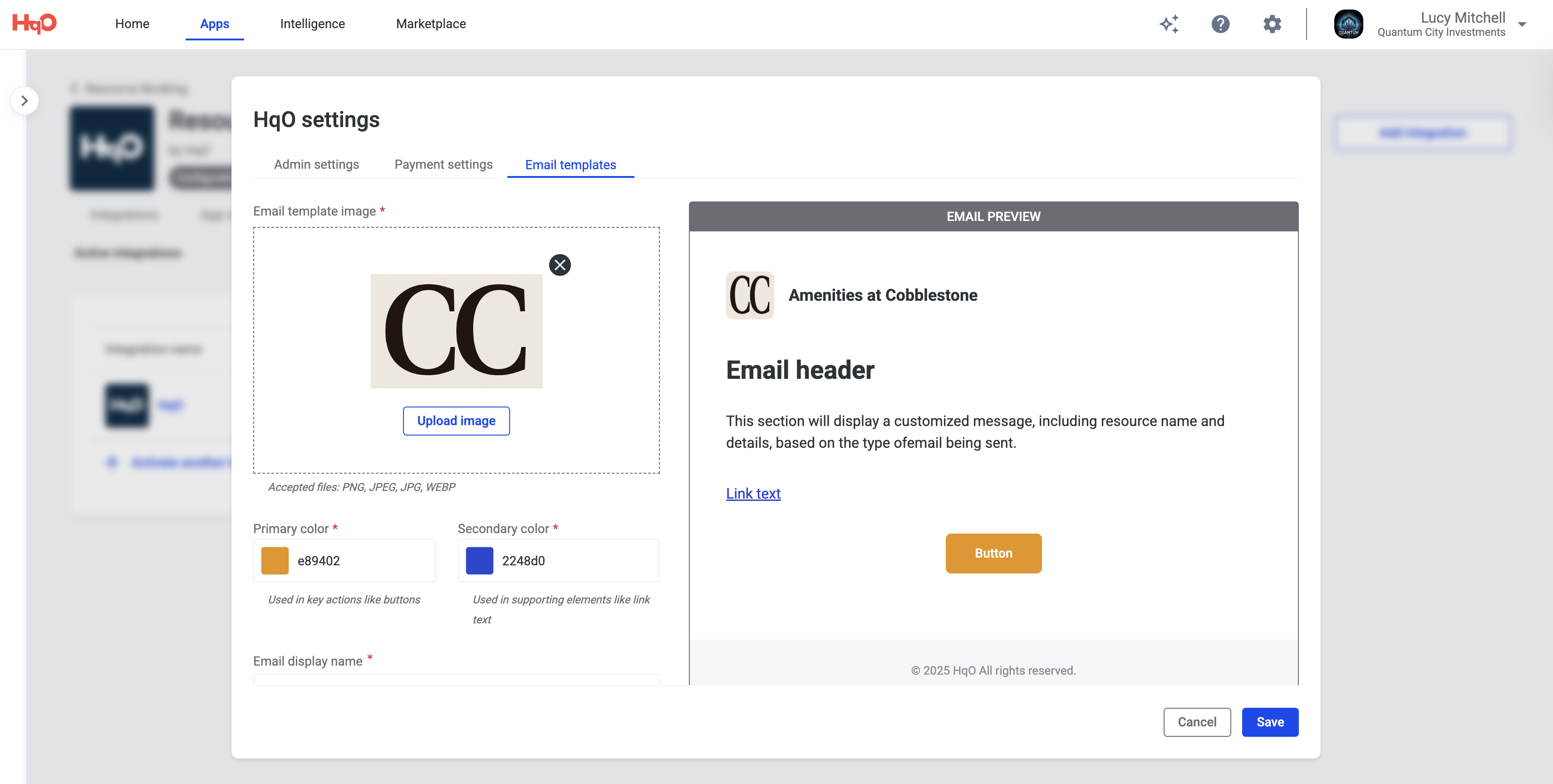
HqO automatically sends notifications for resource bookings — via email and, for select real-time events, push notifications to the HqO mobile app — including confirmations, requests, reminders, updates, and cancellations. Customize the branding of email notifications with your logo and colors, ensuring a consistent, professional tenant experience that reinforces your property’s identity at every touchpoint.
Automated Notifications:
HqO Resource Booking will send you and your tenants automated notifications — by email, and by push for select events — at various stages of the booking process. The table below lists each notification, its recipient, and whether a push notification is also sent in addition to email. The Email Content column reflects the full email template; push notifications are shorter, showing an abbreviated title and message rather than the full content listed.
|
Notification |
Event |
Recipient |
Push? |
Email Content |
|---|---|---|---|---|
|
Booking Auto-Confirmed |
Resource with automatic confirmation is booked |
Tenant |
No |
Booking date, time, & amenities Resource name, description, & address Payment details if paid Copy of T&C |
|
Booking Request Approved |
Admin approves a pending booking request |
Tenant |
Yes |
Booking date, time, & amenities Resource name, description, & address Payment details if paid Copy of T&C |
|
Booking Requested |
Tenant requests a booking |
Admin |
No |
Booking date & time Resource name, description, & address |
|
Booking Requested |
Tenant requests a booking |
Tenant |
No |
Booking request notification Confirmation of T&C acceptance |
|
Booking Denied |
Admin denies a pending booking request |
Tenant |
Yes |
Resource name Booking requested date Admin email to contact with questions |
|
Booking Cancelled |
Tenant cancels their booking |
Tenant |
No |
Booking date & time Resource name, description, & address |
|
Booking Cancelled |
Tenant cancels their booking |
Admin |
No |
Tenant name Booking date & time Resource name, description, & address |
|
Booking Cancelled by Admin |
Admin cancels a tenant’s booking |
Tenant |
Yes |
Booking date & time Resource name, description, & address |
|
Booking Date/Time Changed |
Admin changes the date or time of a booking |
Tenant |
Yes |
Updated booking date & time Resource name |
|
Booking Date/Time Changed |
Tenant changes the date or time of their booking |
Admin |
Yes |
Updated booking date & time Resource name Tenant name |
|
Check-In Notification |
Resource requires check-in (pre- and post-start reminders) |
Tenant |
Yes |
Check-in button Booking date & time Resource name, description, & address |
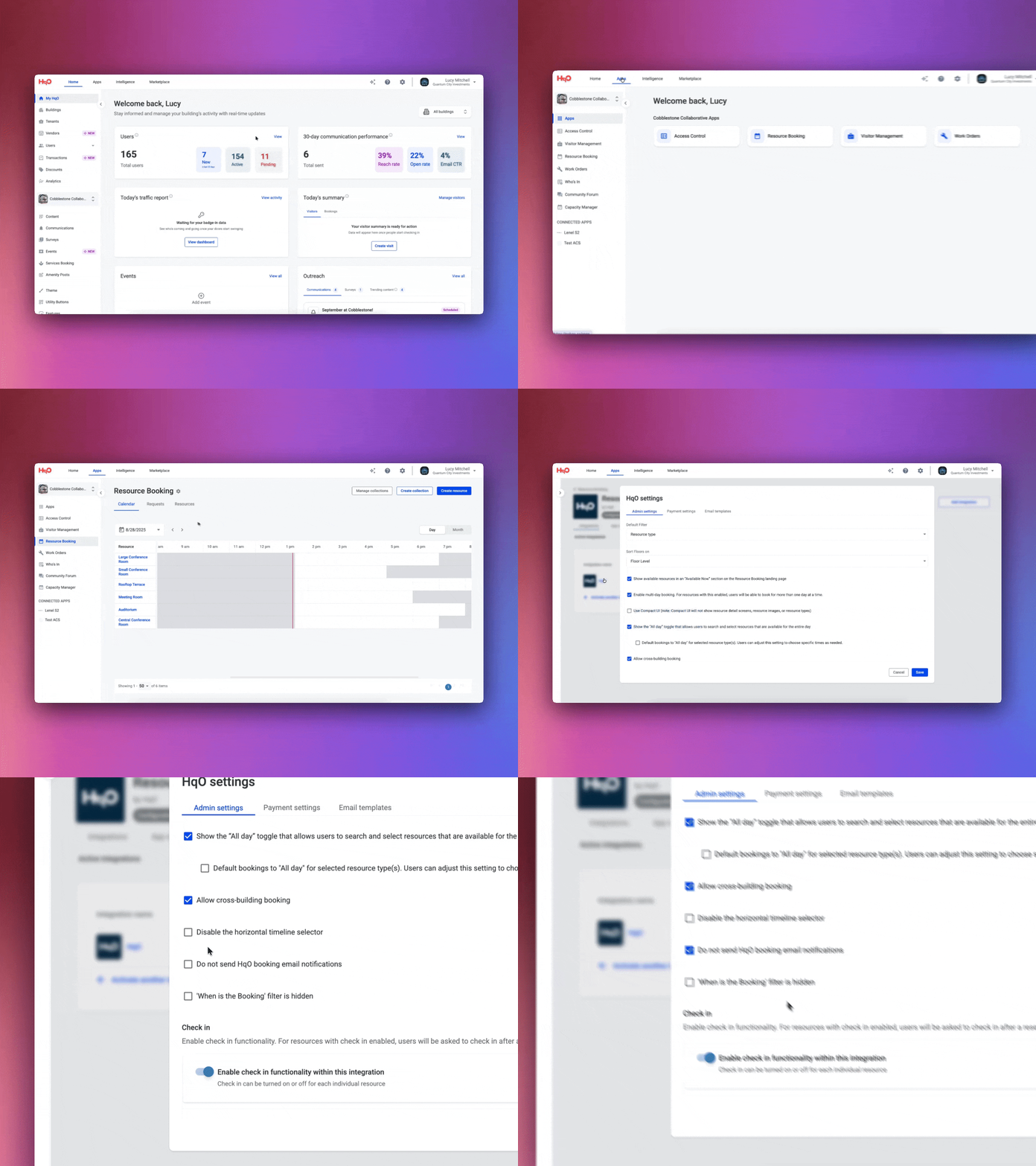
To turn off automated email notifications, take the following steps:
-
Go to the resource booking home page
-
Select the settings gear icon
-
Open the HqO integration
-
Check “do not send HqO booking email notifications”
-
Click “Save”
Email Branding:
Branding your resource booking emails ensures a seamless and professional tenant experience. Instead of receiving generic notifications, tenants see your property’s name, logo, and colors — reinforcing trust, consistency, and brand recognition at every touchpoint. This small detail helps elevate your building’s identity and creates a more polished, tenant-focused experience.
How to Customize Branding
-
Go to Admin Settings
-
From the HqO Admin resource booking dashboard, navigate to Settings.
-
-
Open the Branding Section
-
Under HqO integration settings, select Email Templates.
-
-
Upload Your Logo
-
Click Upload Logo and select a high-resolution version of your property or company logo.
-
Preview to ensure it displays correctly.
-
-
Set Brand Colors
-
Choose your primary and secondary colors.
-
These will appear in the header, buttons, and highlights of the email.
-
-
Set Your Send-From & Reply-To
-
If you have a domain saved on the platform, set your send-from using your domain.
-
Set the reply-to address where tenants can send their responses. This can be anything and doesn’t require you to have a domain saved.
-
-
Save Your Changes
-
Click Save to apply updates.
-
All future resource booking confirmations, reminders, and cancellations will automatically reflect your branding.
-