

Administrator Capabilities
View Bookings in the Calendar
Your team will have access to view bookings by month or by resource for a day.
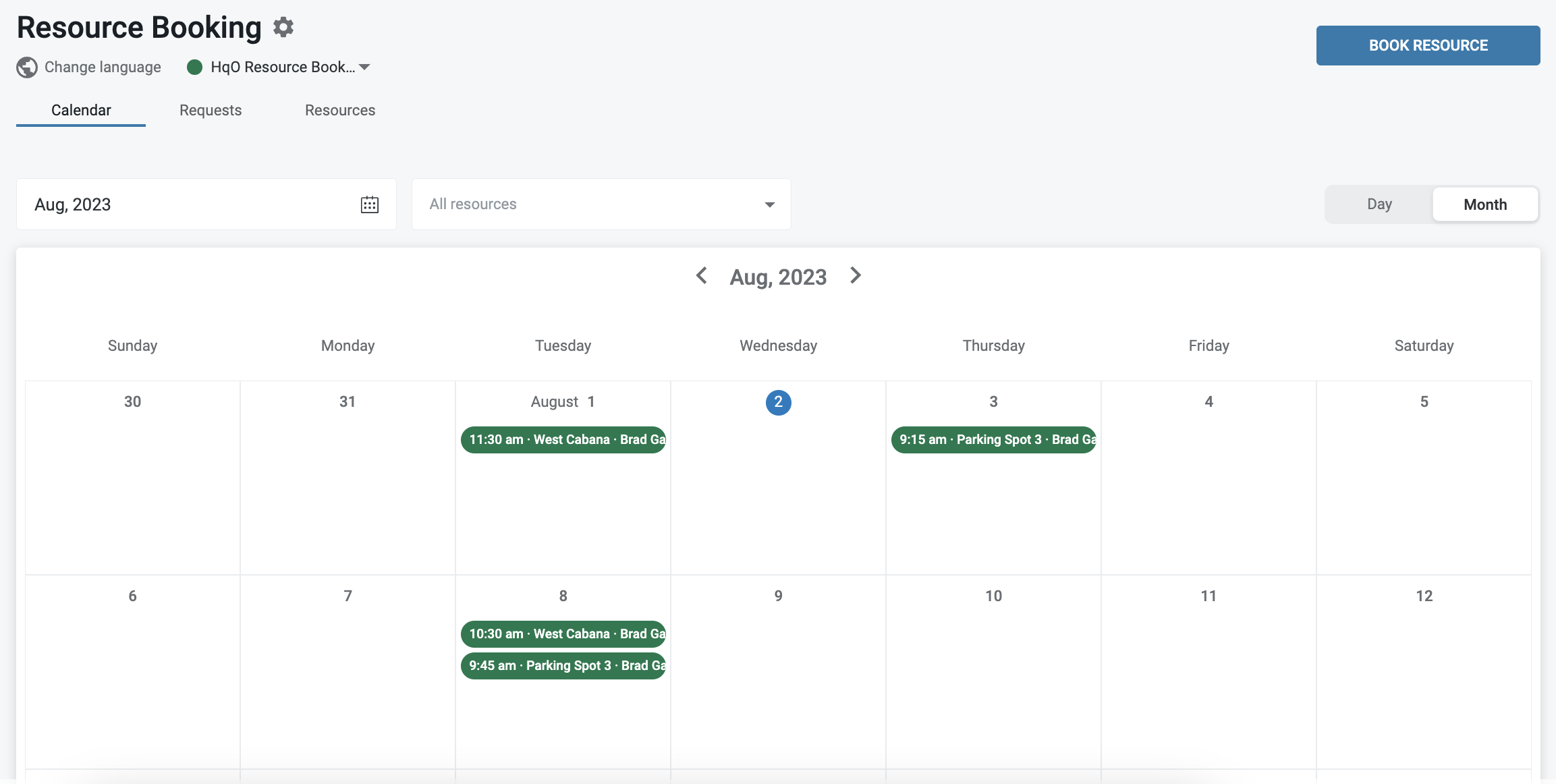
From the calendar view you will be able to:
-
See bookings by resource
-
View booking details
-
Create new bookings on behalf of a user
-
Edit booking date, start time, and duration
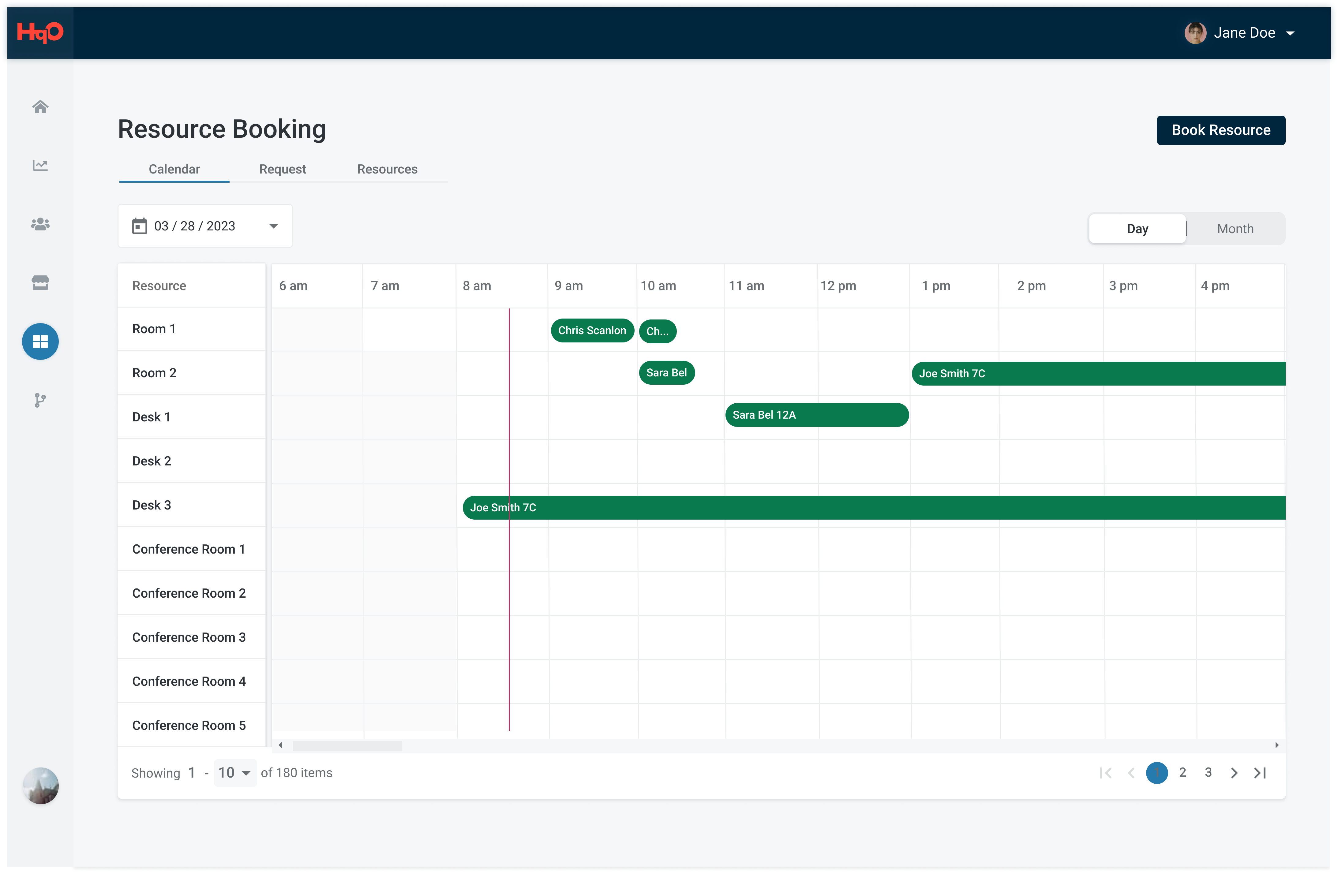
From the day view you will be able to:
-
See bookings by resource
-
See duration of bookings
-
View booking details
-
Create new bookings on behalf of a user by clicking in the table
-
Drag within the table to select the start and end time of the booking
-
Edit booking date, start time, and duration
Creating a Booking
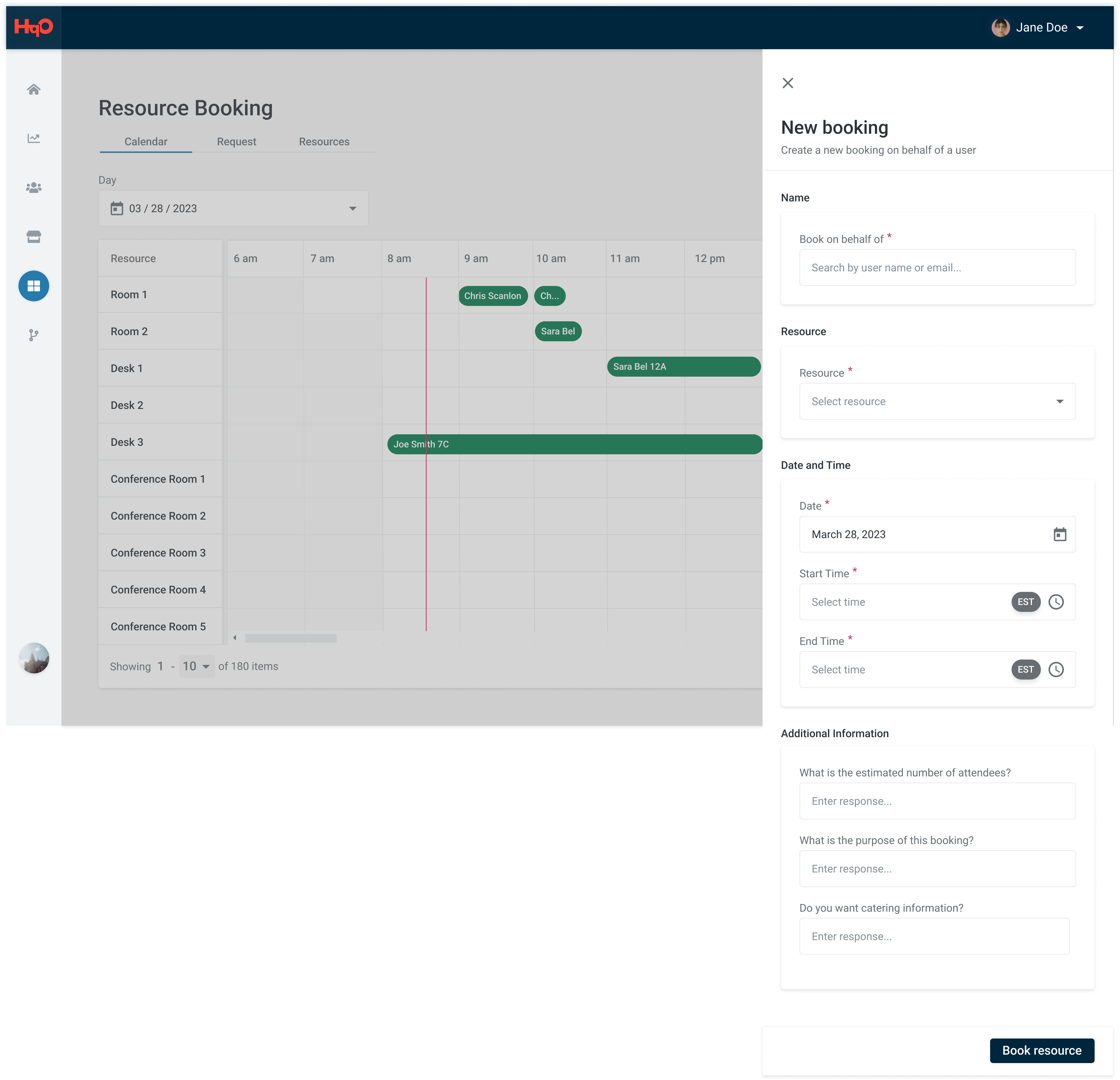
The Booking Flyout can be launched in 2 ways:
-
By clicking in the table on the Day view, which will open the flyout with the Resource, Start time and End time populated
-
Clicking the “Book resource” button located on both the Calendar and Day views and requires the Admin to fill in all fields.
When booking on behalf of a tenant, you can choose from the following payment methods (availability depends on the user’s and building’s configuration):
-
Credits: Deduct from the user’s assigned credit balance
-
Invoice: Bill the tenant for payment later
-
Waive payment: Comp the booking at no charge (e.g., for VIP guests or service recovery)
Payment options display based on the selected user’s configuration:
-
Credits shows "Not available": The user was not assigned credits, or the resource doesn’t have a credit price configured
-
Credits shows "Not enough credits": The user has credits but the balance is insufficient for this booking (available balance is displayed)
-
Invoice shows "Not available": Invoice payments are not enabled for this tenant
-
Waive payment: Always available as an option
Only user with the Manager role can edit existing bookings
View Booking Requests
Your team will have access to view and export booking requests from HqO Admin. For each request, you will see details such as:
-
Request submission date
-
Resource Name
-
Requested Date and Time
-
Requestor
-
Additional booking information
-
Booking Status
-
Total Price
On this page, your team will be able to update the status of a submitted booking if required.
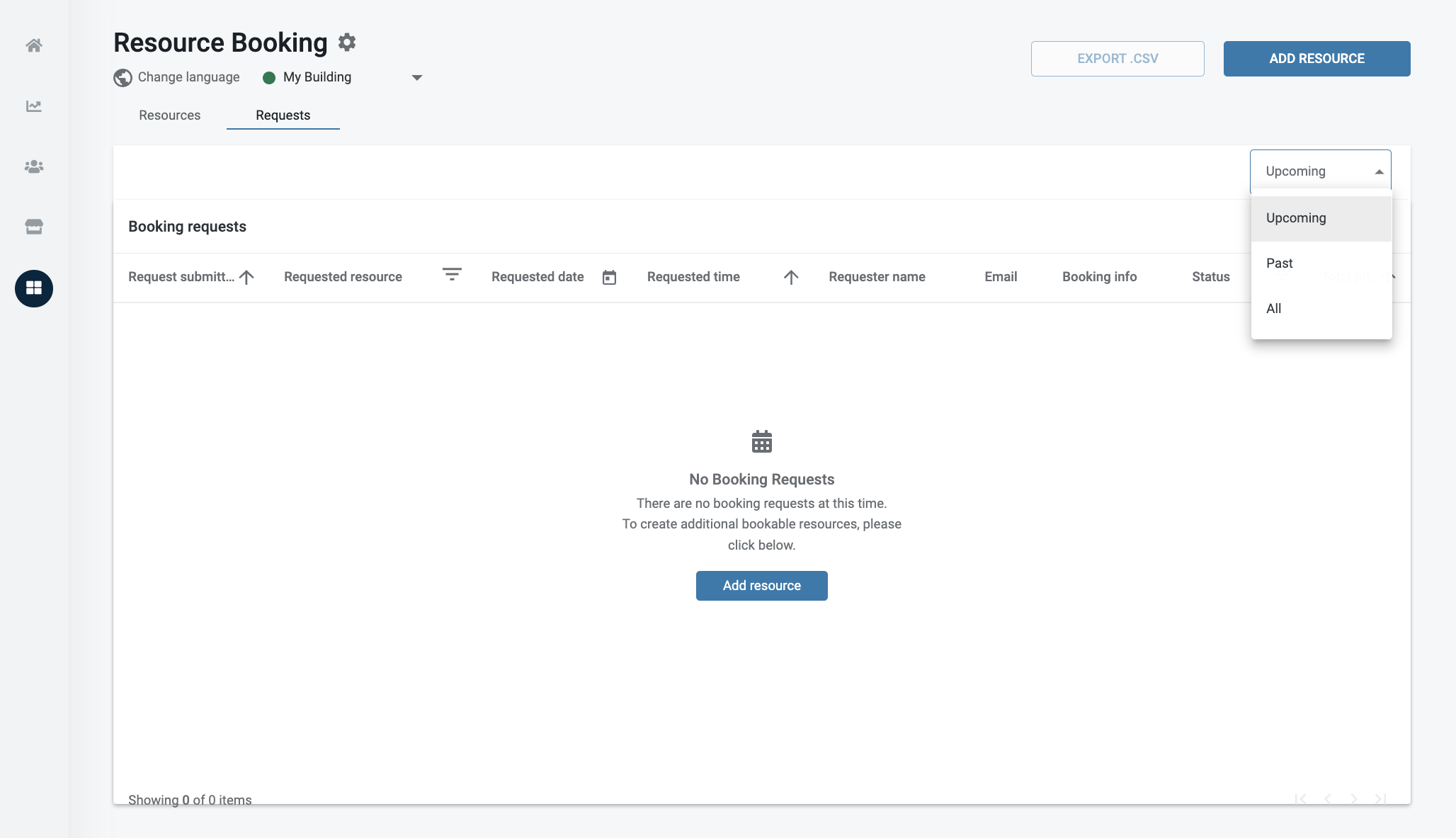
Managing Request Status
If you do not have HqO Native Resource Booking included in your HqO Contract, or you are interested in learning more about the offering, please reach out to your HqO Customer Success Manager to learn more.
Currently, the HqO Native Resource Booking feature is available globally.
View Resources
The Resource tab gives you access to manage existing resources and create new ones.
For more on how to create a resource see Configuring Resource Booking | Add Resources