Recurring Visits
Schedule a visitor to repeat on a daily, weekly, monthly, or custom cadence — without re-creating the visit each time.
Setting Up a Recurring Visit
When creating a visit, use the Repeat field to configure a recurring schedule. The following options are available:
|
Option |
Description |
|---|---|
|
Does not repeat |
A one-time visit (default) |
|
Daily |
Repeats every day |
|
Weekly on [day] |
Repeats weekly on the same day as the first visit |
|
Monthly on [date] |
Repeats monthly on the same day as the first visit (e.g. the 15th of every month) |
|
Monthly on [day of the month] |
Repeats monthly on the same day of month (e.g. the third Thursday of each month) |
|
Every weekday (Monday to Friday) |
Repeats on all weekdays |
|
Custom |
Select specific days of the week |
If you select Custom, you will be prompted to choose one or more days of the week and set a Repeat until date — the last date the recurring visit will occur.
Repeat duration limits
By default, recurring visits can be scheduled up to one year in advance. Depending on your property's furthest future invite date setting, this limit may be customized to any duration under one year.
The maximum end date shown in the Repeat until field reflects your property's configured limit. Setting your furthest future invite setting can be configured under general settings in visitor management.
How Visitor Invites Work
Visitors do not receive all their invite emails at once when a recurring visit is created. Instead, each invite is sent on the day of the individual visit. This keeps communication timely and reduces inbox clutter for your visitors.
Viewing Recurring Visits in Admin
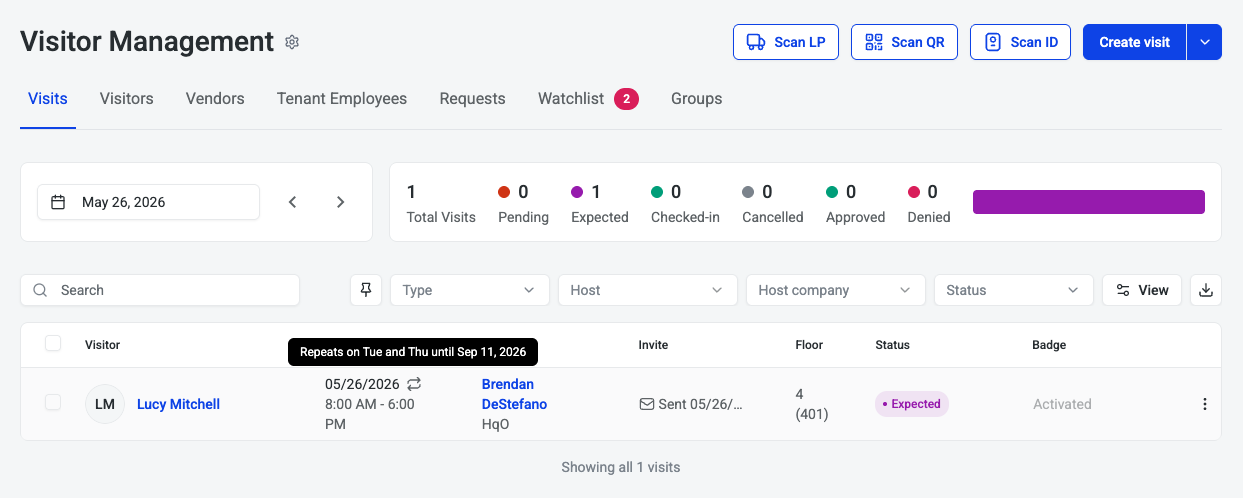
Recurring visits appear in the Visits tab with a repeat icon next to the visit date. Hovering over the icon displays the full recurrence schedule, including the days it repeats and the expiration date of the series.
Each instance of a recurring visit appears on its respective date in the calendar view — use the date navigation arrows to browse upcoming occurrences.
Editing a Recurring Visit
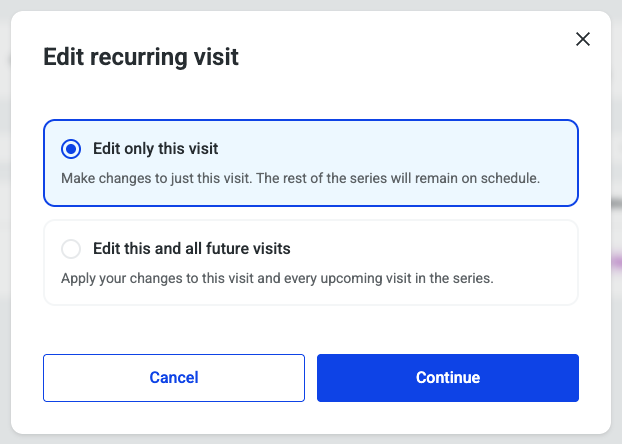
When editing a visit that is part of a recurring series, you will be prompted to choose the scope of your edit:
-
This visit only — Updates just the selected instance, leaving the rest of the series unchanged.
-
All visits in this series — Updates every occurrence in the series, including future instances.
Use This visit only for one-off changes (such as a time adjustment for a specific date), and All visits in this series for changes that should apply going forward, such as updating the host or visitor details.
Cancelling a Recurring Visit
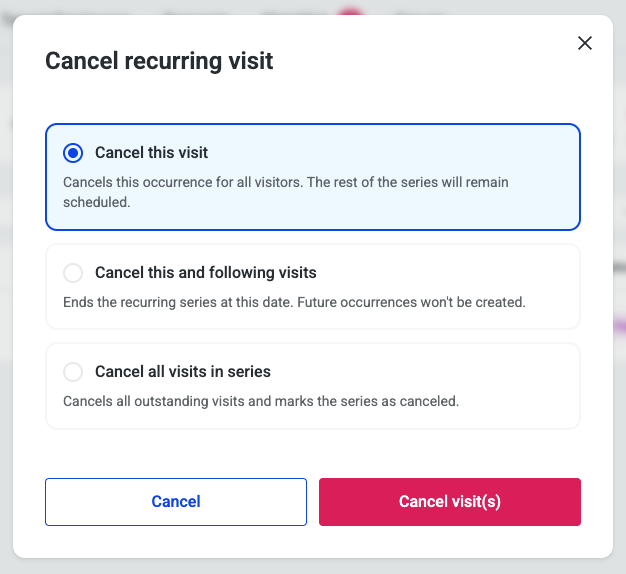
To cancel a visit that is part of a recurring series, select the cancel option on a specific visit. You will be prompted to choose the scope of the cancellation:
|
Option |
Description |
|---|---|
|
Cancel this visit |
Cancels this single occurrence for all visitors. The rest of the series remains scheduled. |
|
Cancel this and following visits |
Ends the recurring series at this date. Future occurrences will not be created. |
|
Cancel all visits in series |
Cancels all outstanding visits and marks the entire series as cancelled. |
Select Cancel visit(s) to confirm, or Cancel to exit without making changes.
Cancelling a single occurrence does not affect the rest of the series. If you need to end the series entirely, use Cancel this and following visits or Cancel all visits in series.