

1. Integration Method & Target Architecture
HqO integrates with Microsoft 365 via the Microsoft Graph API using OAuth 2.0 delegated permissions. The integration enables HqO to read availability and create/manage bookings directly on Outlook calendars mapped to physical resources (e.g., meeting rooms, desks, amenity spaces).
High-Level Workflow
-
A building admin authenticates HqO against their Microsoft 365 tenant via OAuth 2.0.
-
HqO receives an access token scoped to the approved calendar permissions.
-
During resource setup, each physical resource in HqO is mapped to a corresponding Outlook calendar (either a resource mailbox, a personal calendar, or a shared calendar).
-
When a user books a resource in HqO, the platform writes a calendar event to the mapped Outlook calendar via the Graph API.
-
HqO polls or subscribes (via Graph change notifications) to detect external bookings made directly in Outlook, keeping availability in sync bidirectionally.
-
When a booking is made by a user who is not registered in HqO, the platform attempts to identify the correct company by matching the user's email domain against companies associated with the building. If exactly one company matches, the booking is attributed to that company. If multiple companies match the building and domain filter, HqO falls back to a pre-configured default user for that building. Building admins can invite users individually or in bulk via the HqO admin portal (Admin → Users → Invite Users) to ensure accurate attribution and avoid fallback behaviour.
Supported Calendar Types for Mapping
-
Calendars owned by the authenticated admin account
-
Calendars created specifically for a resource (e.g., "Board Room 4A")
-
Calendars shared with the admin by a colleague or IT team
2. Technical Documentation
The following resources describe the integration in detail:
-
HqO Help Center – Resource Booking & Calendar Integration guides (available via the HqO admin portal)
-
Microsoft Graph API – Calendar Reference: https://learn.microsoft.com/en-us/graph/api/resources/calendar
-
Microsoft Graph API – Events Reference: https://learn.microsoft.com/en-us/graph/api/resources/event
-
Microsoft OAuth 2.0 Flow: https://learn.microsoft.com/en-us/azure/active-directory/develop/v2-oauth2-auth-code-flow
For corporate Microsoft 365 tenants, IT or a Microsoft 365 Global/Application Admin must approve the HqO application in the Microsoft 365 Admin Center before the connection can be established.
3. Permissions Required
HqO requests the following Microsoft Graph API delegated permissions:
Read Permissions
|
Permission |
Scope |
Purpose |
|---|---|---|
|
Read user calendars |
|
Check availability on mapped resource calendars |
|
Read user and shared calendars |
|
Access calendars shared with the authenticated user |
Write Permissions
|
Permission |
Scope |
Purpose |
|---|---|---|
|
Read and write user calendars |
|
Create, update, and cancel booking events |
|
Read and write user and shared calendars |
|
Manage events on shared resource calendars |
Note: HqO operates under delegated permissions tied to the authenticating admin account. No application-level (app-only) permissions are used; access is bounded by what the authenticated user can access in their own Microsoft 365 tenant.
4. Security Mechanisms
Authentication
-
OAuth 2.0 with Authorization Code Flow — the admin authenticates directly with Microsoft and grants HqO a scoped access token. HqO never handles the user's Microsoft credentials.
-
Tokens are short-lived; HqO uses refresh tokens to maintain access without requiring re-authentication.
Encryption
-
All API calls between HqO and Microsoft Graph are made over TLS 1.2+.
-
Tokens and credentials are stored encrypted at rest within HqO's infrastructure.
Access Control
-
Access is scoped to the authenticated admin's Microsoft 365 account and only the calendars visible to that account.
-
Calendar mappings are managed within the HqO admin portal; only authorized HqO admins can add, modify, or remove resource mappings.
Audit & Logging
-
HqO logs all calendar read/write operations internally for audit purposes.
-
Microsoft 365 also maintains its own audit log of Graph API activity, accessible to your IT/compliance team via the Microsoft Purview compliance portal.
5. Restricting Integration to Specific Resource Mailboxes Only
HqO's integration can be scoped to specific resources rather than providing blanket access across all calendars. There are two recommended approaches:
Option A — Dedicated Service Account (Recommended)
Create a dedicated Microsoft 365 service account (e.g., hqo-integration@yourcompany.com) and share only the specific resource mailboxes/calendars with that account. Authenticate HqO using this account — the integration will only have access to the calendars explicitly shared with it.
Option B — Admin Account with Limited Shares
Use an existing admin account but share only the intended resource calendars with it. HqO will only interact with calendars that have been explicitly mapped within the HqO admin portal, even if the account technically has access to others.
In both cases, HqO does not automatically enumerate or access all calendars in the tenant — it only reads/writes calendars that have been explicitly mapped by the building admin in the HqO interface.
6. Client-Side Technical Prerequisites
Before connecting HqO to Microsoft 365, ensure the following are in place:
|
Prerequisite |
Details |
|---|---|
|
Microsoft 365 account |
Admin must have an active M365 account (Business, Enterprise, or Education plan with Exchange/Outlook included) |
|
Calendar access |
Admin account must have read/write access to the calendars being mapped to HqO resources |
|
Admin approval (corporate tenants) |
A Microsoft 365 Global Admin or Application Admin must pre-approve the HqO app in the M365 Admin Center if your tenant requires admin consent for third-party apps |
|
Resource calendars created |
Target Outlook calendars for each physical resource should exist before mapping (can be created in Outlook web or desktop: right-click My Calendars → Add calendar) |
|
Network access |
HqO's servers must be able to reach Microsoft Graph API endpoints ( |
Setup Steps
Before You Begin
The person completing this setup must:
-
Have an active HqO account with Building Admin access for the property being configured
-
Have Microsoft 365 access to the Outlook calendars that will be mapped to HqO resources (i.e., be able to read and write those resource mailboxes/shared calendars)
-
Have the resource calendars already created in Outlook before starting
In most corporate tenants, the person with the right Outlook permissions will be someone from IT — not the building manager. We recommend having your IT admin complete steps 2–5 below. If they do not yet have an HqO account, invite them first (Admin → Users → Invite User) and ensure they have Building Admin access for the relevant property.
Important: Only free resources can be synced with Outlook at this time. Paid resources are not yet supported and will appear as "Not supported" in the mapping interface.
Step 1 — Create Resource Calendars in Outlook (if not already done)
-
Sign in to Outlook (web or desktop).
-
In the left sidebar, right-click My Calendars and select Add calendar or New calendar.
-
Name each calendar to match its physical resource (e.g., "Board Room 4A").
-
If your IT admin will be doing the mapping, ensure those calendars are shared with their account.
Step 2 — Connect Microsoft 365 to HqO
-
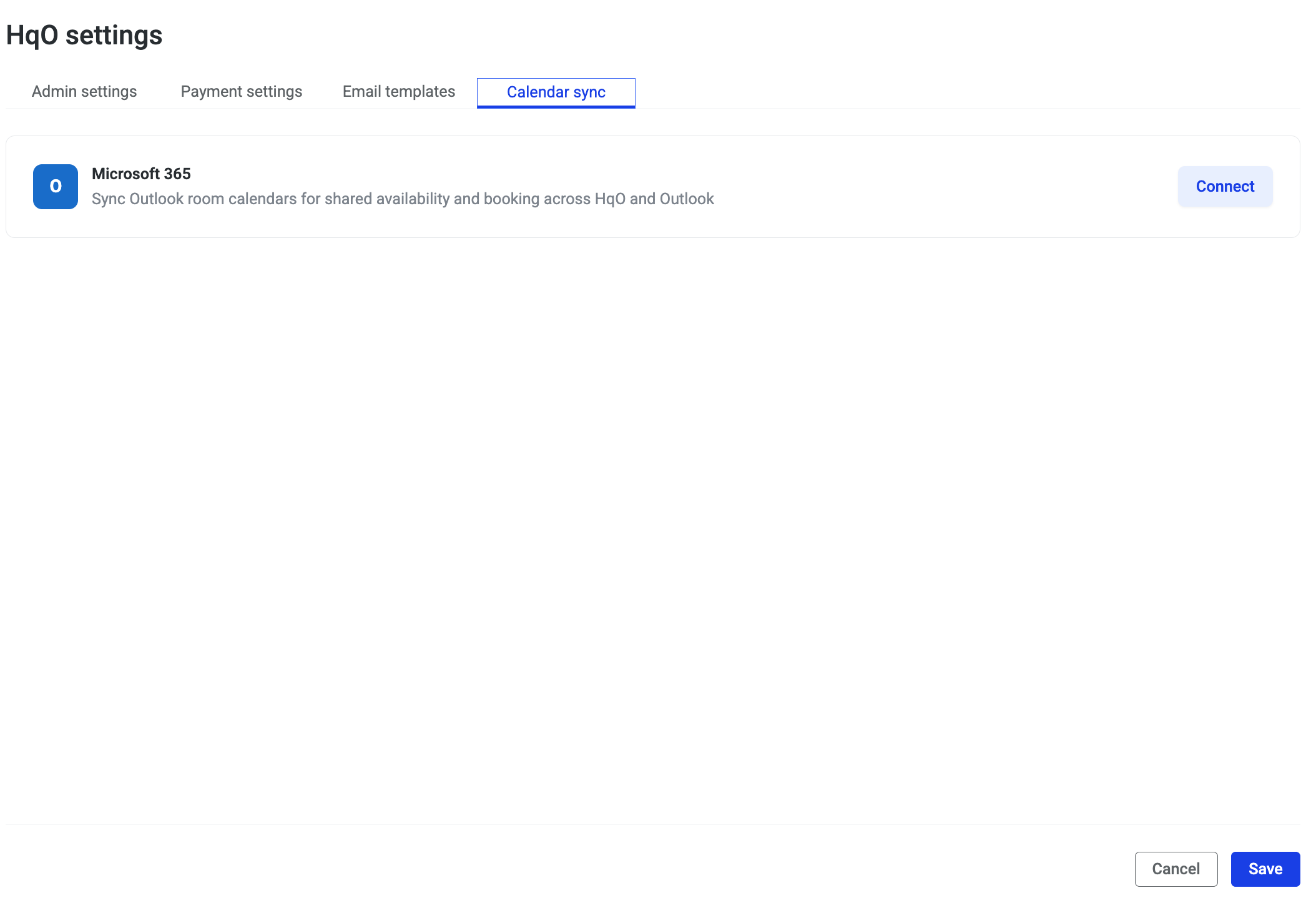
In HqO, go to Settings → Calendar sync.
-
You will see a Microsoft 365 tile with a Connect button.
-
Click Connect and sign in with the Microsoft 365 account that has access to the resource calendars.
-
Approve the requested permissions when prompted.
-
If your organisation requires admin consent, a Microsoft 365 Global Admin must first approve the HqO app in the Microsoft 365 Admin Center under Enterprise Applications → HqO.
-
-
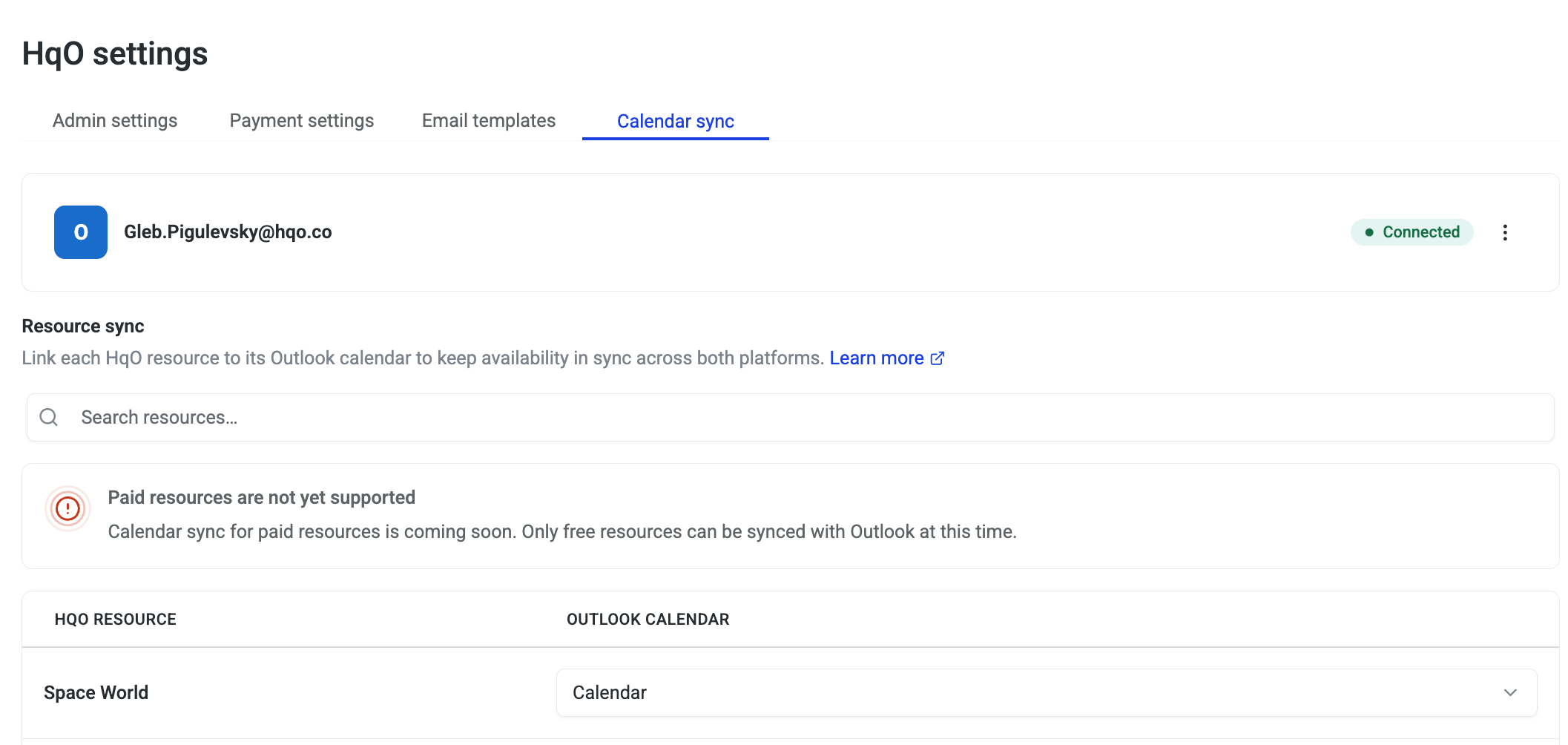
Once connected, the tile will show the connected account email and a Connected status.
Step 3 — Map HqO Resources to Outlook Calendars
-
After connecting, a Resource sync section will appear listing all HqO resources for the building.
-
Next to each resource, use the dropdown to select the corresponding Outlook calendar.
-
Resources showing Not supported are paid resources — calendar sync is not available for these yet.
-
Resources showing Not synced are free resources that have not yet been mapped — select a calendar from the dropdown to link them.
-
-
Click Save when all mappings are complete.
From this point, bookings made in HqO will appear in the linked Outlook calendars, and bookings made directly in Outlook will be reflected in HqO availability.
Step 4 — Validate the Integration
Before going live, confirm the sync is working:
-
Make a test booking in HqO for a mapped resource and verify the event appears in the linked Outlook calendar.
-
Create a test event directly in the Outlook calendar and verify HqO shows that time as unavailable.
-
Cancel one of the test events and confirm it is removed from both systems.
Once validated, the integration is ready. Resources can remain hidden in HqO until you are ready to go live across all buildings.
For questions, contact your HqO Customer Success representative.